Have you ever experienced asking Claude Code to "build a slightly larger tool or app," only to have the design get lost halfway through, forcing you to start over, or felt too anxious to release your finished work because you weren't sure if bugs or security risks remained? The new commands introduced in 2026, "/ultraplan" and "/ultrareview," are new features that allow you to offload this "pre-build design" and "pre-release bug checking" to a swarm of AIs in the cloud, rather than relying on your own computer. In this article, we will explain to non-engineers what these two commands do, provide step-by-step usage instructions, cover pricing and precautions, and outline the golden flow of "build → check" by combining both, all while breaking down technical jargon.
What exactly are /ultraplan and /ultrareview? The two major commands for calling a "swarm of AIs" in the cloud
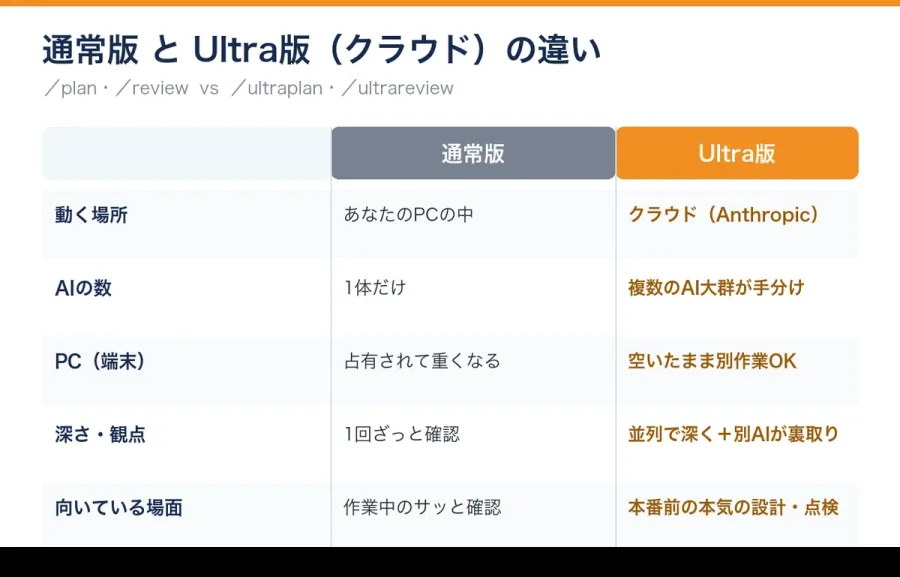
Until now, Claude Code's planning (/plan) and reviewing (/review) features ran locally on your computer (terminal). The biggest difference with the new "/ultraplan" and "/ultrareview" is that they move those heavy tasks to Anthropic's cloud and run multiple AI agents (a swarm of AIs) simultaneously instead of just one. Think of the "ultra" prefix as meaning a full-power, enhanced version of the standard edition. It is easy to understand if you imagine it as taking the concept of claude agents that manage multiple AIs in parallel on a single screen and boosting it all at once with cloud computing power.
/ultraplan = Drawing a "blueprint" before building in the cloud/ultraplan is a command that entrusts the design (plan) of "what to build and how" to cloud-based AI. When you prompt your terminal with "I want to build an app that does X," the AI examines your code and requirements in the cloud to create a draft implementation plan. Since your local screen remains free during this time, you can continue working on other tasks. Once the plan is complete, you can open it in your browser to add comments to specific areas or use emojis to signal approval or request revisions, refining it as you go. This is available in Claude Code v2.1.91 and later as a research preview feature.
/ultrareview = Performing "bug checks" before release with a swarm/ultrareview is a command that has a swarm of cloud AIs check your near-finished work for "remaining bugs or dangerous areas." Reviewer agents with different perspectives—such as security, correctness, design, and testing—read your changes in parallel and compile the issues they find into a single report. Furthermore, before the report is finalized, another agent actually reproduces the issues to verify them, ensuring that only "real bugs" reach you, rather than just stylistic suggestions. This is also available as a research preview in v2.1.86 and later.
Why it is especially effective for non-engineers | Two command centers to eliminate "getting lost" and "anxiety"
When non-engineers try to build something slightly larger with Claude Code, they hit two walls. The first is the planning wall: "I left it to the AI, but the design got lost halfway through, and I had to start over." The second is the quality wall: "It's finished, but I'm too anxious to release it because I'm not sure if it really works properly or if personal information might leak." /ultraplan solves the former, and /ultrareview solves the latter by offloading these tasks to powerful cloud AIs. Since both run in the cloud, a major benefit is that your computer doesn't get bogged down while waiting, allowing you to proceed with other work simultaneously.
Here is the key point. Standard /plan and /review run "on your computer, using one AI, and occupying your terminal." In contrast, the Ultra versions run "in the cloud, with multiple AIs working together, while keeping your terminal free." Because you can move heavy processing off your computer, even a low-spec laptop can handle full-scale design and inspection.
/ultraplan usage | "Design → Approval → Execution" in 5 steps
Step 1: Send the design from the CLI (3 ways to call it)There are three ways to call it: - Command type: Write what you want to do after the command, such as "/ultraplan rewrite the authentication feature to use JWT." - Keyword type: Include the word "ultraplan" somewhere in your regular instructions. - Promotion from local plan: Select "No, refine with Ultraplan" on the approval screen of a plan created locally. The first two start after a confirmation dialog appears.
Step 2: The cloud creates a draft (terminal remains free)Once you send the request, the cloud AI examines your code and begins creating a draft plan. Signs indicating progress will appear in the terminal input field: - "◇ ultraplan" = Investigating/drafting - "◇ ultraplan needs your input" = AI has a question (open the link to answer) - "◆ ultraplan ready" = Plan complete, ready to check in the browser. You are free to work on other things during this time. You can also check the status with "/tasks" and stop it if it is no longer needed.
Step 3: Review in the browser (comments, emojis, outline)Once it says "◆ ultraplan ready," open the link to view the plan on a dedicated review screen on claude.ai. Here, you can perform three actions: - Highlight text to leave individual comments (inline comments) - React to sections with emojis to express agreement or concerns - Jump to any part using the outline sidebar. The strength here is that you can give pinpoint instructions like "fix just this part" instead of replying to the entire plan at once.
Step 4: Request revisions and refineWhen you write a comment and ask the AI to address it, it will rewrite the plan and show you a new draft. You can go back and forth as many times as you like until you are satisfied. Solidifying the plan at this stage before starting execution is the best trick to prevent rework. This follows the same philosophy as the /goal command that makes the AI see the objective through to the end; the more you solidify the goal and the path forward first, the more stable the results will be.
Step 5: Choose where to execute (Cloud or local terminal)Once the plan is finalized, choose "where to execute" from your browser. - Execute in the cloud: Select "Approve Claude's plan and start coding" to have the AI implement it directly in a cloud session. Once finished, you can review the changes (diff) in the browser and create a PR (pull request). - Return to local terminal: Select "Approve plan and teleport back to terminal" to see an "Ultraplan approved" dialog in your terminal, where you can choose between "Implement here," "Start in a new session," or "Cancel (save to file only)."
How to use /ultrareview | Offload bug checking in seconds
Basics = Check the current branch without argumentsThe easiest way to use it is to simply type "/ultrareview" inside your repository. This will bundle your "current work (the diff between the current branch and the standard branch, including unsaved changes)" and upload it to the cloud to begin the check. You can use this basic form even if you haven't pushed to GitHub, making it the entry point for non-engineers. Learning this alongside the basics of /code-review (formerly /review series) will significantly expand your inspection toolkit.
PR Mode = Pass a number to check a GitHub PRTo check a pull request on GitHub, type "/ultrareview 1234" (where the number is the PR ID). In this case, the cloud will fetch the code directly from GitHub (requires remote settings for github.com). If the repository is too large to upload, you will be prompted to use PR mode. For advanced users who want to integrate this into CI (automated checks), a "claude ultrareview" command is also available.
Confirmation before execution and how to receive resultsBefore starting the check, a confirmation dialog will display the "scope of the check (number of files/lines)," "remaining free uses," and "estimated cost." Once confirmed, the process runs in the background, so you can safely close your terminal. It typically takes about 5–10 minutes. You can check or stop the progress with "/tasks," and you will receive a notification once it is finished. Each issue includes a description of "which file and where" and "what the problem is," so you can simply ask the AI to "fix it."
Pricing and eligibility | Must-know points
Free tier and subsequent billing (/ultrareview)/ultrareview is a "premium feature" and is billed via "usage credits" separate from the standard usage quota included in your plan. Pro and Max users can try it for free up to 3 times (granted once per account and not replenished). Once the 3 uses are exhausted, it costs approximately $5–20 per use depending on the scale of the changes. There is no free tier for Team or Enterprise. Note that a use is counted as soon as the remote session begins, so even if you stop midway, the free use is consumed. To use it with paid credits, you must enable usage credits in advance (you can check or change this via "/usage-credits"). If you want to avoid financial mistakes, it is recommended to first read 7 things non-engineers should never do for peace of mind.
/ultraplan pricing and account requirements/ultraplan requires a Claude Code on the web (cloud version) account and a GitHub repository. If you do not have a cloud environment yet, it will be created automatically upon first launch. Since GitHub is a prerequisite, if you have never used it before, it is smoother to learn the basic operations first.
Common warnings | Unsupported environments and versionsSince both run on Anthropic's cloud, they cannot be used via Amazon Bedrock, Google Cloud Vertex AI, or Microsoft Foundry. Furthermore, /ultrareview cannot be used in organizations with Zero Data Retention (ZDR) enabled, and it does not work with API key-only logins, so you must authenticate with a Claude.ai account using "/login." The required versions are v2.1.86 or later for /ultrareview and v2.1.91 or later for /ultraplan. Both are research previews, so specifications and pricing may change in the future.
The golden flow of combining the two: "Build -> Check" (Example)
Let's imagine the actual workflow. Suppose you want to create a "landing page (LP) with an inquiry form." First, send "/ultraplan Create an LP with an inquiry form," and review the design plan created by the cloud in your browser. Comment to have it revised, such as "I want the form to send to Google Forms instead of Gmail," and once satisfied, proceed directly to implementation and PR creation in the cloud. Next, run "/ultrareview" on the completed code. The AI swarm will report real issues with evidence, such as "error handling for submission is missing" or "input validation is weak, making it prone to spam." All you have to do then is tell the AI to "fix" those points. "Preventing drift with design and preventing accidents with checks"—this two-stage approach is the shortest route for non-engineers to confidently release their work to the world.
Frequently Asked Questions (FAQ)
Q. Can non-engineers really use this?A. The basic version of /ultrareview (without arguments) can be used without GitHub, so it is recommended as a first step. /ultraplan requires a GitHub repository, so it is safer to try it after learning the basics of Git. In either case, you do not need to write difficult code; you can use them simply by giving instructions in Japanese and reading the results.
Q. How is it different from /review or /code-review?A. /review is a simplified version where one AI takes a quick look locally, while /ultrareview is an enhanced version where a swarm of AIs performs a deep inspection in the cloud. We recommend using /review for daily tasks and /ultrareview for serious inspections before releasing to the public.
Q. I am worried about the cost. How much will it be?A. For Pro/Max users, the first three uses of /ultrareview are free. After that, it costs $5–$20 per use. An estimated cost is always displayed before execution, and billing does not start unless you enable usage credits, so there is no risk of being charged a high amount without knowing.
Q. Can I not use my computer while it is checking or planning?A. You can. Since both run in the cloud, you can close the terminal or work on other tasks while waiting. With /ultrareview, you will receive a notification when it is finished.
Q. What should I do if the AI asks a question in the middle?A. In /ultraplan, a sign saying "◇ ultraplan needs your input" will appear. If you open the session link and provide an answer, the AI will continue the process. It will not proceed in the wrong direction on its own even if you leave it.
Q. Will it execute things automatically without my permission?A. No, it will not. /ultrareview only runs "when you type /ultrareview," and the AI will never start it on its own. For /ultraplan, the execution target will only start running after you approve it in your browser.
Summary
/ultraplan and /ultrareview are new 2026 features that allow you to offload Claude Code's "design" and "inspection" tasks to a cloud swarm of AI. To recap: ・/ultraplan = Create a blueprint in the cloud before building, refine it with comments in the browser, and execute (v2.1.91 or later, GitHub required) ・/ultrareview = Perform bug checks with a swarm before release and report only verified, genuine issues (v2.1.86 or later, no GitHub required if no arguments are used) ・Pricing for /ultrareview is free for the first 3 times for Pro/Max, then $5–$20, with an estimate always shown before execution ・Both run in the cloud, so your PC remains free while waiting. Start with the simple version of "/ultrareview," and once you are used to it, move on to the full "build → inspect" flow with "/ultraplan." It is now an era where even non-engineers can leave design and quality assurance to AI and release deliverables with peace of mind.
I share the latest AI information in real-time. I deliver Claude Code tips daily on "what even non-engineers can do." Follow me to catch the latest know-how X (formerly Twitter): @ai_hack_dx
Related articles you might want to read: