Introduction
When using Windows, you may sometimes encounter issues with unknown causes.
For example:
・Windows is running slowly
・Apps crash suddenly
・The Start menu won't open
・The Settings screen won't open
・Windows Update fails
・Errors occur
・Blue screen appears
・Files or folders are behaving strangely
・SSD or HDD issues are suspected
In such cases, a command that often comes up as a way to check is:
sfc /scannow
This is the command.
This command is used to check for corruption in Windows system files and repair them if necessary.
However, even if Windows is acting up, the cause is not always the system files.
If there is a problem with the storage, such as an SSD or HDD, you may need to use chkdsk or a manufacturer's diagnostic tool instead of sfc.
In this article, I will explain for beginners what sfc /scannow is, the differences from DISM and chkdsk, the order in which to run them, and points to keep in mind.
Conclusion first
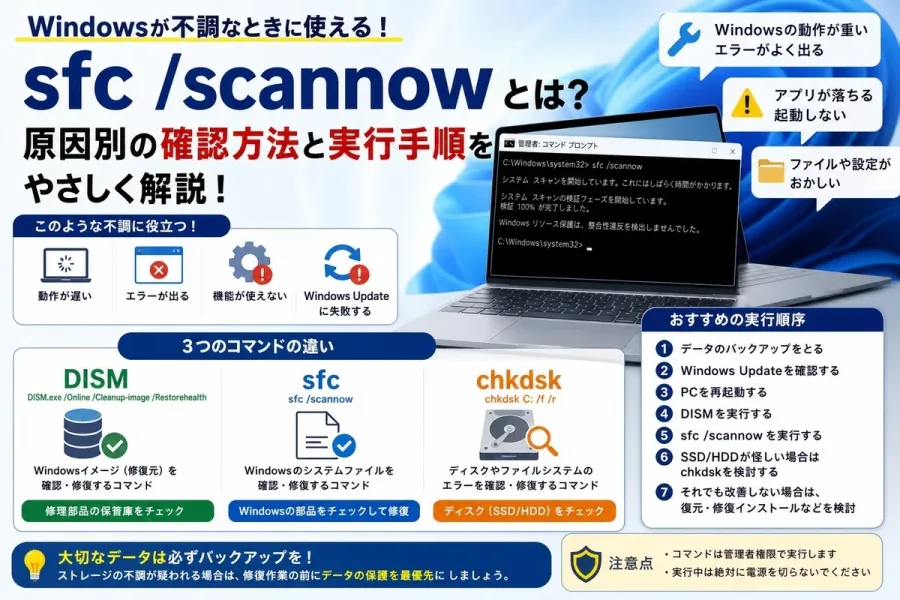
When Windows is acting up, it is recommended to check in the following order:
Back up important data
Check Windows Update
Restart the PC
Run DISM
Run sfc /scannow
Consider using chkdsk if you suspect issues with your SSD or HDD
If that still does not resolve the issue, consider restoration, repair installation, or initialization
Most importantly, if you suspect your SSD or HDD is malfunctioning, make sure to back up your data first.
If your storage is failing, repeatedly running repair commands unnecessarily may worsen the situation.
What is sfc /scannow?
sfc /scannow is a command that checks Windows system files and attempts to repair any corrupted files it finds.
SFC stands for System File Checker.
It is referred to as the 'System File Checker' in Japanese as well.
It primarily checks protected Windows system files.
For example, it can sometimes repair critical files required for Windows to function if they are corrupted or inconsistent.
Symptoms that might be fixed by sfc /scannow
Issues that might be improved by sfc /scannow are those caused by corruption of Windows system files.
For example, symptoms such as the following:
・Some Windows features are not working
・Settings screen does not open
・Start menu behavior is strange
・Some standard apps do not launch
・Operation became unstable after a Windows Update
・System-related errors occur
・Errors indicating file corruption appear
・Unexplained instability
However, not all issues can be fixed by sfc.
Hardware failures, SSD defects, memory issues, driver malfunctions, virus infections, or application-side problems may not be resolved by sfc alone.
Issues unlikely to be fixed by sfc /scannow
In the following cases, sfc alone may not improve the situation.
・Physical failure of SSD or HDD
・Memory defects
・Motherboard or power supply failure
・Driver malfunctions
・Application-specific bugs
・Viruses or malware
・User profile corruption
・Corruption of non-Windows data files
・Network issues
・Printer or multifunction device issues
sfc is strictly a command for checking and repairing 'Windows system files'.
It is not a panacea.
In Gundam terms, sfc is like inspecting the armor panels and wiring of a mobile suit; it doesn't fix the pilot or the mothership.
What is DISM?
DISM is a command used to repair Windows images.
When repairing Windows, the workflow of running DISM before sfc is commonly used.
The reason is that if there is a problem with the source data that sfc uses for repairs, sfc alone may not be able to perform the repair.
Microsoft's official documentation also recommends running the DISM command before running the System File Checker.
Differences between sfc and DISM
Simply put, the differences are as follows:
DISM:
Checks and repairs the image that serves as the source for Windows repairs
sfc:
Checks and repairs Windows system files
To put it in easier terms,
DISM is the task of checking the storage for repair parts, while sfc is the task of checking and replacing actual Windows components.
That is how it feels.
Therefore, basically,
Run DISM, then run sfc afterwards.
This order is recommended.
What is chkdsk?
chkdsk is a command that checks the file system and errors on the disk.
While SFC looks at Windows system files, chkdsk checks the disk itself.
For example,
・File system errors
・Inconsistencies on the disk
・Possibility of bad sectors
・Checking drive status
are related to it.
However, if an SSD or HDD is physically failing, running chkdsk can put a load on it.
Especially if you notice "an HDD making strange noises," "freezing during file copies," "suddenly becoming unrecognized," or "SMART errors appearing," please prioritize backing up your data first.
Differences between sfc, DISM, and chkdsk
Broadly speaking, it is easy to understand if you think of them as follows:
sfc:
Repairs Windows system files
DISM:
Repairs the Windows repair source image
chkdsk:
Checks and repairs disk and file system errors
They are all repair-related commands, but they look at different areas.
If Windows is acting up, start with DISM and sfc.
If you suspect an SSD or HDD issue, use chkdsk or manufacturer diagnostics after backing up.
It is easy to understand if you categorize them this way.
Things to do without fail before execution
Before running the command, please check the following points.
・Back up important data
・Connect the AC adapter if using a laptop
・Save and close any files you are working on
・Run this when you have plenty of time
・Run with administrator privileges
・Do not turn off the PC during the process
・Do not force the process if you suspect an SSD or HDD failure
In particular, if you suspect an SSD or HDD malfunction, back up your data first.
Backup comes before repair.
If you get this wrong, it may become difficult to recover your data, let alone fix the system.
How to open Command Prompt as an administrator
Click the Start button.
Type "cmd" in the search bar.
"Command Prompt" will appear.
Right-click it.
Select "Run as administrator".
If User Account Control appears, select "Yes".
This will open the Command Prompt with administrator privileges.
It is also fine to open and run PowerShell or Windows Terminal as an administrator.
Command to run first: DISM
First, run the following command.
DISM.exe /Online /Cleanup-image /Restorehealth
After typing it, press the Enter key.
The process may take some time.
Even if it looks like it has stopped, please wait for a while.
Depending on your environment, it may take several minutes or more to start or complete.
Next command to execute: sfc /scannow
Once DISM is complete, execute the following command next.
sfc /scannow
After typing it, press the Enter key.
Wait until the verification reaches 100%.
Do not close the command prompt while it is running.
Microsoft also officially advises not to close the command prompt until the verification is 100% complete.
How to interpret sfc result messages
When sfc /scannow finishes, a result message will be displayed.
Typical results are as follows.
Windows Resource Protection did not find any integrity violations
In this case, it means that no problems were found with Windows protected system files.
In other words, at least within the scope that sfc checks, no system file corruption was found.
However, this does not mean that there is nothing wrong with the PC.
Other causes such as drivers, apps, storage, memory, or user profiles may still remain.
Windows Resource Protection found corrupt files and successfully repaired them
In this case, it means that corrupted system files were found and repaired.
After this, please restart your PC and check if the symptoms have improved.
If instability persists after one attempt, you may want to run sfc again after restarting to verify.
Windows Resource Protection could not perform the requested operation
In this case, it means that sfc could not be executed normally.
Possible solutions include:
- Restart the PC and try again
- Run in Safe Mode
- Run DISM again
- Check for disk errors
and so on.
Microsoft officially recommends running the System File Checker in Safe Mode if you see this message.
Windows Resource Protection found corrupt files but was unable to fix some of them
In this case, it means that while corrupt files were found, some could not be repaired.
Solutions include:
- Restart the PC
- Run DISM again
- Run sfc again
- Run in Safe Mode
- Check the CBS log
- Consider a repair installation
and so on.
For beginners, I think it is fine to just restart and try running DISM and sfc again without forcing yourself to analyze the logs.
If it still does not improve, it is safer to consult someone knowledgeable or a maintenance service provider.
When using chkdsk
If you suspect that your SSD or HDD is malfunctioning, you may use chkdsk.
However, to reiterate, please make a backup first.
If you only want to perform a check, enter the following:
chkdsk C:
If you also want to perform repairs, enter the following:
chkdsk C: /f
To include a check for bad sectors, enter the following:
chkdsk C: /r
However, /r can take a considerable amount of time.
Also, since it puts a load on the disk, please exercise caution if you strongly suspect a hardware failure.
When running it on the C drive, you may be asked if you want to schedule the check after a restart.
In that case, please follow the instructions on the screen.
Points to note when using chkdsk
When running chkdsk, please keep the following points in mind:
- Back up your data first
- Perform it when you have plenty of time
- Connect laptops to a power source
- Do not turn off the power while it is running
- /r takes a long time
- It may put a strain on a failing disk
- Check with your administrator or maintenance provider for business PCs
In particular, if you hear strange noises from an HDD, prioritize data recovery over running chkdsk.
For SSDs as well, if there are SMART errors or sudden recognition issues, back up your data first.
Checkpoints when an SSD failure is suspected
If an SSD is malfunctioning, you may experience the following symptoms:
- Extremely slow startup
- Freezing during file copies
- Abnormally slow application startup
- Sudden blue screen errors
- Sometimes not recognized after a restart
- Windows Update failures
- File corruption
- Disk-related errors in Event Viewer
- SMART warnings
In such cases, it is better to check the health of the SSD in addition to running sfc and DISM.
You can also use diagnostic tools from the SSD manufacturer or diagnostic features provided by the PC manufacturer.
Recommended order of execution
If you are experiencing Windows issues and storage failure is not strongly suspected, the following order is recommended:
Check for Windows Updates
Restart the PC
Run DISM
Run sfc /scannow
Restart
Check symptoms
Consider chkdsk if necessary
If you suspect issues with your SSD or HDD, follow this order:
Back up important data
Check the health status of the SSD or HDD
Perform manufacturer diagnostics if necessary
Exercise caution when deciding to use chkdsk
Run DISM or sfc after that
When storage failure is suspected, backing up your data is the priority above all else.
Frequently Asked Questions
Q. Can I run sfc /scannow multiple times?
Basically, you should run it once and check the results.
If repairs were made, you may run it again after a restart to verify.
However, repeating it many times does not guarantee a fix.
If it cannot be repaired no matter how many times you run it, you need to suspect a different cause.
Q. Will my data be deleted if I run sfc?
Normally, sfc /scannow is not a command that deletes user documents, photos, or similar files.
It is used to check and repair Windows system files.
However, since you never know what might happen when your PC is in a bad state, it is safer to back up important data beforehand.
Q. Which should I run first, DISM or sfc?
Basically, it is recommended to run DISM first, and then run sfc afterwards.
Microsoft's official documentation also provides instructions to run the System File Checker after running DISM.
Q. What is the difference between chkdsk /f and chkdsk /r?
chkdsk /f repairs file system errors.
chkdsk /r also attempts to detect bad sectors and recover readable information.
Because of this, /r takes longer and puts more strain on the disk.
If your SSD or HDD is in poor condition, please back up your data before running it.
Q. What if nothing works?
If running DISM, sfc, and chkdsk does not improve the situation, the following possibilities exist:
- SSD or HDD failure
- Memory defects
- Driver issues
- User profile corruption
- Application malfunctions
- Deep corruption of Windows itself
- Viruses or malware
- Hardware failure
In this case, consider a repair installation, initialization, component replacement, or consulting a professional.
Summary
The command often used when Windows is acting up is sfc /scannow.
sfc is a command that checks Windows system files and attempts to repair them if they are corrupted.
However, there are various causes for Windows malfunctions.
If the cause is Windows system files, there is a possibility that sfc will improve the situation.
On the other hand, issues such as SSD or HDD malfunctions, memory defects, driver issues, or application problems may not be fixed by sfc alone.
The basic procedure is as follows.
Back up your data
Check for Windows Updates
Restart your PC
Run DISM
Run sfc /scannow
Restart and check if the issue persists
If you suspect issues with your SSD or HDD, consider using chkdsk or manufacturer diagnostic tools
The main commands to run are as follows.
DISM.exe /Online /Cleanup-image /Restorehealth
sfc /scannow
chkdsk C:
chkdsk C: /f
chkdsk C: /r
The important thing is not to run repair commands immediately for everything, but to check things in order according to the symptoms.
Especially when you suspect a malfunction in your SSD or HDD, prioritize backing up your data before attempting repairs.
Rather than rushing, proceed carefully while ensuring your data is protected.