Hello. I'm Jaga (@jaga_farm), a gadget blogger.
Simeji, famous as a smartphone keyboard app, has released a PC version. However, even though it's a PC version, it's not an IME (Japanese input method). It is essentially AI voice input software. I have been using this Simeji PC intensively for about a week, so to start with the conclusion,the accuracy and speed of the transcription are on par with other companies, and as long as you don't make a mistake in choosing your pricing plan, you'll be fineis what I would like to talk about.
I normally use AI voice input as my main input method. I started using Aqua Voiceat the end of 2025, and since then I have also been using Typelessin parallel. Whether it's note articles, blog posts, or giving instructions to AI agents, I do almost everything by speaking and writing. The draft for this article was also created using voice input.
So, this time, I am not writing this as a "review for someone trying voice input for the first time," but from the perspective of someone who is already immersed in voice input looking at it as a potential replacement.
Download from the invitation link and get an additional month of Pro for free!
There are three main things you can do with Simeji PC
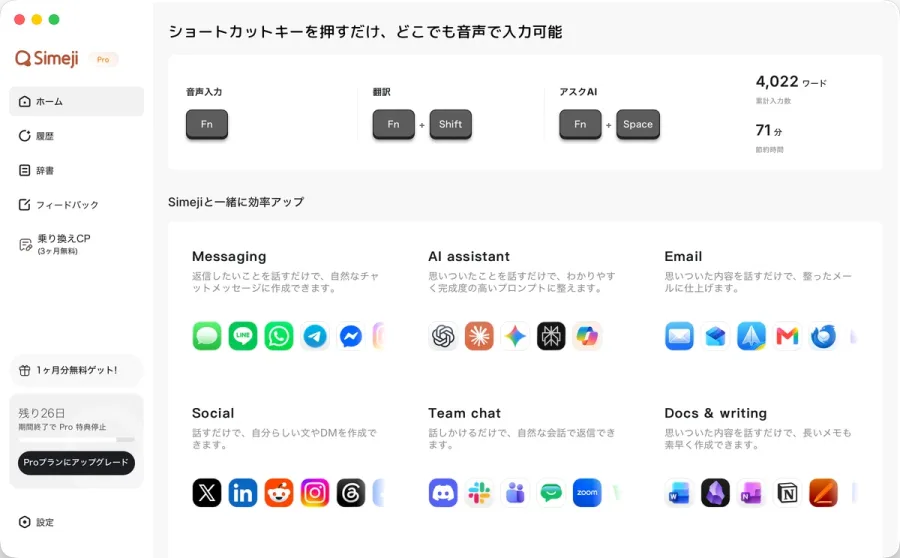
The first thing you want to grasp after installing is that Simeji PC is not just a voice input app. The functions are broadly divided into three.
Voice Input
Translation
Ask AI
And all three of these can be called up with a single shortcut key. This is the key to its usability, so I'll write it down first.
Press the key to start, press it again to end. You don't need to hold it down. The fact that voice input is the Fn key aloneis well thought out, as it hardly ever conflicts with shortcuts for other apps. You can speak directly over commonly used apps like email, ChatGPT, LINE, X, Chrome, and Slack.
By the way, another point is that text optimized for each app is output for email, ChatGPT, LINE, etc.
I will look at them in order.
1. Voice input: It outputs as is, while only cleaning up bullet pointsFirst, the main event: voice input. This is exactly what you imagine. What you speak becomes text.
However, it's a little different from simple transcription. The feeling is close to Typeless, a type that lightly cleans up what you've said. If you speak in bullet points, it will output them as bullet points, and words that come out while thinking, like "um" or "uh," are naturally cut out.
The important thing is that it formats for you but doesn't perform excessive editing. This is quietly important. When I was using Typeless, if I released the button before I finished speaking, the AI would sometimes add a closing sentence I hadn't said on its own. In the week I've been using it, that phenomenon hasn't occurred with Simeji PC. What I said remains as I said it, and only the parts that should be lists become lists. It has just the right sense of distance.
I would also like to introduce a clearer example. Here is a voice transcription of the response speed and speed adjustment.
The input audio was, "The response speed can be adjusted from 1km to 6km, and the speed adjustment can be set in 0.5km increments with the remote control, or 1km with the app," and it came out in these bullet points.
2. Translation: What you speak is translated and outputThe second is translation. It takes the transcribed text and outputs a translation.
If you say "Konnichiwa," the output result is "Hello." That's the idea. Since you don't have to go back and forth between transcribing, copying, and pasting into a translation tool, it is genuinely fast when writing emails or posts for overseas audiences.
When you actually use voice input, it is first output in Japanese like this. It then asks if you would like to translate this Japanese.
Therefore, instead of suddenly having English translation or unknown characters appear, you first confirm the content in Japanese, and then it appears in English. By the way, the result is shown below.
The fact that you can confirm the content first is a good point.
3. Ask AI: A bit of AI is built right inThe third is Ask AI. You can think of this as being the same as asking an AI directly.
For example, if you select text you've written and ask it to "shorten it for X," "make it an email," or "make the tone more formal," it will rewrite it accordingly. While its main purpose is editing text, it also answers other questions. As a test right after installation, it gave "What is the US dollar price today?" as an example, and it actually answered it.
Since you don't have to open ChatGPT in a separate window and paste things, the flow of refining while writing is completed right there. I think it's accurate to understand it as a simple AI residing within Simeji PC.
Download from the invitation link and get an extra month of Pro for free!
Transcription accuracy picks up even whispers
This is the part everyone is most curious about, right?
I use an external microphone, so I verified this by speaking into the SHURE MV7+ again. In conclusion, the accuracy is quite high. Even when I spoke in a mumble or whispered next to my sleeping family, it picked it up properly. The official site claims support for low voices and whispers, and that was not just marketing talk.
The speed is not bad either. When you finish speaking, it displays "Generating," and it appears after waiting 1 to 2 seconds. The point is that this 1 to 2-second wait doesn't feel like you're being kept waiting, so your train of thought isn't interrupted. I think it provides a seamless experience.
And, this is true for AI voice input in general, but it is clearly faster than typing. I do computer work all day, so I think I'm faster at typing than the average person, but even so, it doesn't come close to voice input. I don't know how many times longer it would take to type the amount I'm speaking right now. It's a speed that definitely makes a difference in daily tasks.
By the way, the Simeji PC version supports Windows / macOS.
Seeing how many words you've spoken at all times is subtly effectiveThe Simeji PC home screen displays the cumulative input count (word count) and time saved. It's that thing where the numbers pile up the more you talk.
Furthermore, this cumulative word count also resides and is displayed in the Mac menu bar. It's there in the corner of your vision, showing "XX words" the entire time you're working.
Since you can see the numbers growing, the moment you think "maybe I should type this," you switch to "no, I'll speak it" instead. Until you get used to voice input, your hands tend to reach for the keyboard unconsciously, but this acts as a device to stop that. I thought it was well-designed as a conduit for building a habit.
By the way, a dictionary function is also provided, so you can deal with the problem of proper nouns and technical terms appearing in katakana. When I started using Aqua Voice, I had trouble with "n8n" and "Docker" constantly turning into katakana, so that's the kind of situation where you'd register them.
You can also use AI voice input with Simeji on your smartphone
I've been talking about the PC version so far, but Simeji's home turf is, first and foremost, a smartphone keyboard app. And AI voice input isn't just a feature for the PC version; it can also be used in the iOS and Android versions of Simeji.
The way to do it is just to tap the microphone button on the toolbar at the top of the keyboard and speak. When you stop, just like the PC version, the AI cleans up filler words like "um" and "uh" and organizes them into readable text.
The content it cleans up is specific, so I'll list some of the published input/output examples.
Automatic punctuation addition
"I'm going to a cafe today, how about you come too" -> "I'm going to a cafe today, how about you come too?"
Automatic filler deletion
"Um, I'm leaving right now. In front of the station, no, wait, wait at the front of the cafe." -> "I'm leaving right now. Wait at the front of the cafe."
This is subtly impressive because it properly processes the correction "in front of the station, no, wait, at the front of the cafe" by prioritizing the final version. It's not difficult to just delete fillers, but it even reads that the speaker changed their mind halfway through. It's especially effective for people who think while they speak.
Bullet point organization
"Today's shopping list. Eggs, milk, um, and tissues." -> Formatted into a heading + 3-line list
Automatic style conversion
Just by adding "make it an email" or "make it polite" at the end, what you said is converted into a business email or polite language. For example, "I finished the document, please check it. Make it polite" -> "The document has been completed, could you please check it?"
I thought this was clever. While the PC version requires calling up Ask AI (Fn + Space) to do this, on a smartphone, you just mix the instruction into the end of your speech. Being able to get a polite email without having to open a separate window on a smartphone you're operating with one hand seems like it would be helpful in many situations.
I sometimes remotely access my Mac from my iPhone while I'm out to get work done, and in those cases, if a service only has PC-specific voice input, it switches to the smartphone's native voice input. The drop in accuracy is stressful in itself. In that regard, since Simeji allows you to use the same type of voice input at your desk and on the go, the input experience remains consistent even when switching environments.
To be honest, I have thoroughly used the PC version myself, but I haven't fully tested the mobile version's voice input yet. This past week was strictly for verifying the PC version, so I will write about the smartphone side's accuracy and Japanese language quirks again after I've used it more. For now, I'll limit myself to the fact that it's "not just for PC" and an introduction to the features implemented.
There are two points that concerned me.
There is no point in only writing about the good parts, so I will be honest.
The display in the center of the screen is quite intrusive.When using Simeji PC, a fairly large UI is displayed near the center of the screen.
It is easy to understand, but honestly, I thought it could be a bit more subtle. Since it is right in the middle of the work screen, it enters your field of vision. This might be a matter of getting used to it, but since it is something that stays resident, it bothered me.
When you talk while playing music, your voice gets louder.This is a minor point, but I am writing it down because it actually caused me trouble.
There is a phenomenon where if you talk into the microphone while music is playing, you hear your own voice back, which makes you inadvertently raise your voice. You know how sometimes your voice gets louder when you are on a phone call? It is the same thing.
Some apps automatically lower the volume of music during voice input, making it easier to hear your own voice. At the time of this review, Simeji PC did not have such a feature. People who work while playing background music will have to stop it manually each time.
Regarding security, I checked the policy.
Since it is a tool that handles audio, I spent time researching this. This is because I think there are a certain number of people who are concerned about this point when they hear the name Simeji. I was concerned about it myself.
To start with,the official PC version pagehas almost no information in its security section. The heading is "User trust comes first," and the body text is just one sentence: "We protect your privacy with international security standards." Neither the certification name nor the encryption method is written. It is impossible to judge based on this alone.
Therefore, I went to read the official safety page and privacy policy. Specific details are written there. The primary sources I referred to this time are the following four, so if you are concerned, please check them yourself.
Simeji's commitment to safety (official)
Privacy Policy
Terms of Service
PC version release
The official Simeji safety pagestates that they manage information in compliance with ISO 27001 (Information Security Management Standards), specifically mentioning certification number IS 619805, certification standard ISO/IEC 27001:2013, and certification body BSI Group Japan. Furthermore, the scope of the certification registration includes the development and maintenance of "Japanese character input software for PC."
Where does the data go?Privacy PolicyBased on my reading, there are three points you should keep in mind.
1. Data is stored on domestic servers in Japan, but the possibility of cross-border transfer is explicitly stated
It states that user information provided will be stored on company servers located within Japan. On the other hand, the same policy also mentions that it may be provided to third parties abroad, including group companies. While it states that data is only provided to parties that have established systems compliant with the standards of Japan's Act on the Protection of Personal Information, it is a mistake to assume that everything is completed domestically just by looking at the 'domestic storage' claimI will be honest about this.
2. Text is passed to Google
It is explicitly stated that text automatically recognized from voice and finalized strings are shared with Google LLC (Gemini) for the purpose of organizing input content and optimizing expressions. In other words, Gemini is involved in that 'neatly organizing into bullet points' process. Furthermore, it is written that when using Simeji AI features, the input text is shared with both OpenAI and Google.
3. The effect of Privacy Mode has limitations
When you turn on Privacy Mode in the 'Data and Privacy' settings, voice data is used only for the purpose of returning recognition results, and it is stated that Simeji does not save or analyze user data at all.
However, this is the important part: the policy does not state that 'text sharing with Gemini also stops in Privacy Mode'. What is written is strictly about Simeji itself not saving or analyzing data. You should not assume that turning it on stops all transmissions.
Settings for reading screen content (Text Recognition / Context Recognition)This is a setting in the app that acquires information about elements and structures within apps. In the policy, it is referred to as 'Context Recognition' and is explained as a feature that acquires content information displayed on the app you are currently using to return recognition results that are more contextually appropriate.
Turning it on significantly improves transcription accuracy. My experience confirms this. However, the policy did not specify which parts of the screen are read, or where the acquired content is sent and how much of it is stored. To turn it off, go to Settings → Data and Privacy → Context Recognition.
Aqua Voice also has a feature called 'Deep Context' that reads text on the screen. That is also a feature that affects accuracy, so the concept is similar. Whether to prioritize accuracy or limit the scope of transmissionis a trade-off that exists with any voice input tool.
If using it for work, check with your employer or relevant departmentsThe Terms of Serviceinclude a statement requesting that if you are using it for business purposes, you must ensure compliance with the internal regulations of your company or organization, and it states that they are not responsible for any damages resulting from non-compliance.
This applies to all cloud-based voice input tools, not just Simeji, but if you are using it to dictate customer information or confidential source code, it is safest to at least turn on Privacy Mode and turn off Context Recognition, and then check your company's rules. Conversely, if you are using it for things like writing your own blog or giving instructions to AI, I don't think it's something to be that nervous about.
Pricing: It drops significantly if you pay annually
I will also provide information on the pricing, which you might be curious about. The paid plan is called Simeji Pro.
*Amounts are as displayed on the in-app purchase screen as of August 2026. Please check the app for the latest prices.
I will be straightforward here: the monthly fee is set at 4,750 yen.
It becomes clear when you compare. Aqua Voice's monthly fee is $10 (approx. 1,500 yen), and even Typeless is $30 per month (approx. 4,500 yen). Typeless is on the expensive side among voice input tools, but Simeji Pro's monthly fee is even higher than that. If you choose the monthly plan intending to try it for just one month, it will be quite an expense.
On the other hand, if you pay annually, it drops to 1,900 yen per month. That's a calculation of about 60% cheaper, and at this level, it's roughly on par with Typeless's annual payment (approx. $12/month = approx. 1,800 yen). It's a price that makes sense.
In other words, you should consider that this pricing structure effectively leaves you with no choice but the annual plan. The monthly fee is too expensive to just write off as a trial, so I think the only correct path is to try the free trial introduced within the app, and if you decide to continue, go for the annual plan.
The benefits of Pro are as follows.
Unlimited character count
Advanced personalization
Priority invitations to new features
Faster and more stable experience
I know it can be daunting to start paying right away, so I'll introduce two ways you can try it for free.
First, you can use it for free for one month just by logging into the Simeji PC version. Here is a way to get an even better deal: use a referral link. If you register via the link below, you can get an additional month of the Pro plan (for new users only). In other words, you can use it for free for two months.
Here is a way to get an even better deal: use a referral link. If you register via the link below, you can get an additional month of the Pro plan (for new users only). In other words, you can use it for free for two months.
Download via the invitation link and get an extra month of Pro for free!
The other way is the switching campaign.
This is for people who switch from another company's voice input service to Simeji AI Voice Input. If you post about your switch on X and apply via the form on the special page, you will get 3 months of Pro features for free. It started on June 29, 2026, and the end date is currently listed as "to be announced separately."
In other words, the conditions are better for those who are already using other AI voice transcription services. I got the impression that they are clearly targeting people like me who are considering switching. Please check the terms and conditions on the special page for the fine print on application requirements before proceeding.
Recommended for these people
After using it for a week, I felt that who it is and isn't for is quite clear.
Who it is for
People who do a lot of typing on a PC
People who want to use the same type of voice input on both PC and smartphone
People who prioritize Japanese text formatting and dialect handling
People who have never tried voice input and want to experience its accuracy first
People who want to handle everything from writing to editing (summarizing, formatting) in a single app
People who intend to use it for a long time with an annual plan
Who it's not for
People who want the same level of voice input accuracy on their smartphone
People who want to use it for a short time on a monthly plan (4,750 yen per month is a bit expensive)
People who plan to dictate a large amount of confidential business information (check your company's rules first)
People who play music while working
People who want to minimize UI elements on their screen
Conclusion
After using Simeji PC for a week, my honest impression is that it is fully capable of competing with existing voice input services in terms of transcription accuracy and usability.
It picks up even quiet voices, the text appears in 1-2 seconds, and it doesn't make unnecessary edits. It hits all the basics that someone who uses voice input every day looks for. The fact that it includes translation and Ask AI in one place is also a plus, as you don't have to switch between apps. Furthermore, since AI voice input is available not only on the PC version but also on the iOS and Android versions of Simeji, you can use the same system at your desk and on the go.
The clear weakness is the monthly price of 4,750 yen. Since the annual price drops to a level comparable to competitors, please consider this a product where you decide whether or not to sign up for an annual contract. I do not recommend buying it just to try it out casually on a monthly basis.
For those who have never tried voice input, honestly, I want you to try any service at least once. The increase in productivity is more than double. If you want to start with something made in Japanese, Simeji PC is a strong candidate.
You can try it for free for one month via the referral link, and if you are switching from another company, you get three months free. The cost to try it is quite low, so please check it out if you are interested.
Download via the invitation link and get an extra month of Pro for free!
Regarding how to choose a voice input service, I have also written an article comparing Aqua Voice and Typeless, so I think reading that as well will make it easier to choose.
Thank you for watching until the end. See you later!
#SimejiPC #Simeji #AIVoiceInput #VoiceInput #Gadget #Review