What is the ChatGPT "Projects" feature?
The new ChatGPT "Projects" feature was announced on December 14, 2024, as part of the seventh day of OpenAI's "12 Days of OpenAI." With "Projects," you can consolidate chats, files, and custom instructions into a single location.
By using "Projects," you can proceed with tasks more efficiently. Previously, information management was limited to individual chat sessions, but this new feature allows for more efficient management.
Key features of the "Projects" function
By using Projects, you can group and manage items in folders on a per-project basis. This has the advantage of making it easier to reference conversations.
Uploading files and adding custom instructionsBy using Projects, you can upload materials such as documents, PDFs, and Excel files. You can reference these external files when asking questions.
Furthermore, custom instructions allow you to maintain consistent output for conversations within the project. You can freely set roles, tone, and more for the model.
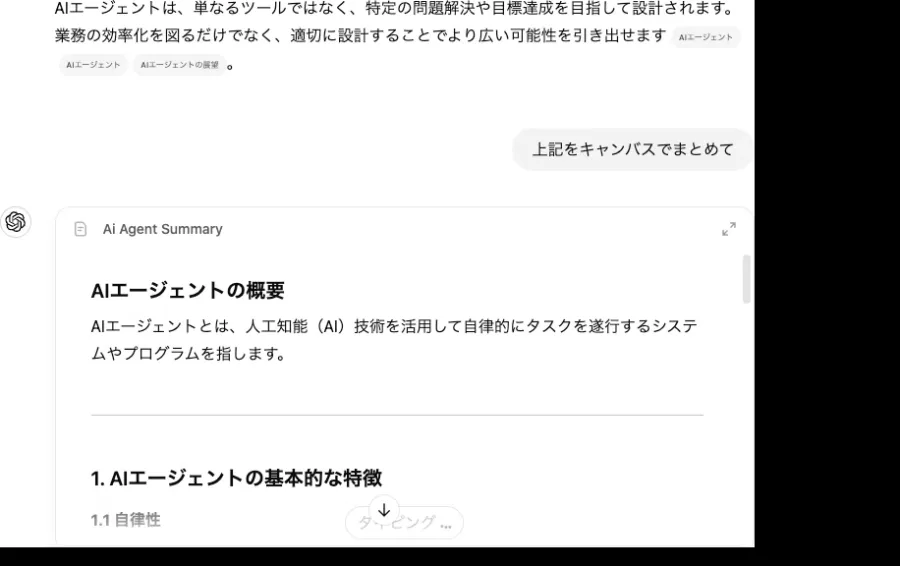
Using CanvasBy using Canvas, ChatGPT can help you create and refine ideas. You can directly edit and make changes to the text you have written. Code corrections, adding comments, and proofreading can all be handled within Projects.
How to use "Projects"
To use the "Projects" feature, you must be a Plus, Pro, or Team user. As of December 14, free plan users cannot use this feature.
You can create a project by going to the left-hand menu in ChatGPT and selecting Projects > + Create new project.
As a test, enter "AI Agent" and create a project.
A screen like the one below will be displayed.
Adding filesYou can add PDF files, documents, code, images, and more.
By setting custom instructions, you can request that responses use a specific tone or format.
For example, you can specify instructions as follows.
あなたは優秀なAIエージェントリサーチャーです。
外部ファイルを参照して、Userの質問に丁寧に解説してください。
Also, as of December 14, when using custom instructions or custom files, only GPT-4o is available.
Changing folder colorYou can also change the color of the folder icon.
Deleting a created projectTo delete a created project, click the "..." on the right and select "Delete project".
The following window will appear, and you can delete it by pressing "Delete project".
How to utilize "Projects"
In Projects, you can use file uploads, file reference features, and Canvas, so by making full use of these features, you can efficiently proceed with various tasks.
RelatedSummary
By using the "Projects" feature, you can now manage ChatGPT chats, files, and more in one place. This allows you to work more efficiently with ChatGPT. Plus users can use it starting today, so please try utilizing it!
We plan to deliver 1-2 articles every month, and currently, we are delivering articles about Dify (PDF summary AI using Dify, internal FAQ app development), Replit Agent, and Google AI Studio. You can join or cancel at any time, so we would appreciate it if you would subscribe!
Reference
https://openai.com/12-days/?day=7
https://twitter.com/OpenAI/status/1867675796950987146