You want to try making pixel art but don't know how to start. Even for people like that, you can create pixel art that looks like it came out of a game with just a single ChatGPT prompt.
You don't need specialized software or illustration skills. In this article, I have compiled prompts for creating pixel art with ChatGPT by genre, along with images that were actually generated.
They are all ready to copy and use, so please give them a try.
What kind of results can you get when creating pixel art with ChatGPT?
ChatGPT is equipped with an image generation feature, allowing you to create pixel art just by giving instructions in text.
You don't need dedicated drawing software or illustration skills. As long as you know the prompts, anyone can try it immediately.
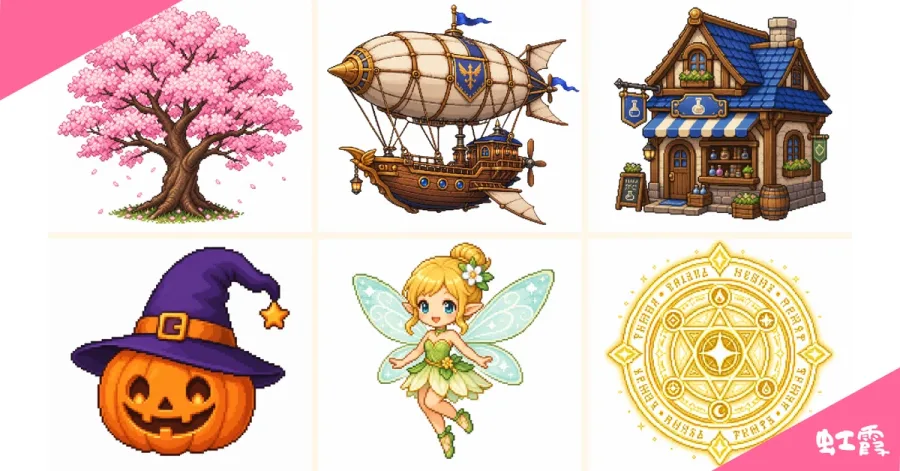
Samples of actually generated pixel artFrom cherry blossom trees, airships, and shops to Halloween pumpkins, fairies, and magic circles, the genres and atmospheres vary, but all were generated using ChatGPT.
A key feature is its ability to handle a wide range of subjects, not just characters, but also landscapes, vehicles, and seasonal motifs.
Differences between ChatGPT and other AI toolsBesides ChatGPT, there are multiple image generation AIs such as PixAI and Stable Diffusion.
While some other tools support image uploading, a key feature of ChatGPT is that you can proceed while adjusting instructions in a chat format.
Since you can convey follow-up instructions like "make it a bit coarser" or "make the background white" directly, it is easy to try even without specialized technical knowledge.
Basic template for ChatGPT pixel art prompts
Have you ever tried to make pixel art, only for it to end up looking like a regular illustration?
Actually, just by adding a few keywords to your prompt, the result changes significantly. If you learn the basic template first, subsequent applications will become much easier.
Essential keywords to stabilize qualityThe word I always include is pixel art. Prompts must be written in English, but just adding this brings it closer to a pixel art style.
Additionally, just by adding the following keywords, the quality will jump significantly.
flat color (for solid colors)
clean pixel lines (for sharp pixel outlines)
isolated on a solid white background (for placing a single object on a white background)
These are essential keywords when generating pixel art, so please try combining them.
Specifying bit depth to drastically change the atmosphereSetting it to 8-bit creates a coarse, retro atmosphere like the Famicom era, while 16-bit results in a finish with more colors and a slightly smoother look, like the Super Famicom era.
Even with the same character, the impression changes this much just by changing the bit depth, so please try it according to the image you want to create.
Using or omitting backgrounds according to your purposeGenerating on a white background makes it easy to use when compositing with other images or posting on social media.
Conversely, when you want to create a world view including the background, you can finish the character and background together just by adding a scene.
By Genre | Prompts for Generating Pixel Art with ChatGPT and Generated Images
From here on, I will introduce the images actually generated and the prompts used, categorized by genre.
They are all ready to copy and use, so please try the ones that interest you.
Characters/IconsCharacters that look like they would appear in an RPG are one of the genres that ChatGPT is best at.
Just by adding words like 'fantasy' or 'cute', it becomes much easier to bring out a game-like atmosphere. Simple monsters like slimes also turn out surprisingly cute.
Game Items, Weapons, and ArmorGenerating items in 8-bit gives them a retro game icon feel.
Including the term "game item" results in a smaller, simpler finish that can be used for game UIs.
Worldview, Backgrounds, and TownscapesGenerating backgrounds in a portrait orientation creates a composition similar to a vertical scrolling game screen.
The more fine details there are, the more likely the generation will be inconsistent, so it is recommended to start with simple motifs.
Since backgrounds tend to become landscape-oriented, specifying the aspect ratio in advance, such as "portrait" or "square," will result in the desired size.
Animals and MonstersFor animals, adding "cute" softens their expressions and makes them easier to finish in a cute style.
Even for imaginary creatures like dragons, combining "small" and "cute" removes the scariness and gives them a mascot-like atmosphere.
Food and Daily NecessitiesFood and small items are motifs that are easy to use as game item icons.
The simpler the shape, the easier it is to achieve a pixel art finish, making this a recommended genre for beginners.
How to convert existing images into pixel art using ChatGPT
So far, I have introduced how to generate pixel art using only prompts. In fact, ChatGPT also has a feature that allows you to upload photos or images you already have and convert them into a pixel art style.
It is quite fun to try, as it transforms your own photos into something that looks like a scene from a game.
Steps to upload a photo and turn it into pixel artThe process is simple: just attach an image to the ChatGPT input field and send it along with a prompt. This time, I tried converting free images into pixel art.
Landscape photos tend to become mosaic-like when converted to pixel art, but that actually creates a retro game background feel. Subjects with clear outlines, such as pets or food, are easier to recognize after conversion.
Prompts for creating game-style pixel art that looks great on social mediaPixel art with a fully realized world, including the background, is easy to use as material for social media posts. If you want to generate characters and backgrounds together, try using prompts that include a scene description like the ones below.
If you find it difficult to enter prompts in English, it is perfectly fine to just convey the image in Japanese, such as: "16-bit pixel art of a cool warrior character standing in front of a sunset. Full body, dynamic pose, RPG game style, vibrant colors, clean pixel lines."
Using Japanese lowers the hurdle for image generation significantly, so please give it a try.
Common failures and solutions for ChatGPT pixel art prompts
Even if you refine your prompts, it is common for the result not to turn out exactly as you imagined.
Here, I will introduce some failure patterns I noticed while testing, along with solutions I tried.
How to handle cases where it looks like an illustration instead of having coarse pixelsEven if you specify "pixel art," it sometimes turns into a smooth anime-style illustration. In such cases, add the following to your prompt:
retro style
Change the bit count to 8-bit
. The smaller the number, the coarser the dots, bringing the finish closer to that of old-school games.
How to deal with distorted shapes and designsSometimes a character's limbs may end up in strange shapes, or facial features may be misaligned.
In such cases, it is easier to improve the result by focusing only on the upper body instead of the whole body, simplifying the pose, or changing the motif itself to something simpler.
Designs with many fine details are more prone to distortion. It is recommended to start by trying out simple motifs.
Summary | Create your own pixel art with ChatGPT
Pixel art may look difficult, but anyone can create it if they know the prompts. First, try copying the prompts introduced here and give one a try.
It is okay if it doesn't go well. Changing 8-bit to 16-bit or adding 'cute' will change the finish. Creating that first piece is the most important trick.
If you feel like you don't understand prompts, try inputting your own images into ChatGPT with Japanese instructions like 'make it 8-bit' or 'I want to make it 16-bit'.