2026/9/30 Complete rewrite (original article also remains at the bottom)
▶ Table of Contents > Input > Cut Shortcut Copy
Recommended Minor Trouble Rescue
[Summary]
4 shortcuts for pasting values only
1️⃣ Ctrl+Shift+V (For 365. Fastest if you don't mind pressing three keys at once)
2️⃣ Alt⇒E⇒S⇒V (Classic. Easy on the fingers with a flowing press. Versatile)
3️⃣ Ctrl + V ⇒ Ctrl ⇒ V (Not recommended. Poor rhythm)
4️⃣ Ctrl+Alt+V ⇒ V (Not recommended. Fingers cramp)
[Explanation]
Among Excel copy operations, I think "Paste Values" is one of the most frequently used.
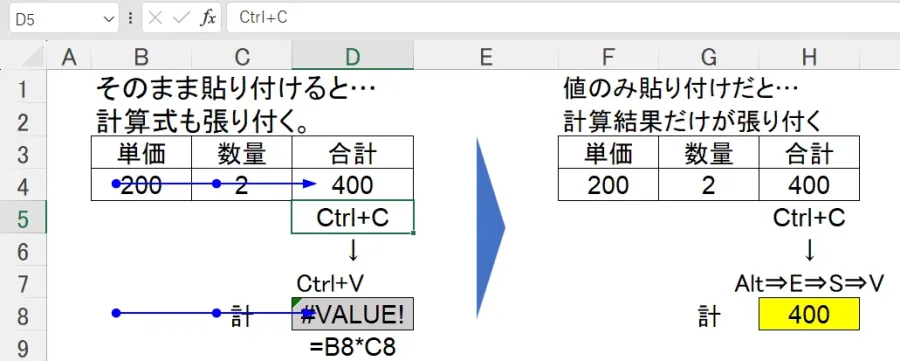
With a normal paste (Ctrl+C ⇒ Ctrl+V), the calculation formula is also pasted, which can lead to errors (or incorrect calculations).
If you "Paste Values," you can paste only the calculation results.
There is no need to manually enter the calculation results into another cell (something people surprisingly tend to do?).
To copy only the result values without copying the calculation formula, use a shortcut. But before that...
If you don't use a shortcut1️⃣ (On the cell to copy) Right-click ⇒ Copy
2️⃣ (On the destination cell) Right-click ⇒ Paste Special
3️⃣ Click Values (V) (or press V) ⇒ OK (or press the ENTER key)
This isn't necessarily wrong, but reaching for the mouse is a hassle.
Also, moving the cursor to "Paste Special" or "Values" is tedious (keeping your eyes on the cursor uses up concentration, which ultimately wears you out).
If you want to work efficiently, you should use one of the following shortcuts.
1️⃣ Ctrl+Shift+V (For 365. Fastest if you don't mind pressing three keys at once)
2️⃣ Alt⇒E⇒S⇒V (Classic. Easy on the fingers with a flowing press. Versatile)
3️⃣ Ctrl + V ⇒ Ctrl ⇒ V (Not recommended. Poor rhythm)
4️⃣ Ctrl+Alt+V ⇒ V (Not recommended. Fingers cramp, poor rhythm)
I will explain the disadvantages (cons) and advantages (pros) in order.
1️⃣ Ctrl+Shift+V (For 365)〇 Disadvantages
・Available environments are limited (Excel 2021 is not supported).
・Pressing three keys simultaneously (you need to look at your hands. Fingers cramp)
・Not versatile (limited to values only. See 2️⃣)
〇 Advantages
・Only one action required
In an environment where it can be used, and if you don't mind pressing three keys at once, this is likely the fastest.
It is the latest shortcut.
〇 Aside
I can use 365 at my workplace, but I'm not good at pressing three keys at once (I end up looking at my hands), so I don't use it.
Also, since I press Ctrl with my thumb when doing Ctrl+C, I have to change my left hand's "stance" to press these three keys simultaneously, which is another big reason why the fingering is difficult.
〇 Disadvantages
・Many keys to press (four)
・Is it called the "Excel Old-Timers' Club"?
〇 Advantages
・Easy fingering (not a simultaneous press. The index finger moves mostly vertically)
・Versatile (you can choose things other than just values)
I call it the "Veteran Style" (some people call it the "Excel Old-Timers' Club").
It is a long-standing shortcut where E calls the "Edit" menu, and S "Paste Special" is the key that invokes it.
Alt ⇒ E brings up the following. It is the mark of a veteran.
Next, press S to open "Paste Special".
After this, press V ⇒ ENTER, and only the values will be pasted.
You don't need to click OK, and there is no need to reach for the mouse.
Opening "Paste Special" is the same as using the mouse, but this way is definitely faster.
After pressing Alt with your thumb, you can type E⇒S⇒V fluidly with your index finger.
Since it is not a simultaneous press, it doesn't matter if your thumb leaves the Alt key.
Therefore, I call it "Flow Pressing" (or "Flow Typing") (generally known as "Sequential Pressing").
When I asked Gemini, "What is the shortcut for pasting values only?", it described this operation starting with Alt as "Flow Pressing," which made me a little happy (the source was this site!).
The good thing about this shortcut (though strictly speaking it is not a shortcut) is that the "Paste Special" dialog opens at the Alt ⇒ E ⇒ S stage (it also opens with a right-click).
Therefore, not only can you paste "values only," but if you press "T," you can paste "formats only," or if you press "F," you can paste "formulas only."
If you press "E" after "V," you can also paste with rows and columns transposed (I use this surprisingly often).
This cannot be done with 1️⃣ "Ctrl+Shift+V."
Because of the smoothness of "Flow Pressing" and the ease of choosing various pasting methods, I use this shortcut frequently.
For now, if the "Paste Special" dialog opens with Alt ⇒ E ⇒ S, you just need to look at the screen and press the key (since it is one key, you can type it without looking at your hands), so there is no hesitation.
After Alt⇒E, you can perform various operations by pressing other keys. There are faster methods, but my fingers have already memorized this one.
Alt⇒E⇒E Replace (one shot if you press Ctrl+H simultaneously)
Alt⇒E⇒F Find (Ctrl+F)
Alt ⇒ E ⇒ S can also be used when pasting into Word.
① Copy data in Excel
② In Word, Alt ⇒ E ⇒ S opens the "Paste Special" dialog (Word version).
④ Select the desired format with ↑ ↓ ⇒ Enter (if it's not what you like, undo with Ctrl+Z)
3️⃣ Ctrl + V ⇒ Ctrl ⇒ V (Not recommended. Bad rhythm)〇 Disadvantages
・Bad rhythm
〇 Advantages
・An extension of normal pasting
・Various icons (though hard to understand)
It's not bad, but I don't recommend this shortcut because the rhythm is poor.
As usual, after pressing Ctrl + V simultaneously, press Ctrl, then release it and press V.
Then, what was pasted at the Ctrl + V stage (formulas, formats, etc.) changes to a paste of values only.
After pasting with Ctrl+V, if you press Ctrl again, the following dialog appears.
Ignore this dialog and just press V, and it will paste values only.
Once the above dialog appears, if you select any icon, you can also paste "formulas only" or "formats only."
There are more options than in "Paste Special" (link pasting, etc.).
But... I don't really know which is which (do you?).
Even if you select with the arrow keys, you can't really tell the difference, but if you select with the mouse, the pasting method is displayed.
But this is tedious for me, so I don't use it.
Even if there are various icons, the differences are hard to understand (I can't remember them), so I use 2️⃣ "Paste Special," which I can understand at a glance (= because it's text).
Also, the fact that you have to press Ctrl and V in order after pressing Ctrl+V simultaneously just feels like a bad rhythm, so I don't use it.
If this is easier for you than "Flow Typing," please feel free to use it.
〇 Disadvantages
・Three-key simultaneous press (fingers cramp)
〇 Advantages
・Just add Alt to the normal paste Ctrl+V
・Can choose things other than values only
Ctrl + Alt + V opens the "Paste Special" dialog.
Here, if you press V (values) and then "OK," only the values will be pasted.
That's it.
But the "three-key simultaneous press" of Ctrl, Alt, and V is hard to press. I can't type it without looking at the keys.
And my fingers feel like they are going to cramp.
As mentioned above, since I press Ctrl with my thumb and C with my index finger when copying, it is difficult to change the "posture" of my hand from there.
People who press Ctrl with their little finger might still be okay.
However, isn't it also difficult to press Ctrl with the little finger, Alt with the thumb, and V?
Moreover, you have to press V again afterwards.
This is a bit exhausting, and the rhythm is bad.
Of course, if this is not a problem for you, please continue to use it.
However, if you are forcing it, please "change your religion" and use 2️⃣ before you hurt your wrists or tendons. Even old soldiers (veterans) are still active.
So, which method is best depends on the environment and the person.
Please use the method you find easiest.
However, it is more efficient to avoid using the mouse as much as possible.
Clicking around with a mouse is, in a sense, "sabotage."
If you are seen doing that, your evaluation might drop in some cases. Conversely, if you work quickly while barely touching the mouse, people around you might change their opinion of you.
You don't have to do everything with the keyboard, but let's use shortcuts as much as possible.
Terrifyingly, there are (quite a few) people who don't even know about "Paste Values."
Even more terrifyingly, there are people who don't know that "formulas can be copied."
The former manually types the results of formulas into other cells.
The latter creates formulas one by one.
But as long as you are looking at something printed on paper, you cannot tell the process.
This is quite terrifying.
But unfortunately, it is surprisingly common...
For minor troubles, click here
"Minor Trouble Rescue" series article list
Old title: "[Excel] The fastest shortcut for Paste Values | Why Alt→E→S→V is the strongest"
[Summary]
The following are shortcuts for pasting values only.
1. Ctrl+Alt+V ⇒ V (Not recommended. Fingers cramp, rhythm is bad)
2. Ctrl + V ⇒ Ctrl ⇒ V (Not recommended. Rhythm is bad)
3. Alt ⇒ E ⇒ S ⇒ V (Recommended. Easy on the fingers)
[Explanation]
Among copy operations, I think "Paste Values" is used quite often.
Normal copy-paste (Ctrl+C ⇒ Ctrl+V or Enter; Enter cannot be repeated) may also paste formulas, which can lead to errors.
To copy only the resulting values without copying the formulas, use the following shortcuts.
Shortcuts to copy only the resulting values
1. Ctrl+Alt+V ⇒ V
2. Ctrl+V ⇒ Ctrl ⇒ V
3. Alt ⇒ E ⇒ S ⇒ V
Is 1 the most common?
(+ means press simultaneously, ⇒ means press in sequence. For sequential presses, release the previous key before pressing the next one.)
Paste Values: Usually a 3-key simultaneous press of Ctrl+Alt+V
Normal paste is Ctrl+V, so you just add Alt to that.
This opens the "Paste Special" small window.
Top left: The copy destination has borders, but this is because the cell is selected. There are no borders.
Here, if you press V (Values) and then "OK," only the values will be pasted.
That's it. It's simple.
The following is only for those who are not good at pressing 3 keys simultaneously
But...
Doesn't pressing Ctrl, Alt, and V all at the same time make your fingers cramp?
Even if they don't cramp, isn't it difficult?
Before "pasting," there is naturally the "copy" operation.
Copy is Ctrl + C. As shown in the figure below...
If you are pressing Ctrl with your pinky and C with your index finger,
the transition to pasting is smooth.
Once you copy the source data with Ctrl (pinky) + C (index finger),
use your right hand to operate the arrow keys or mouse to select the destination cell.
Then,
keep your left pinky on Ctrl, press Alt with your thumb, and V with your index finger. ↓↓↓
You do need to stretch your index finger to the right a bit, but it's not impossible.
Maybe. But, honestly, it might be a bit tough?
However, in my case,
when I do Ctrl + C, I press Ctrl with my thumb. C is with my index finger.
It's quite tough because I have to tuck my thumb far to the left, but I don't need to move my hand.
To press Ctrl with my pinky, I would have to shift my hand (and wrist) downward.
If you press Ctrl with your thumb like I do, then pressing Ctrl, Alt, and C all at once is quite difficult.
You end up having to press Ctrl with your pinky, Alt with your thumb, and V with your index finger.
This means you have to move your thumb from Ctrl to Alt, and also lower your hand to place your pinky on Ctrl.
In terms of finger movement, this is a major shift.
Moreover, you end up looking at the keys, and both your fingers and your brain stop.
The shortcut becomes meaningless.
I try to press Ctrl with my pinky for Ctrl+C, but it's hard to break the habit.
I don't want to move my hand, or rather, my wrist.
On top of that, you have to press V and then press ENTER.
This is also surprisingly troublesome in terms of finger movement.
Ctrl+V ⇒ Ctrl ⇒ V also pastes values, but is the tempo bad?
Ctrl+V pastes everything, but if you press Ctrl again after Ctrl+V, and then press V, it pastes only the values.
It's a strange pattern where it pastes the formatting and formulas first, then reverts to pasting only the values.
While it's easy to understand because you press Ctrl and then V again after the familiar Ctrl+V shortcut, it feels a bit slow in tempo to me.
I think this is also a matter of preference.
I find the sequential press of Alt ⇒ E ⇒ S ⇒ V easier for finger movement
When I want to paste only values, I use
Alt ⇒ E ⇒ S ⇒ V.
After copying the source data, I press Alt.
Then, when you press E...
This appears. A sign of a veteran? Here, if you press S...
The "Paste Special" dialog appears, so press V (Values) and then "OK."
The result is the same.
It's a matter of "getting used to it," but
for the sequential press of Alt ⇒ E ⇒ S ⇒ V, you use your thumb for Alt and your index finger for E/S/V.
Since the finger movement goes from top to bottom, you can type it fluidly (so I call it "flow pressing").
It's not a simultaneous press, so it doesn't matter if your thumb leaves the Alt key.
This is a shortcut that isn't really introduced in modern Excel books or on the web, but it's very convenient once you get used to it (though you have to memorize which keys to press with your fingers). Please give it a try if you'd like.
By the way, after Alt ⇒ E,
if you press H, "Replace" opens (remember it as Replace -> H for Hentai?)
(Corrected 2024/9/4)
Alt ⇒ E ⇒ H did not open "Replace" (in my case).
Alt ⇒ E ⇒ E opens "Replace" (same).
I sincerely apologize.(Is there no choice but to remember it with the 'E' from 'Oki-kae' (Replace)?)
Pressing F opens "Find" (F for Find).
While the same can be achieved by pressing Ctrl+H or Ctrl+F simultaneously, I use this method frequently because Alt is sometimes easier to press than Ctrl.
Click here for a list of articles on mastering Excel copying (though there are still few).
If you found this helpful, please click the ! (No account required). It encourages me. & Following me is convenient so you can find this again when you need it.
For minor issues, check here:
"Petty Trouble Rescue" series article list