Let's get started and try it out.
Let's output your own voice from the microphone to your headphones!
Please connect your microphone and headphones to your computer.
Normally, when you speak into a microphone, you don't hear your own voice through your headphones unless you are recording, right?
Let's use the mixer to output this directly to your headphones!
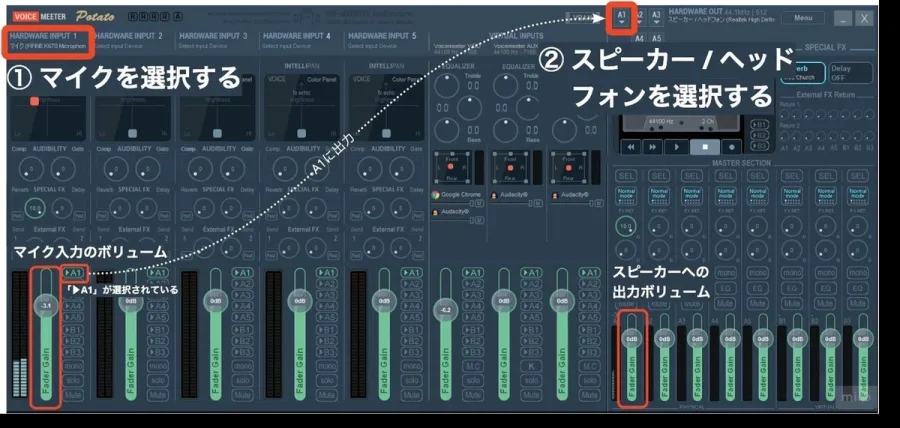
Clicking the red box in (1) will display a list of audio input devices currently connected to or built into your computer. From there, select the microphone you are currently using (the computer's built-in microphone is fine too).
You should see the gauge to the left of the microphone volume move up and down in response to the sound. Also, make sure the "▶A1" button to the right of the volume bar is ON (glowing green).
Clicking "A1" in the red box in (2) should similarly display a list of audio output devices currently connected to or built into your computer. From there, select the earphones or headphones you are currently using.
How is it?
Can you hear the voice you spoke into the microphone through your earphones/headphones?
You have now configured the settings to send the input from the microphone to "A1" and output the sound from "A1" to your headphones.
Let's add some reverb!
1. Turn the "Reverb" button ON! This turns on the effect that applies reverb.
2. Try turning the knob in (2) all the way up to 10.0. This outputs the reverb-processed sound to A1 (headphones).
3. Try turning the knob in (3) all the way up to 10.0. This sends the input from the microphone to the reverb effect.
How is it? Can you hear the reverb now?
Let's configure the detailed reverb settings
This is the most fun part!
Let's right-click the "Reverb" button we just used.
Then, a detailed settings screen like this will open!
It gets me a little excited. It starts to feel like a pro setup
The red framed area contains pre-registered patterns. There are 30 types in total. I'm not really sure how to adjust the fine-tuning knobs, but it's easy if you just choose from the pre-registered patterns! (I feel like this design is friendly to beginners.)
They have simple names like Church or Stadium. Try pressing the buttons you're curious about to switch the reverb effect. It's fun because it switches in real-time!!
Once you've decided on the effect, you can just close this screen.
Now, go ahead and sing freely
That's it for today! Next time, I hope to cover recording with BGM and maybe even doing a live stream...
Previous◀ 1|2|3|4|5 ▶Next
#licodeenar_voicemeeterpotato
Reference: Affordable audio interfaces
Below is the tip jar area
This is a paid area for accepting tips. If you found this helpful or interesting, I would be happy if you could toss a little something my way.
All article content is posted in the free area, so you can read the full text without purchasing.