When you try to print a PDF double-sided, have you ever been confused about whether to choose
long-edge binding or short-edge binding?
Even if it looks fine on the screen, it is not uncommon for the page orientation to be reversed or for the top and bottom to be flipped every time you turn the page when you actually print it.
Especially when creating documents or booklets,
if you get the long-edge/short-edge settings wrong for double-sided printing, it can become difficult to read or significantly change the impression of the finished product.
In this article, I will explain the difference between "long-edge binding" and "short-edge binding," which often cause confusion when printing PDFs double-sided, in an easy-to-understand way without using too much technical jargon
I will also introduce points you should check before printing, so if you are planning to print double-sided, please use this as a reference ✨
Part 1 | What is double-sided PDF printing anyway?
Double-sided PDF printing is a convenient feature that allows you to print content on both the front and back of a single sheet of paper. It is attractive because it reduces the number of pages, saving paper, and makes the entire document look neat
Many people choose double-sided printing when they want to "create a professional impression," such as for reports, manuals, or handouts.
However, when using double-sided printing, the settings "long-edge binding" and "short-edge binding" always appear. Depending on which one you choose here, how you turn the pages and the readability will change significantly.
What is long-edge binding? The setting closest to the feeling of reading a book
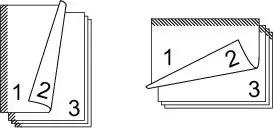
Long-edge binding is a double-sided printing method where you turn the pages along the long edge of the paper. When set, the left (or right) side of the paper is bound, allowing you to turn pages with the natural feeling of reading a book or magazine.
It is compatible with portrait-oriented PDFs and is characterized by being easy to read without discomfort, even for text-heavy documents.
Common examples
・Reports
・Manuals
・Text-based documents
Recommended for times like this
When you want readers to read portrait-oriented documents smoothly in order
What is short-edge binding? A page-turning style suitable for landscape documents
On the other hand, short-edge binding is a setting where you turn the pages along the short edge of the paper. It is similar to the image of flipping through a calendar, where you flip the pages vertically.
It is compatible with landscape-oriented PDFs and design-oriented documents, and is often used for content you want to show visually.
Common examples
・Calendars
・Presentation materials
・Portfolios
Recommended for times like this
For landscape documents or when you want to make the most of the layout
Part 2 | The difference between long-edge and short-edge binding is just this
Long-edge binding and short-edge binding are easy to get confused about when printing PDFs double-sided.
The difference is very simple, and there is only one point.
It's all about "which direction you flip the pages."
・Long-edge binding: Flip left to right (like a book or magazine)
・Short-edge binding: Flip top to bottom (like a calendar)
If you set this without knowing the difference,
the orientation might end up reversed, or the print result might be difficult to read.
Part 3 | Which one should you choose? Decision criteria when you're unsure ✨
Even if you understand how long-edge and short-edge binding work,
you might still wonder, "Which one is right for my document?"
In that case, the layout orientation is the easiest way to decide.
Choose long-edge binding when:
The PDF is in portrait layout
The document is meant to be read in order
Reports, manuals, guidebooks, etc.
For documents meant to be read for a long time or content-heavy texts,
you can't go wrong with long-edge binding.
Choose short-edge binding when:
The PDF is in landscape layout
You want to display images or designs in a larger format
Calendars, presentation materials, portfolios, etc.
If you want to prioritize the visual impact,
short-edge binding often looks more natural.
Part 4 | How to set long-edge/short-edge binding on your printer (Windows/Mac) ️
Even if you understand the difference between long-edge and short-edge binding,
many people are surprised to find they don't know where to change the actual print settings.
Here, we will introduce the basic flow for switching between long-edge and short-edge binding for commonly used environments as an example for
PDF double-sided printing.
On Windows, settings are very simple if you use Adobe Reader.
① Open the PDF and go to the print screen
Open the PDF you want to print and select "Print" from the menu (shortcut key: Ctrl + P).
② Check the double-sided printing settings
Once you have selected your printer, look for "Double-sided printing (Duplex)" or "Print method" in the settings.
③ Choose long-edge binding / short-edge binding
Here,
Flip on Long Edge
Flip on Short Edge
options will be displayed. Just choose the one that fits your needs.
④ Finally, check the preview and print
If the orientation looks fine, start printing. If you are unsure, it is safer to print a test page first.
On a Mac, the displayed items vary slightly depending on the browser or app you use. Here, we will explain using
printing from Chrome as an example.
① Open the print menu
With the PDF open, select "File" -> "Print" or press
Cmd + P.
② Show advanced settings
Once the print dialog appears, open "Advanced Settings" or "More Settings" to expand the configuration options.
③ Turn on double-sided printing
Scroll down and enable "Double-sided printing (Duplex)."
④ Select long-edge binding / short-edge binding
Within the double-sided printing section, choose your desired setting from "Long-edge binding" or "Short-edge binding."
⑤ Check settings and print
After checking the paper size and orientation, click "Print" to finish.
Part 5 | How to prepare your PDF for long-edge or short-edge binding✍️
If you are going to double-side print a PDF, it is surprisingly important to prepare the PDF data itself before printing, not just rely on printer settings.
If your page orientations are inconsistent, or if you find that double-sided printing results in text that is hard to read or a broken layout, the cause is often a PDF that was created without considering long-edge or short-edge binding.
In such cases, an editing tool that allows you to adjust your PDFs all at once is very useful.
PDNob, which is easy to use for pre-printing adjustmentsPDNob is one of the software programs that makes it easy to edit and convert PDFs with long-edge or short-edge binding in mind.
It is useful not only for organizing personal documents, but also for
reports, business PDFs, and other situations where you want to print cleanly.
Here are some of its main features
PDF Conversion: Convert PDFs to Word, Excel, PNG, EPUB, etc.
Editing Features: Add or adjust text, images, backgrounds, and watermarks
Page Organization: Merge, split, or reorder PDF pages
Print Support: Highly compatible with major printers, making double-sided printing smooth
Another convenient point is that it handles everything from document management, such as combining multiple PDFs or saving in PDF/A format.
Workflow for PDF editing tailored to long-edge and short-edge binding
① Load the PDF
Simply launch PDNob and drag and drop the PDF you want to edit.
② Fine-tune text and content
Using the "Edit" tool, you can change fonts and sizes, or correct unnecessary text. It's great to be able to adjust while checking the balance for double-sided printing.
③ Add images and text
If you want to add diagrams or logos to your documents, you can operate intuitively using "Add Text" or "Add Image."
④ Check orientation for double-sided printing
Before printing,
Portrait (Long-edge binding)
Landscape (Short-edge binding)
Check the preview with either of these in mind. Since you can check it in a small thumbnail view, it's easy to notice orientation mistakes.
Summary
To be honest, I used to think, "Long-edge bindingor short-edge binding, it really doesn't matter which one you choose." But when I actually tried printing a PDF double-sided, I realized that the orientation really changes how easy it is to read.
Especially when flipping through documents or looking back at them later. There were several times I felt, "Oh, I'm glad I thought about this setting properly." Once you understand how it works, you won't get confused next time. PDF double-sided printing, as well as long-edge binding and short-edge binding, become much less prone to errors if you just pay a little attention.
I hope this article is helpful for those who, like me, have just been choosing settings at random every time. It's enough if you just remember this for a split second the next time you print