Hey everyone!! Is it snowing where you are???
Yes, it's me, retro game VTuber Dasukia.
This time, I'll be explaining how to set up a play environment for classic Touhou games!
When I looked into this before, a lot of the information was way too old, and quite a few of my followers weren't able to play in the best conditions, so this time I'm going to prepare something close to my own play environment using "newer information"!
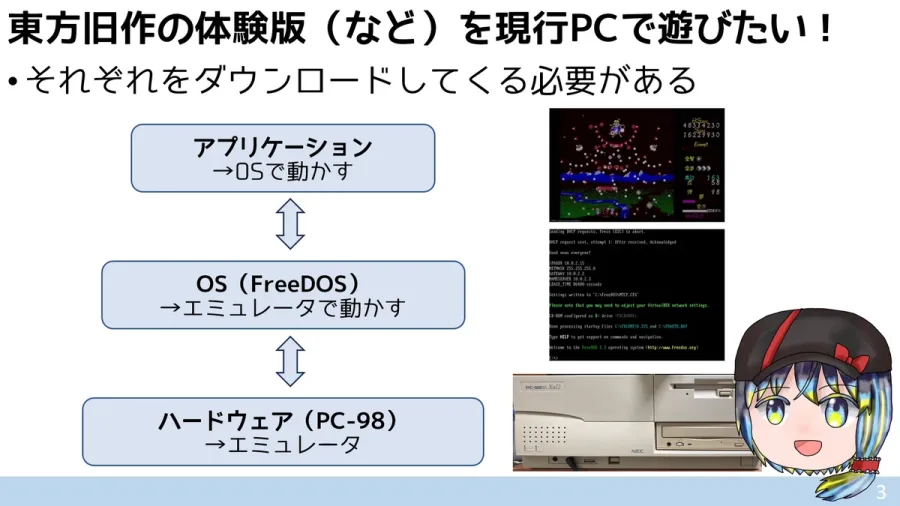
As you all know, classic Touhou games are software for the PC-98, so they won't run on current PCs. Therefore, you'll need to prepare an emulator to play them, but as you can see from the diagram below, an emulator is just a "substitute for hardware."
When it comes to actually running the game, you'll also need an OS to operate it, so you'll need to obtain and set up an "emulator," a "hard disk image and OS," and the "software" individually.
So, this time I'll explain it step by step!
Let's get an emulatorThe emulator we'll be using this time is Neko Project 21. There are other emulators like Anex86 and T98next, but personally, I feel this one has the most stable performance. With other emulators, it's quite common for the text to get garbled.
From the "Nanka Kure" link here, download and extract "Neko Project 21/W Download (ver0.86 rev91) Regular Version. Includes source code." (as of January 2024).
Let's get the OS and hard disk imageThe OS we'll be using this time is FreeDOS. You can just understand "DOS" as a general term for "an OS where you operate by typing commands on a pitch-black screen."
A hard disk image is a "virtualized hard disk." You have to prepare a virtual hard disk for the PC-98.
Please download "fd98_hd_250m_20220123.zip" from this link. The file with the .hdi extension inside the extracted folder is the hard disk image. Since this is a "hard disk image with FreeDOS for PC-98 already installed," it saves you the trouble of installing DOS. Easy!
Next, let's get the software to edit the hard disk image.
Download editd169.lzh Ver1.69 from the link and extract it.
Now that we've come this far, it's finally time to download the game data. However, since the trial version of Phantasmagoria of Dim.Dream does not work on its own in this environment, we will also obtain the "GDC Clock Switching Program" as a set.
Download the various trial versions from this old AM page.
Let's extract huma_ts2.lzh for the Story of Eastern Wonderland trial version while we're at it.
It's actually kind of interesting to take a look at AOTAKA's blog from back then while you're at it.
Download and extract the GDC clock switching utility from this link. There are way too many confusing buttons on this site.
At this stage, let's create folders named "th02tr" through "th05tr" and put the various trial versions into them. The Story of Eastern Wonderland trial version should have a "huma_ts2" folder, so let's rename that folder.
After organizing, please make sure the folder structure looks like this.
We will use EditDisk to edit the hard disk image, so launch it. Select and open the FD98_HD_250M.hdi file we downloaded earlier. The profile can remain as Anex 86 HDD.
When you open it, you will see a screen like this. The files that are already there are FreeDOS files, so let's leave them alone.
Drag and drop the "th02tr" through "th05tr" folders from earlier into it. The file structure should then look like this.
This completes the editing of the hard disk image. Make sure to close EditDisk properly.If you don't close it, the emulator will not work correctly.
Emulator settingsNow, let's launch the emulator. Here, we will perform the "clock frequency switching" and "hard disk image selection".
The emulator to launch is np21w.exe or np21x64w.exe. Launch the one that corresponds to your environment.
Set the hard disk image. Select "Harddisk" -> "IDE#0" -> "Open" at the top of the window and choose (2) "FD98_HD_250M.hdi".
Switch the CPU clock. Set the "Emulate" -> "Configure" -> "CPU" item at the top of the window to x50. A CPU clock of around 100 [MHz] should be enough to run it, so this might be a bit excessive!
In this state, select "Emulate" -> "Reset" to restart the emulator. If the screen looks like this, you're good to go.
Now, since we will be performing DOS operations via commands from here on, let's briefly review the basic commands and the current file structure.
Let's set up the classic Touhou gamesThe trial version of Story of Eastern Wonderland is already extracted, but for the trial versions of Phantasmagoria of Dim.Dream through Mystic Square, you need to perform the extraction process within the emulator. Move each of the "yume_ts2.exe" through "kai_ts1.exe" files into their respective folders and run them.
Once you can type again, the installation is complete! You can launch the game using the "game" command (which runs GAME.BAT), so let's start it up right away!!
I'd like to do that, but to launch Phantasmagoria of Dim.Dream, you must switch the GDC clock from 5MHz to 2.5MHz.
Since it tells you that, use the GDC.exe file that we put into the th03 folder earlier.
A:\TH03TR>gdc low
If you enter this command, it will switch, so if you run it again
A:\TH03TR>game
it should launch!
Extract Lotus Land Story and Mystic Square in the same way. You don't need to worry about the GDC clock for these titles, as they can be played regardless.
Go back to the parent directory, move to the installation folders, and run gen_ts1 and kai_ts1. Here is an example of the commands you might use.
A:\TH03TR>cd ..
A:\>cd th04tr
A:\TH04TR>gen_ts1
When launching Lotus Land Story and Mystic Square for the first time, you will need to set up the sound source, but generally, choosing the top option will be fine. This sound source setting exists because the sound hardware equipped in PC-98 machines varied depending on the model at the time.
So, were you able to successfully launch all four titles? I have also uploaded an explanatory video for this article on YouTube, so if you get stuck, please check that out too!
Well then everyone, have a great PC-98 life!!
*I want to play MIDI in the Story of Eastern Wonderland trial version, but to be honest, I'm not entirely sure how to do it either. I think you can probably just tweak the device settings in the emulator, but...
Addendum 1: Setting up the fontYou can play without any issues in this state, but by specifying a font file, you can play in a state closer to the actual hardware.
Download np2_makefont32.zip from this site and extract it.
Running makefont32.exe will generate font.bmp, so once you move it to the folder containing np21w.exe, the setup is complete. If you happen to own an actual PC-98, it might be better to download getbios.lzh from the same link and extract it directly from the 98 (that's what I do).
The sites linked here also explain the emulator environment setup in detail, so please be sure to check them out. To be honest, they actually explain things in more detail than I do. My article focuses on 'how to get the trial version running'...