2024/09/21 Added various updates as it seems to be read frequently
I happened to find reproducible steps, so I'm leaving them here as a memo. If no error message explaining the cause appears in the Console, this is likely the issue.
1. Keep some avatar active (on) in the Hierarchy.
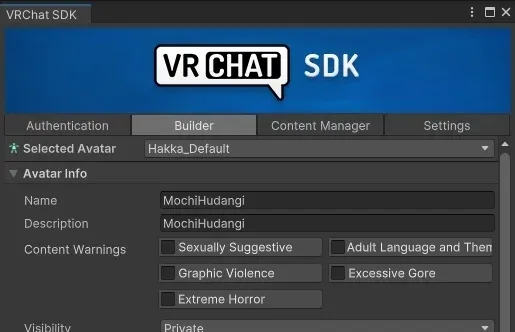
2. Open the Builder tab of the VRChat SDK window. At this time, the information for the avatar in step 1 is loaded.
3. Close the VRChat SDK window.
4. Deactivate (off) the avatar from step 1.
5. Select and activate an avatar other than the one in step 1.
6. Open the Builder tab of the VRChat SDK window.
7. The selection window at the top shows the currently active avatar, but the loaded data is still from the avatar in step 1.
8. Uploading in this state results in 'Avatar validation failed'.
The cause seems to be that the Builder tab information is not updated correctly because the VRChat SDK window was closed once.
As a countermeasure, when you want to update multiple avatar data, perform operations without closing the VRChat SDK window.
Avatar information switches without any issues as long as you perform activation/deactivation while the window is open.
If you have already reached the state in step 7, activate and then deactivate the avatar from step 1 while the VRChat SDK window's Builder tab is open.
After that, if you activate the other avatar from step 5 without closing the VRChat SDK window, the Builder information will update without any issues.
Alternatively, simply restarting Unity will also fix it.
Ideally, it would be better to write a Canny post (or maybe one already exists?), but it's a hassle and I'm not having that much trouble, so I'll leave it to someone else.
[20240921 Update]Since it seems to be viewed more consecutively than I thought, I will add this note: I believe the only 'Avatar validation failed' error fixed by the above countermeasure is the one caused by the steps mentioned above.
When compared to other 'Avatar validation failed' errors, the one mentioned above displays nothing but 'Avatar validation failed' as the error message. In that case, it is worth trying.
(It might also be useful when an error message appears telling you to fix the Blueprint ID, but it didn't appear in my tests.)
Regarding other cases, I did a quick search on X (a recommended method when in trouble), and the causes seem to be:
'The Modular Avatar Menu Installer component contains old values'
'A configuration error in the Modular Avatar Parameters component (wrong type, or forgot to add parameters for the imported item in the first place)'
'There are unused parameters because you stripped the FX layer from another avatar'
'The EX Menu icon size is 256 pixels or larger'
Is that all?
In any case, it seems that the appropriate error message is displayed in the Console, so please read the Console messages. The relevant error message seems to be located after the one that says 'Avatar validation failed'.
If an error occurs with a Modular Avatar-compatible item, updating Modular Avatar seems to add an automatic fix function, so try updating first. I recommend reading the thread by Sayamame below as it contains various information.
(Just to be safe, I'll say this: it won't work if you are on Unity 2019, okay? MA support for 2019 should be ending soon, so please migrate to Unity 2022 before updating.)