If Google Lens is not working, first update the Google app or Chrome to the latest version, and check your camera and photo access permissions and internet connection. Restarting the app or clearing the cache may also resolve the issue.
If the problem persists, try the solutions tailored to your environment, such as PC, Android, or iPhone.
In this article, we will introduce the main causes of Google Lens not working and how to fix them. We will also explain how to restore the icon if it has disappeared, how to add it to the search bar, and alternative tools for handling scanned PDFs.
Main Causes for Google Lens Not Working
If Google Lens is not working properly, the following causes are likely:
App or browser is outdated: If the versions of the Google app, Google Photos, or Chrome are old, malfunctions may occur.
Permissions not granted: If access to the camera or photos is restricted, images may not be recognized.
Unstable network environment: If your internet connection is unstable, search results may fail to load.
Cache issues: Temporary files can cause the screen to freeze or results to stop displaying.
Restrictions based on usage environment: Lens features may not be available in Incognito mode or certain apps.
Google service outage: If there is a problem on the service side, you will need to wait for it to be restored.
Basic Solutions When Google Lens Is Not Working
First, try the following methods in order.
1. Update Google-related apps
Open the Google Play Store on Android or the App Store on iPhone to update the Google app and Google Photos. On PC, open "About Google Chrome" from Chrome's "Settings" to check for updates.
On Android, you should also check the update status of Google Play services if necessary.
2. Check your internet connection
If Wi-Fi or mobile data is unstable, Google Lens search results may not appear. Switch between Wi-Fi and mobile data to verify that you have a stable connection.
3. Clear the cache
On Android, you can clear the Google app cache by following these steps:
Open "Apps" from "Settings".
Select "Google" or "Google Photos".
Open "Storage & cache".
Tap "Clear cache".
If the issue is occurring only in Google Photos, please clear the cache for Google Photos as well.
On the PC version of Chrome, you can clear cached images and files by going to "Settings" > "Privacy and security" > "Clear browsing data".
4. Check camera and photo access permissions
Permissions for camera and photo access may have been changed after an app update or similar event.
On Android, go to "Settings" > "Apps", open the Google app, and check "Permissions". On iPhone, go to "Settings", select the Google app or Google Photos, and verify that access to the camera and photos is permitted.
5. Restart the app or device
Try closing and reopening the app, and if that does not resolve the issue, restart your device.
If the same issue is occurring across multiple devices or apps, please also check for Google service outages.
Solutions by environment when Google Lens is not working
If basic troubleshooting does not resolve the issue, check your settings according to your usage environment.
● When Google Lens is not working on PC/ChromeOn a PC, you primarily use Google Lens through Chrome. Instead of looking for dedicated software, check your Chrome settings or menus.
If you cannot perform an image search
Update Chrome to the latest version.
Right-click an image on a web page.
Check if items such as "Search with Google Lens" are displayed.
If the menu does not appear, the available features may differ depending on your Chrome version or settings.
If the Lens icon is not displayed
The icon is not always displayed in the Chrome address bar. Try other launch methods, such as the right-click menu on an image.
If search results are not displayed
Ad blockers or privacy-related extensions may be interfering. Try temporarily disabling your extensions to check the behavior, and clear your Chrome cache if necessary.
● If Google Lens is not working on AndroidOn Android, you can use Lens through the Google app, Google Photos, and more.
Update the Google app, Google Photos, and Google Play services.
Go to Settings > Apps, select the Google app, and clear the cache.
Check if camera access is permitted in the app's permissions.
Restart the app or your device.
If it cannot recognize images, try using an image taken in a bright location that is in focus. Recognition accuracy may decrease with images containing small text or blurry photos.
● If Google Lens is not working on iPhoneThere is no standalone Google Lens app for iPhone. Use it via the Google app or Google Photos.
Update the Google app and Google Photos in the App Store.
Tap the camera-shaped Lens icon in the Google app's search bar.
Check access permissions for the camera and photos in iPhone Settings.
Check if camera usage is restricted under Screen Time > Content & Privacy Restrictions.
If it works in the Google app but not in Google Photos, try updating Google Photos individually and restarting the app.
● If Google Lens is not working in Google PhotosIn Google Photos, you can open a saved photo to launch Lens. If it works normally in the Google app but not in Google Photos, try the following methods:
Update Google Photos to the latest version.
Open a photo and tap the Lens icon displayed at the bottom of the screen or elsewhere.
Clear the Google Photos cache on Android.
Check if it can recognize other photos.
The position and display of icons may vary depending on the app version.
If the Google Lens icon has disappeared or is not displayed in the search bar
If the Google Lens icon suddenly disappears, check the app's update status and search bar settings.
For Android
Long-press the home screen to open "Widgets" and add the Google search widget. If the Lens icon does not appear, check for Google app updates and permission settings.
For PC Chrome
Depending on the Chrome version and settings, the Lens icon may not appear in the address bar. Check if you can launch it from the right-click menu on an image.
For iPhone
Open the Google app and check if the Lens icon is displayed in the search bar. If you cannot find it, try updating or restarting the app.
Note that since experimental Chrome settings can change depending on the version, we recommend checking standard settings or menus first.
PDNob is recommended over Google Lens for scanned PDFs
Google Lens is convenient for searching for products or text shown in photos. On the other hand, for purposes such as extracting text from scanned PDFs or editing documents directly, PDF editing software equipped with OCR functions is more suitable.
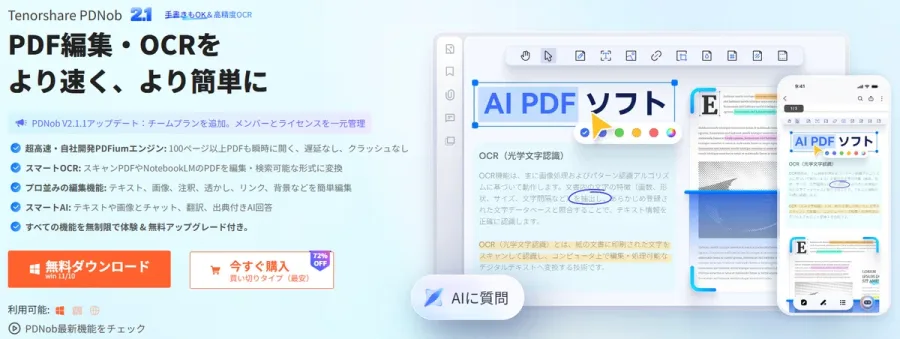
If you want to edit scanned PDFs, Tenorshare PDNob PDF editing software is also an option.
Main features of PDNobOCR: Converts scanned PDFs into searchable and editable documents. It supports over 16 languages, including Japanese.
PDF Editing: Allows editing of text and images, adding annotations, etc.
AI Features: Allows you to ask questions about PDF content or translate documents.
Page Management: Allows merging/splitting PDFs and reordering pages.
While Google Lens is a feature geared toward image search, PDNob is better suited for tasks involving documents, such as PDF text recognition, editing, and page management.
How to edit scanned PDFs with PDNob1. Install PDNob on your PC and open the scanned PDF.
2. Use the OCR function to recognize the text and make it editable.
3. Edit text or images via "Edit," or add annotations via "Comment."
4. Once you have finished the necessary edits, save the file.
If you want to correct text in a scanned PDF or organize multiple PDFs together, using PDF editing software is efficient.
Frequently Asked Questions when Google Lens is not working
Q1. How can I reset Google Lens?
Google Lens does not have an independent reset button. On Android, go to "Settings" > "Apps," open the Google app or Google Photos, and clear the cache. On iPhone, try restarting or updating the app, and if that does not improve the situation, consider reinstalling it.
Q2. How do I clear the Google Lens cache?
On Android, follow these steps: "Settings" > "Apps" > "Google" > "Storage & cache" > "Clear cache." If you are having issues with Google Photos, perform the same operation for Google Photos as well.
On the PC version of Chrome, you can clear the cache from "Settings" > "Privacy and security" > "Clear browsing data."
Q3. Are there any alternative tools to use when Google Lens is not working?
If you want to search for products or text in photos, Google Photos or the "Circle to Search" feature on supported devices are options. If you want to recognize and edit text in scanned PDFs, PDNob PDF editing software with OCR functionality is convenient.