I had been wanting an Amazon Fire TV Stick for a while.
Since I was able to buy one used, I immediately tried installing Tailscale on it.
Why a foreign-made TV + Fire TV Stick is the ultimate combo
As I introduced in a previous article, Tailscale is, simply put, software that allows you to build a mesh VPN with super simple operations.
When you install this app on a Fire TV Stick, you can use apps on a TV intended for overseas use that are otherwise only available in Japan.
For example, foreign-made LG TVs come equipped with an OS for smart TVs called webOS.
If it is a model released for the Japanese domestic market, you can install and enjoy your favorite video-on-demand (VOD) services from the app store (LG Apps), such as Netflix, Disney+, Prime Video, Apple TV+, and NHK ONE (formerly NHK Plus).
However, for LG TVs sold for overseas markets, the availability of Japanese webOS apps differs, and you may not be able to install Japanese apps like TVer directly onto the TV.
In short, the webOS installed on LG TVs has many restrictions.
On the other hand, the Amazon Fire TV Stick is Android-based Fire OS, so it has a high degree of freedom, such as being able to sideload Android apps as APKs.
For someone like me who wants to use Tailscale, I would rather use the Fire TV Stick's webOS than LG's Fire OS.
Therefore, in this article, I would like to introduce the steps to install Tailscale on a Fire TV Stick.
How to install Tailscale on a Fire TV Stick
Tailscale can sometimes be installed directly from the Amazon Appstore. First, please try searching for "Tailscale" in the Amazon Appstore.
If it does not appear, use Downloader to sideload the APK.
If Tailscale cannot be found in the Amazon Appstore, installing Downloader on the Fire TV Stick is the easiest way.
Downloader is an app for sideloading (directly installing) APK files, and it is often used to use apps other than those in the Amazon Appstore on an Amazon Fire TV Stick.
Also, if you have a computer, there is a way to use adb for sideloading. For reference, I will post a link to a past article.
Preparation
Before installing Downloader, change the settings on your Fire TV Stick.
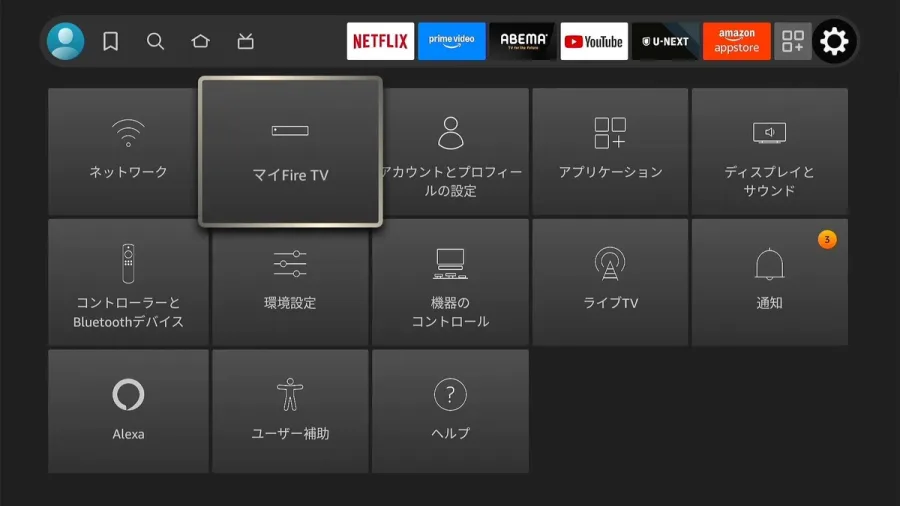
Enabling Developer OptionsOpen Fire TV Settings (gear icon) > My Fire TV > About.
On the name of the Fire TV you are using (e.g., Fire TV Stick 4K, etc.), press the select button on the remote 7 times in a row. (If it says "Developer options are already enabled" at the bottom of the screen, you are good to go.)
Go back to the previous screen and select the newly added Developer options.
Open "Install unknown apps" so that you can set the Downloader app to "ON" for later use.
Search for and install "Downloader" from the Fire TV Amazon Appstore.
In the "Developer options" > "Install unknown apps" section mentioned earlier, change Downloader to "ON".
Launch the Downloader app.
Upon first launch, you will be asked for permission for Downloader to access media and files, so select "Allow".Enter the following in the URL input field:
pkgs.tailscale.com (This is the URL for the official Tailscale website.)
Once entered, the download destination for the Tailscale package APK file will be displayed.Open "Stable" > "▶︎ Android", select the displayed APK file (e.g., tailscale-android-universal-1.102.3.apk), and download the APK file.
After the download is complete, follow the on-screen instructions to install it.
Using Tailscale on Fire TV Stick
Login and AuthenticationLaunch the installed Tailscale.
Upon the first launch, you will be prompted for a VPN connection request from Tailscale, so select "OK".A QR code for login will be displayed on the screen.
Scan the QR code with your smartphone camera, and complete the authentication with your Tailscale account at the accessed URL.
Access the Tailscale Admin Console in a browser on your PC or smartphone, and from the monitoring screen, disable the key expiry for the authenticated Fire TV Stick.
Selecting [Disable key expiry] from the "..." next to the device name will eliminate the need for re-authentication after 180 days and prevent the VPN from becoming unusable.On the Tailscale settings screen on the Fire TV Stick, select an exit node from the [EXIT NODE] item.
Pressing [None▼] will bring up the [Choose exit node] screen, so choose a valid exit node.Turn the toggle switch on to "Connected", and you can route the Fire TV Stick's internet traffic through the specified exit node.
If you are asked for permission to access storage (save area) to use Tailscale's file transfer feature (Taildrop), press "Continue," and when prompted for permission from Tailscale to access photos, media, and files on the device, select "Allow."
Let's try launching an app on the Fire TV Stick
By enabling Tailscale installed on the Fire TV Stick, that Fire TV Stick is connected to the internet via the specified exit node.
In other words, if the exit node is in Japan, it will appear as if you are accessing from Japan in terms of IP address.
By doing this, you can create an environment where you can use Japan-specific apps on your Fire TV Stick, even on a non-Japanese TV.
Please try out which apps you can use and how they work.
And I hope you feel that your non-Japanese TV has become the ultimate device.
Bonus
Currently, there are models equipped with Fire OS and models equipped with Vega OS for the Fire TV Stick.
Amazon has stated that starting with the Fire TV Stick 4K Select, future Fire TV Stick releases will be provided with Vega OS.
If you want to buy a model that can install Tailscale, now is the time.
I will introduce the Fire OS-equipped Fire TV Sticks available for purchase at the time of writing.
1. Amazon Fire TV Stick 4K Plus
Recommended for: Those who have a 4K TV and want to enjoy movies with high image and sound quality, but do not need something as expensive as the top-tier model.
2. Amazon Fire TV Stick 4K Max (2nd Gen)
Recommended for: Those who prioritize snappy menu navigation, want to download many apps, or have a home Wi-Fi environment that supports Wi-Fi 6E.
End
The author, BUTACO, is a participant in the Amazon Associates Program, an affiliate advertising program designed to provide a means for sites to earn advertising fees by advertising and linking to Amazon.