Have you ever been troubled by the message, "The PDF file is too large to send..."?
PDFs containing many photos or images tend to grow in file size without you noticing. However, by using the right methods, you can reduce the size of your PDF while maintaining image quality as much as possible✨
In this article, we will explain in detail everything from the causes of large PDF file sizes to methods for reducing PDF size that you can practice on Windows, Mac, and smartphones.
Most of these methods are free to try, and we have also included step-by-step instructions with images. The content is designed so that even beginners can follow along without getting lost, so if you are thinking, "I want to make my PDF size smaller right now," please use this as a reference✨
Part 1. Things to know before reducing PDF size
How much can you reduce the file size by shrinking a PDF?
The effect of reducing PDF size depends on the cause of the large file size.
PDFs where images account for the majority of the file size will see the greatest effect from compression. On the other hand, text-centric PDFs have a small original file size, so there are cases where significant reduction is difficult.
Guidelines for file size based on usage
When sending via email: 5MB or less
When posting on websites or social media: 2MB or less
️ When sharing internally or saving to the cloud: 10MB or less
By being mindful of the size suitable for your purpose, you can make your PDF smaller without sacrificing image quality more than necessary.
Part 2. [For PC] 3 recommended ways to make PDF size smaller
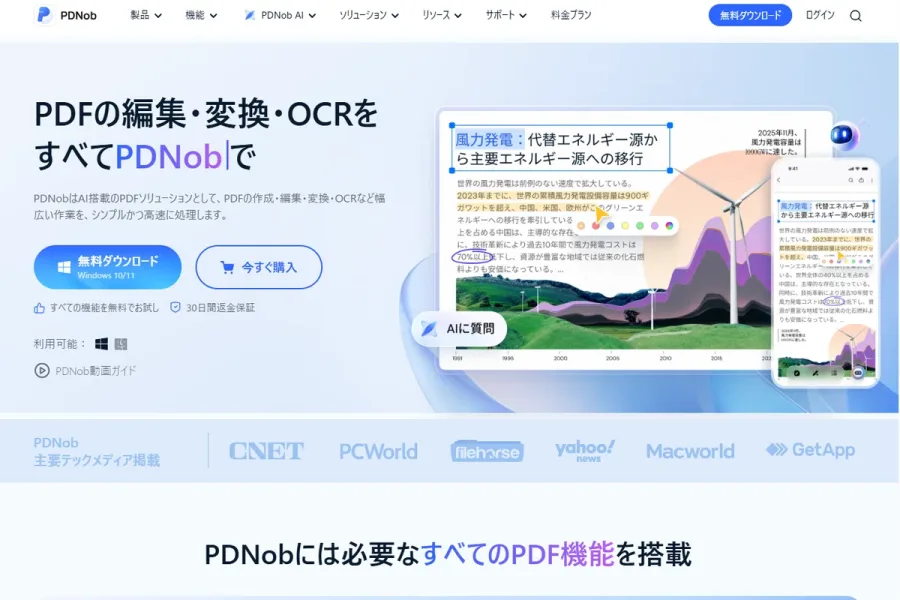
Method 1: PDNob is recommended if you want to easily reduce PDF sizeThere are several ways to make a PDF smaller, but for those who want to compress it with as little effort as possible, PDNob is recommended.
PDNob is an all-in-one software equipped not only with PDF compression but also with editing, conversion, OCR, and AI functions. It is compatible with both Windows and Mac, and is characterized by a simple design that even beginners can operate without getting lost.
It is suitable for those who "want to easily reduce PDF size first" or "want to complete multiple tasks with one piece of software"
Steps to reduce PDF size with PDNob
① Launch PDNob, click "Open PDF," and load the PDF you want to compress.
② Select "Compress PDF" from "Tools".
③ Choose from three compression levels: "High quality," "Medium quality," and "Low quality."
④ Specify the save location and click "Compress."
After compression, you can continue editing as is. You can also perform tasks like text correction, font changes, and size adjustments on the same screen.
For email attachments, choose "Medium quality",if you want to reduce the size as much as possible, choose "Low quality",for presentation materialsor other files where image quality is important, it is best to choose"High quality."
If you want to reduce PDF size without installing software, the Adobe Acrobat Online compression tool is convenient.
It is an official service provided by Adobe, andyou can easily shrink PDFs just by uploading them from your browser.It is characterized by being easy to use even in environments where you cannot install apps, such as company PCs or shared computers.
However, please note that you will need to subscribe to a paid plan to use advanced compression features or other PDF editing tools.
Steps to shrink PDFs with Adobe Acrobat Online
① Access the Adobe Acrobat "Compress PDF" page.
② Upload the PDF file you want to compress.
③ Select the compression level from "High," "Medium," or "Low."
④ Click "Compress" and download the PDF once it is finished.
No special settings are required, so it is also convenient when you need to shrink a PDF size in a hurry✨
Method 3: Shrink PDFs with the standard Mac "Preview" appIf you are using a Mac, you canshrink PDFs for freeusing the built-in "Preview" app.
No additional software installation is required, and the appeal is that you can try it immediately using only the Mac you have on hand. For simple documents or personal-use PDFs, this should be more than sufficient.
Steps to lighten a PDF using Preview
① Double-click the PDF file in Finder to open it in "Preview".
② Click "File" in the menu bar, then click "Export...".
③ Select "Reduce File Size" from the "Quartz Filter" dropdown.
④ Specify the save location and click "Save".
After compression, you can right-click the file and select "Get Info" to check how much the file size has been reduced
Part.3 [Smartphone Compatible] 2 ways to lighten PDFs
It is possible to reduce the size of a PDF even when you are on the go or in situations where you cannot use a PC.
However, while smartphone methods are appealing for their convenience, they may not match PC software in terms of image quality or security. It is recommended to use them according to your needs.
Method ①: Lighten PDFs using standard iPhone features
iPhones and iPads are equipped with "Quick Actions" that allow you to lighten PDFs without additional apps.
It is convenient for simple documents or PDFs for email attachments, as you can compress them in just a few taps.
Operation Steps
① Open the "Files" app and long-press the target PDF.
② Tap "Quick Actions" in the menu.
③ Select "Optimize File Size".
④ Compression will be executed automatically.
Since it is completed using only Apple's native features, it is an easy-to-use method for those who prioritize security
However, since you cannot adjust the compression ratio, the image quality may drop significantly depending on the PDF.
Method 2: Use the iLovePDF app
If you want to reduce PDF file size more flexibly, the iLovePDF app is recommended.
You can select the compression level and process multiple files at once, making it efficient to work even on a smartphone.
Operation Steps
① Install iLovePDF from the App Store or Google Play.
② Open the app and select "Compress PDF".
③ Load the PDF you want to compress.
④ Select the compression level and tap "Compress PDF".
⑤ Once finished, save or share the file.
The operation is simple, making it convenient when you want to quickly reduce the size of a PDF from your smartphone ✨
An Android version is also available, and you can directly compress PDFs stored in Google Drive.
Part 4: [Online Support] How to reduce PDF size with iLovePDF
For those who "don't want to install software" or "want to reduce PDF size immediately," iLovePDF is recommended.
Since it can be used in a browser, you can easily reduce PDF size from Windows, Mac, as well as smartphones and tablets. Another appeal is that it comes with useful features such as PDF merging, splitting, and conversion, in addition to compression ✨
Steps to reduce PDF size with iLovePDF
① Access the "Compress PDF" page on iLovePDF.
② Drag and drop the PDF file or upload it via "Select file".
③ Select the compression level.
④ Click "Compress PDF".
⑤ After processing is complete, download the compressed PDF.
The operation is simple, so even first-time users can reduce PDF size without getting lost
While it is convenient to reduce PDF size easily online, you should also consider using PC software that supports local processing when handling important business documents or files containing personal information.
Part 5: Main reasons why PDFs become heavy ️
To reduce the size of a PDF, it is important to first understand the reasons why the file size becomes large.
① Contains many images or photos
This is the most common cause of large PDF file sizes.
Product catalogs and documents with photos tend to have large file sizes because they contain a lot of image data.
② It is a scanned PDF
Since scanned PDFs are saved as images rather than text, even a few pages can result in a large file size.
This is a common case for scanned data of contracts and application documents.
③ Contains fonts or unnecessary data ️
Accumulated font information, comment history, and editing data can cause the PDF file size to increase.
This tends to occur in documents edited by multiple people or PDFs that have undergone repeated revisions.
Summary
The method for reducing PDF size varies depending on your environment and what you prioritize.
Want to reduce PDF size easily → iLovePDF
Want to prioritize image quality and security → PDNob
Want to use it for free on Mac → Preview
Want to complete it on your smartphone → iLovePDF app
Among these, PDNob is recommended if you prioritize the balance between compression rate, image quality, and ease of use ✨
However, regardless of which method you choose, check that there are no issues with the layout or image quality after reducing the PDF size as well. Also, for peace of mind, save the original file before working on it.