Introduction
When using Gmail with Google Workspace, the first thing you should check is the [General] settings.
In Gmail's general settings, you can configure how emails are displayed, undo send, signatures, out-of-office replies, and more.
Although you may not visit this section often, adjusting these settings can significantly improve the usability of your email.
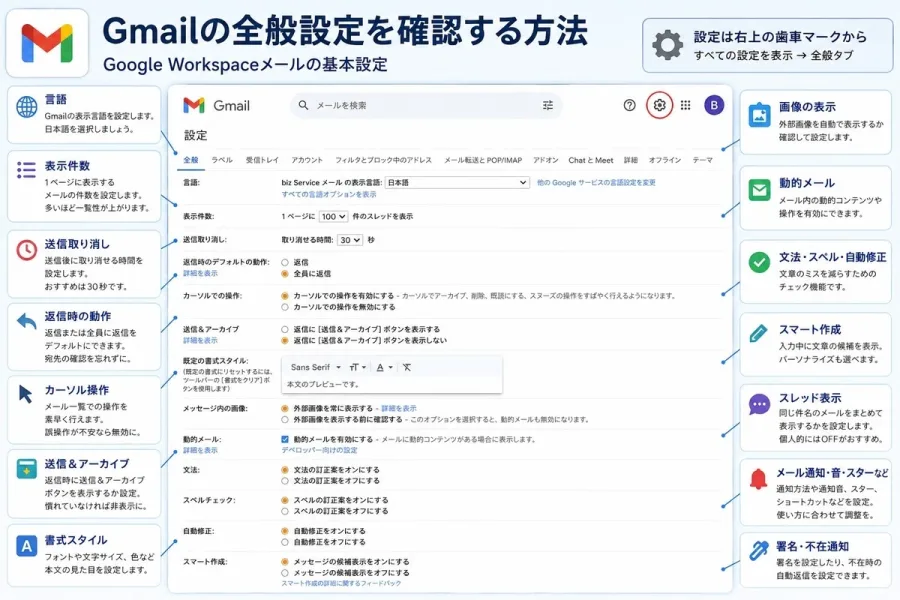
In this article, we will clearly organize the items found in the [General] tab of the Gmail [Settings] screen, following the content shown in the images.
How to Open Gmail General Settings
First, open the Gmail settings screen.
Here are the steps:
Open Gmail.
Click the gear icon in the top right corner.
Click "See all settings".
Open the "General" tab from the top menu.
On this screen, you can configure the basic operations of Gmail.
Language
Under [Language], you can set the display language for Gmail.
Display language: Japanese
If you want to use Gmail in Japanese, select Japanese.
If the interface is in English and you find it difficult to navigate, please check this setting.
Maximum page size
In [Maximum page size], you can set the number of emails to display on one page.
Since it is better to have more emails visible when checking your inbox, I recommend changing this to 100.
Undo Send
In [Undo Send], you can set the time allowed to cancel an email after it has been sent.
Immediately after sending an email, you might realize that:
You forgot an attachment
You used the wrong recipient
You want to correct the body text
you may notice these things.
At that time, you can cancel the sending within a certain period.
I recommend setting it to [30 seconds].
With the default setting of 5 seconds, it is often too late by the time you notice.
Default reply behavior
In [Default reply behavior], you can choose the action taken when you press the reply button.
There are two options:
Reply
Reply all
[Reply all] sends the reply to everyone, including those in the CC field.
While replying to all can be convenient for business emails, there is a possibility of sending it to unnecessary recipients.
Always check the recipients before sending.
Keyboard shortcuts
In [Keyboard shortcuts], you can set whether to display action buttons when you hover your mouse over the email list.
Enabling this makes it easier to perform the following actions without opening the email.
・Archive
・Delete
・Mark as read
・Snooze
This is useful for people who process a lot of emails.
If you are worried about accidental operations, please disable it.
Send & Archive
In [Send & Archive], you can set whether to display the [Send & Archive] button when replying.
Using Send & Archive allows you to clear the email from your inbox after replying.
Archiving is not the same as deleting.
The email remains, but it will no longer be visible in your inbox.
Those who are not used to it may feel that the email has disappeared, so it is fine to set it to not display at first.
Default text style
In [Default text style], you can set the appearance of the email body.
These are the main items you can set.
・Font
・Text size
・Text color
・Bold
・Underline
・Clear formatting
For business emails, a simple format is generally recommended.
Avoid flashy colors or overly large text, and prioritize readability.
Images in messages
In [Images in messages], you can set whether to automatically display external images.
・Always display external images
This is convenient if you want to see emails with images immediately.
If you prioritize security,
・Ask before displaying external images
is also an option you can choose.
Dynamic email
In [Dynamic email], you can set whether to display dynamic content or interactive elements within emails.
When dynamic email is enabled, you may be able to view the latest information or perform simple actions directly within the email.
Grammar
In [Grammar], you can set whether to display grammar correction suggestions while composing emails.
This feature points out awkward phrasing while you are writing.
It is useful for reviewing business emails.
However, since it is not always correct, be sure to perform a final check yourself.
Spelling check
In [Spelling check], you can check for spelling errors in the text you enter.
This can be helpful when entering English words, company names, product names, etc.
However, proper nouns and industry-specific terms may sometimes be incorrectly flagged for correction.
Do not blindly trust the suggestions; always verify the content.
Autocorrect
In [Autocorrect], you can set whether to automatically correct characters that appear to be typos.
It is convenient for reducing input errors.
However, there is a possibility that technical terms, company names, product names, or personal names may be changed to unintended words.
Always check your email before sending.
Smart Compose
Smart Compose is a feature that displays text suggestions while you are composing an email.
When you type part of a sentence, suggestions for the rest of it may appear.
For example,
・Best regards
・Please check
・Thank you
These are convenient for standard phrases.
However, the suggestions may not always match your intent.
Be sure to check the content before using them.
Smart Compose Personalization
With Smart Compose Personalization, you can set whether to adjust suggestions based on your writing style.
Turning this on makes it easier for suggestions to align with your writing tendencies.
It is convenient, but you can turn it off if you prefer.
Conversation View
Conversation View allows you to set whether to group emails with the same subject line together.
There are two options:
・Conversation View ON
・Conversation View OFF
When Conversation View is turned on, the same exchange is displayed grouped together as one.
While it makes it easier to follow the flow of emails, you might overlook new emails if you are not used to it.
Whether Conversation View should be on or off
These are the people for whom thread view is suitable.
・You want to see email exchanges grouped together
・You want to follow replies with the same subject line
・You are used to the typical Gmail display
These are the people for whom thread view is not suitable.
・You want to see emails one by one
・You do not want to miss new emails
・You prefer a display similar to traditional email software
Personally, I absolutely recommend turning thread view off.
Smart features in Gmail, Chat, and Meet
When this setting is turned on, you may be able to use convenient features based on how you use Gmail, Chat, and Meet.
For example,
・Suggested appointments
・Display of related information
・Input assistance
・Personalized features
and so on.
Email notifications
In [Email notifications], you set whether to receive notifications when new emails arrive.
・Email notifications for new mail ON
・Email notifications for important mail ON
・Email notifications OFF
Turning on notifications makes it easier to notice new emails.
However, too many notifications can make it difficult to concentrate on your work.
Recommended email notification settings
Adjust notification settings to suit your work content.
For those who want to notice emails immediately,
・New mail ON
For those who only need important emails,
・Important mail ON
If you want to focus on your work,
・Mail notifications OFF
is also fine.
If there are too many notifications, you may find yourself being pushed around by your emails.
Mail notification sound
In [Mail notification sound], you can set the sound for when a new email arrives.
You may set it if you want to be alerted by sound.
However, in a workplace, notification sounds can sometimes be a nuisance to those around you.
Turn it off if necessary.
Stars
In [Stars], you can set the types of stars to attach to emails.
Stars are a feature for marking important emails.
For example,
・To be handled later
・Important email
・Confirmed
・Pending
can be used like this.
Using too many can make things confusing, so starting with a few types is sufficient.
Keyboard shortcuts
In [Keyboard shortcuts], you set whether to use Gmail with keyboard operations.
Using shortcuts makes email operations faster.
However, if you are not used to it, it may lead to incorrect operations.
If you are not confident, it is fine to leave it OFF.
Icons
In [Icons], you can choose whether to display buttons as icons or text.
Icon display makes the screen look cleaner.
However, it may be difficult for inexperienced users to understand the meaning.
If you prioritize clarity, you can also consider text display.
Profile picture
There is an item on the screen regarding the display of your Google profile photo.
The profile picture is also displayed in Gmail and other Google services.
As needed, decide on:
・Setting a profile photo
・Complying with company rules
・Checking whether to use a personal photo
・Leaving it as an initial display
and so on.
Automatic contact addition
[When you send an email to a new user, add that user to 'Other Contacts' so that they can be entered using the predictive input function from the next time onwards]
This is a feature that automatically adds the person you sent an email to as a contact candidate.
The convenient points are:
・Making address entry easier next time
・Reducing email address entry errors
・Displaying frequent recipients as candidates
On the other hand, unnecessary candidates may increase.
You can also change the setting to add contacts manually if necessary.
Signature
In [Signature], you can set the signature to be included at the end of your emails.
Signatures often include the following information:
・Company name
・Department name
・Full name
・Phone number
・Email address
・Company URL
By setting up a signature, it can be automatically inserted into the body of your email without having to type it every time.
Recommended signature settings
It is recommended to set up a signature for business emails.
However, a signature that is too long can be difficult to read.
The recommendation is to include only the minimum necessary information.
Here is an example:
・Company name
・Department name
・Full name
・Phone number
・Email address
Default signature
In [Default signature], you can choose the signature to use for new emails and replies.
・Email address
・For new emails
・For replies/forwards
are the available settings.
You can include a formal signature for new emails and a shorter signature for replies.
If a long signature is included every time you reply, the email can become too long.
Position of the signature in replies
There is a setting called [Insert signature before quoted text in replies and remove the '--' line that precedes it].
This is the setting.
This relates to where the signature is placed in reply emails.
Turning this on makes it easier to place the signature right below the reply text.
For business emails, turning this setting on can sometimes make them easier to read.
Indicators
In [Indicators], you can configure settings to make emails addressed to you easier to identify.
・Show indicators
Emails sent to mailing lists will not be marked.
Emails sent only to you will have an arrow-like mark.
This is useful for people who receive a large volume of emails.
Snippet
In [Snippet], you can set whether to display a portion of the email body in the email list.
・Show snippets / Show subject only
Displaying snippets allows you to check a little bit of the content without opening the email.
However, some people find it hard to read because there is a lot of information on the screen.
If you prefer a simple view, displaying only the subject is also fine.
Vacation responder
In [Vacation responder], you can set up an automatic reply for when you cannot respond to emails due to vacation or business trips.
・Vacation responder off
・Vacation responder on
are available, and you can enter the period, subject, and message.
Using the vacation responder allows you to automatically notify the sender that you are away.
Items to set in the out-of-office auto-reply
In the out-of-office auto-reply, you set the following items.
・Start date
・End date
・Subject
・Message
・Whether to reply only to users registered in your contacts
・Whether to reply only to users in the same organization
If you are also replying to people outside the company, be careful about the content.
It is helpful to briefly write your absence period, alternative contact information, and how to contact you in an emergency.
Example of an out-of-office auto-reply
This is an example of an out-of-office auto-reply.
I will be away from [Month] [Day] to [Month] [Day].
During this period, there may be a delay in checking emails.
If your matter is urgent, please contact [Name/Department].
I will respond in order as soon as I return.
It is recommended to write it briefly and clearly like this.
Save after changing settings
After changing your Gmail settings, click [Save Changes] at the bottom of the screen.
On the screen, at the bottom,
・Save changes
・Cancel
are displayed.
Even if you change the settings, they will not be applied unless you save them.
Let's make sure not to forget to save at the end.
Recommended setting examples for business use
These are recommended examples for using Gmail in a business context.
・Language: Japanese
・Maximum page size: 50 or 100 conversations
・Undo Send: 30 seconds
・Default reply behavior: Adjust to your workflow
・Keyboard shortcuts: Enable if you are used to them
・Send & Archive: Hide if you are not used to it
・Images: Follow company policy
・Grammar: On
・Spelling: On
・Autocorrect: On
・Smart Compose: On as needed
・Conversation view: Off
・Desktop notifications: Important mail notifications only is also recommended
・Signature: Set up
・Vacation responder: Use during leave or business trips
Common Issues
These are common issues found in Gmail general settings.
・The interface is in the wrong language
・The number of emails displayed in the list is too low
・Undo Send time is too short
・Risk of accidentally replying to all
・External images are not displayed
・Emails seem to be archived automatically
・Conversation view is confusing
・Signature is not appearing
・Signature does not appear in the expected location when replying
・Vacation responder is not set up
・Changes are not being applied
When these issues occur, check your general settings.
Points to Note
When changing Gmail general settings, keep the following points in mind:
・Prioritize company operational rules
・Do not change security-related settings without authorization
・Check company policy regarding automatic display of external images
・Be careful of accidental replies to all
・Be careful of incorrect conversions with autocorrect
・Always verify Smart Compose suggestions
・Do not include excessive personal information in your signature
・Be careful with the content of vacation responders sent outside the company
・Always save after making changes
Summary
In Gmail's [General] settings, you can check basic settings related to email display and operation.
The main setting items are as follows:
・Language
・Maximum page size
・Undo Send
・Default reply behavior
・Keyboard shortcuts
・Send & Archive
・Default text style
・Images in messages
・Dynamic email
・Grammar
・Spelling
・Autocorrect
・Smart Compose
・Conversation view
・Smart features
・Desktop notifications
・Stars
・Keyboard shortcuts
・Button labels
・My picture
・Create contacts for auto-complete
・Signature
・Personal level indicators
・Snippet
・Vacation responder
You should especially review Undo Send, default reply behavior, signature, and vacation responder.
These settings are related to the ease of use of business emails and the prevention of errors.
Gmail general settings do not need to be changed every day.
However, setting them up correctly from the start will make your daily email tasks much easier.