Hello everyone! I'm Minto, your LINE marketer
Last time, I introduced how to set up your profile! If you haven't read it yet, check it out here first
▶ Boost Trust & Response Rates! A Thorough Guide to LINE Official Account Profile Settings
This time, I'll be explaining how to set up your "Greeting Message"!
What is a greeting message?
A greeting message is the first message that is automatically sent when a customer adds your account as a friend.
Since it's an important message that influences your first impression, setting it up properly makes it easier to lead to next actions like reservations or coupon usage!
Thank you for adding us: Keep it friendly, like "Thank you for adding us as a friend"!
Self-introduction: Briefly introduce your business, like "We are [Store Name] and we do [Service/Product]"
Coupons, special offers, and reservation info : Guide them to the next action, like "Show this screen for a free drink!" or "Make a reservation here"
How to set up a greeting message
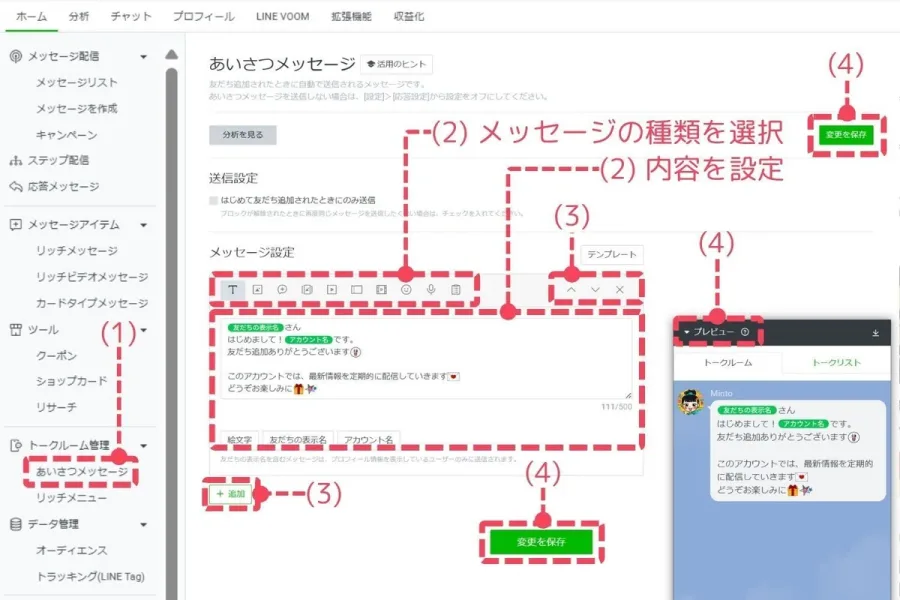
On PC, select "Greeting Message" from the LINE Official Account Manager home screen, or on smartphone, from the LINE Official Account app home screen
On the "Message Settings" screen that appears, set the message type and content
Adjust as needed by adding with "+", deleting with "×", and changing the order with "︿" and "﹀"
Once you've checked the preview, save it and you're done!
The available message types are as follows.
You can set up to 5 bubbles in a single greeting message!
I will explain how to utilize and create each of these messages in detail in future articles
Let's also make use of convenient templates
For beginners, using templates makes it easy to create greeting messages!
Press "Templates" in the top right of the message settings screen, and try selecting and adding your favorite from the four types.
Once you have a template as a base, you can just customize it to fit your own shop or service
After setting up, also check the sending and response settings!
Once you have created your greeting message, don't forget to review the following settings as well!
Sending SettingsIf you do not want to send the greeting message again when an account unblocks you, make sure to check "Send only when added as a friend for the first time"
Make sure that "Greeting Message" is turned on under "Settings" > "Response Settings".
Summary
In this article, I explained the greeting messages for LINE Official Accounts!
By refining your greeting message, you can give customers a sense of security and familiarity, which will also increase your response rate!
Next time, I plan to explain "message types, creation methods, and delivery methods" in more detail, so please follow me and stay tuned!
See you next time! This was Minto.
Note: This article was created based on information as of mid-April 2025. Specifications may change in the future, so please check the official website for the latest information!
Related note
I've introduced examples of how to use greeting messages, so be sure to check this out too! If you like it, please give it a "Like"!
▶ [Save for later] Learn from 5 popular companies! Success stories and key points for LINE Official Account greeting messages