Published: August 12, 2026
What you can do with this article.
This is a method to add chat data from Gemini and Search's AI mode as a source for ChatGPT projects, allowing you to search and reference past consultations.
Attached images and other data will be referenced from Google Drive as needed.
Verification environment: Mac mini
Note
・Periods when Gemini's "Keep Activity" was off, or conversations that have been manually or automatically deleted, may not be included in Google Takeout. For work or school accounts, the content that can be exported may vary depending on administrator settings.
While you will be able to search and retrieve attached files within Google Drive, the correspondence between the original conversation and the attached files may not be perfectly restored.
・This article may become obsolete relatively quickly as AI develops.
In the future, I believe AI agents will be able to perform these tasks automatically.
・There may be cases where the specifications or display names of each site change, making the steps in this article ineffective.
・I performed this with project instructions (or custom instructions) and memory enabled.
Depending on individual settings, it may not work well when splitting the HTML.
In that case, please try adjusting the instructions while consulting with the AI yourself.
1. Export Gemini data using Google Takeout
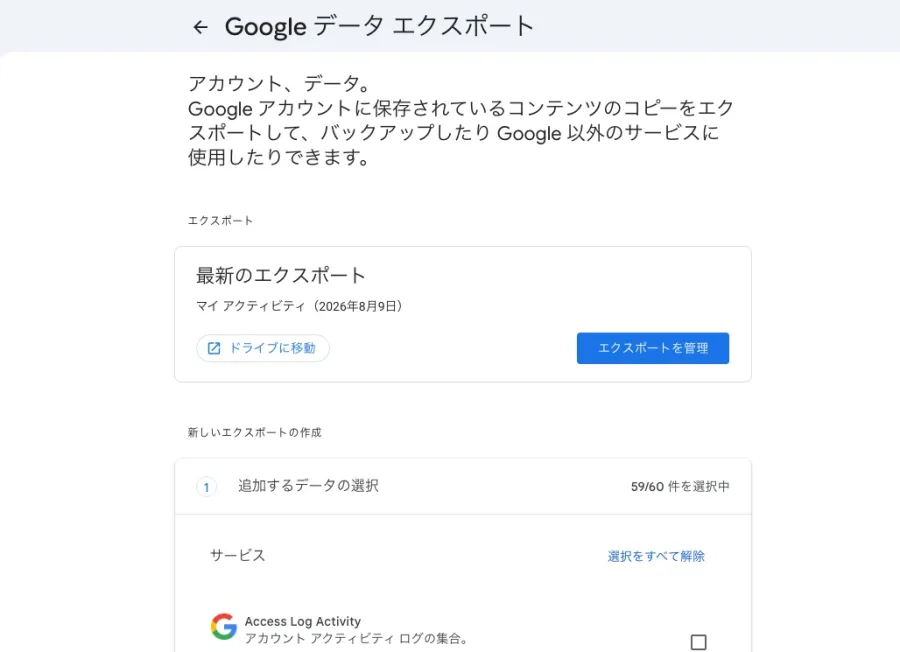
Google Takeout and log in to the Google account you use for Gemini.
Press "Deselect all".
2. Check "My Activity" and press "All activity data included"
3. After pressing "Deselect all", check the following two items and press OK.
・Gemini Apps
・AI Mode
4. Scroll to the bottom and press "Next step"
When you press "Next step", a screen like this will be displayed.
Set the export method as follows.
Destination: Add to Google Drive
Frequency: Export once
File type: ZIP
File size: 2GB
Once configured, click "Create export".
2. Extract the ZIP in Google Drive
Once the export is complete, a "Takeout" folder will be created in Google Drive, and the ZIP archive will be saved inside it.
Depending on the amount of data, it may take some time for it to be created.
Open the Takeout folder and first check the size of the created ZIP file.
Chat data created when I backed up; in my environment, two Takeout-related ZIP files were exported.
The smaller ZIP file only contained "archive_browser.html" for indexing, while the larger ZIP file contained the actual "My Activity" data.
* If the capacity is large and it is split into multiple large ZIP files, please extract all of them.
To extract the ZIP on Google Drive, from the menu of the relevant ZIP file, select:
"Open with" -> "ZIP Extractor"
select.
* ZIP Extractor is not made by Google, but is an external app by Visware LLC. Please check the displayed developer and permission details, and only proceed if you are comfortable with them. Consider revoking app access after use.
* On a Mac, it is safer to download the ZIP and extract it using Finder.
If you download it to a Mac and extract it in Finder, please upload the extracted "My Activity" folder to Google Drive to reference the attached files in step 6.
When using ZIP Extractor for the first time, a screen will appear in English asking for permission to access the app.
Check the content, and if it is okay,
press Authorize ZIP Extractor.
An account linking screen will appear, so press Next, select all, and press Continue.
The file list within the ZIP will then begin to load.
(Loading will take some time.)
Once everything is loaded,"Extract to Drive"a button will appear, so press it.
The loaded files will then be extracted and saved to Google Drive.
(This also takes time.)
Once saving is complete, an extracted Takeout folder will be created in the same location as the original ZIP file.
My Drive → Takeout → Takeout → My Activity → Two folders: Gemini Apps and AI Mode
Inside these are,
Chat data with Gemini
Chat data from AI Mode
Images used in Gemini
Audio
Text
Other attachments
and so on.
3. Find the Gemini and AI Mode chat HTML
Open the extracted Takeout folder.
In the Google Drive search bar, search for
html
.
You will then find a file named "My Activity.html".
If you were using both the Gemini app and AI mode, there will be two types:
"My Activity.html" for the Gemini app
"My Activity.html" for AI mode
Download both of these.
If you upload the HTML file directly to ChatGPT, it may succeed, but the content might not be read correctly.
Therefore, compress the downloaded HTML file into aZIP before passing it to ChatGPT Work.
On a Mac, right-click the HTML file and select "Compress 'filename'".
On an iPhone or iPad, you can create a ZIP by selecting the HTML file in the "Files" app and using "Compress".
4. Have ChatGPT Work split the chat history
Create a new project in ChatGPT.
You can name the project whatever you like.
There is no need to change any specific settings.
Within the created project, openWorkand attach the ZIP file containing the chat HTML you created earlier.
If available, I recommend using the "5.6 Sol - Maximum Thinking" model, which I used for verification.
If it is not displayed, please select an available high-performance model.
In that state, send the following text.
このZIP内のHTMLはGeminiのチャット履歴です。

まだ内容の要約はしないでください。

まずHTML全体を解析し、

ファイル末尾まで読み取れているか

最初・中間・最後の会話の日付

会話数

HTML構造上、途中切れ・パースエラー・明らかな欠損がないか確認してください。
分割後は、分割前後の総会話数が一致するか検算してください。

を確認してください。

正常に読み込める場合は、会話単位を壊さないように
複数のMarkdownまたはTXTファイルへ分割してください。

ChatGPTのプロジェクトへ再アップロードしやすいサイズとファイル数にしてください。

分割後は、

ファイル名

含まれる期間

会話数

ファイルサイズ

の一覧も作成してください。

元の会話内容は変更しないでください。
If successful, it will split the file like this.
5. Add the split chats to the project's knowledge base
Once the splitting process is complete in Work, open the same ChatGPT project.
1. Select "Add knowledge" in the project
2. Select "Add from library"
Select all the split Gemini AI mode chat files created in Work and add them all.
With this, ChatGPT will be able to search and reference past chats you had in Gemini from within the project.
When adding AI mode chats, open a new Work mode and follow the steps from 4 again. (You generally do not need to recreate the project, but if you exceed the number of files that can be added to the knowledge base, please create a new project and add them there.)
6. Reference attached files such as images and audio from Google Drive
You do not need to upload attached files such as images, audio, or text used in Gemini to ChatGPT one by one.
Keep the original files as they are in the Takeout folder on Google Drive.
Connect Google Drive from the ChatGPT project's knowledge base, and find the My Activity folder inside Takeout
Copy the folder link
and add it as a data source for the project.
The folder to add is My Activity.
It seems that if the number of files in the folder added as a data source is too large, it cannot be added.
In my environment, I could not add the "Gemini Apps" folder which had 944 files directly under it, so I added the parent "My Activity" folder.
With this,
Gemini/AI mode conversation text → ChatGPT project
Original images, audio, and other attachments → Google Drive
can be organized in this way.
* Regarding Google Drive attachment data, it will be a method of searching and retrieving when necessary.
Complete
Once you have done this, you will have an environment where you can consult on the continuation of past discussions held in Gemini or AI mode while referencing them from ChatGPT.
It is recommended to keep the original Google Takeout data and ZIP files without deleting them until you have confirmed that they have been successfully transferred.
PS
I confirmed that I was able to properly load the Gemini chat data using the prompt below.
Prompt
Geminiとの過去の会話からしか分からなさそうな、私についての情報を5個挙げて。
それぞれ何の会話から分かったかも示して