When watching someone's Twitch stream, there are times when you want to post a clip in the chat.
However, sometimes you get caught by the standard Twitch link posting restrictions. While you can use external services, there is a setting that streamers can use to bypass this, and I wrote this article to spread the word.
Standard Twitch Features
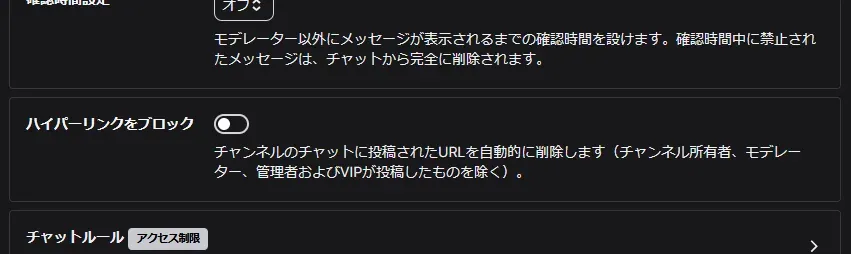
You can delete link posts using standard Twitch features as well. However, in this case, you can only choose to either block all links or allow all links.
If you want to uniformly restrict all link posts, this method works fine, so I have written the steps below.
Steps to block link posts using standard Twitch featuresStream Manager -> Moderation -> Settings -> Show advanced chat permissions -> Turn on Block Hyperlinks
Tools used this time
This time, I would like to use Nightbot to configure the settings. While many other chatbots can perform similar settings, I chose Nightbot because it has a high adoption rate and is simple as a chatbot.
NightbotInstallation Method
Here is the installation method. If there is anything that is difficult to understand, please feel free to ask in the comments, as it will help me improve the article.
※ It is assumed that Nightbot is already installed. Also, make sure to turn off the Block Hyperlinks feature in the standard Twitch settings mentioned above, as it will conflict.
Select items from the dashboardSelect Chat Moderation from the Nightbot Dashboard.
Enable link moderationClick the toggle button displayed as Disabled at the bottom of the Links section in Chat Moderation to enable link moderation.
Setting allowed URLsClick the gear icon at the bottom right of Links to enter the settings.
Whitelisted Entries in the text box
If you want to allow only clips from your own channel to be posted, enter twitch.tv/your-channel-id (in this case, technically all links related to your channel can be posted)
If you want to allow only general Twitch URLs to be posted, enter twitch.tv
If you want to allow links from other websites, enter the domain part of the URL (the URL excluding the https://www. part), such as youtube.com.
By entering these, you will be able to allow each respective link. If you want to register multiple items, you can register them by adding a line break for each one.
Finally, just to be safe, click ←Chat Moderation in the top left to return to the dashboard and confirm your changes.
Conclusion
Having viewers create clips during your stream is a very positive action in terms of support.
I believe that if streamers take steps to make it easier to perform such positive actions—such as relaxing link moderation settings or including information about link handling in their rules (though I am personally reluctant to increase the number of streaming rules themselves)—it will make it easier for viewers to participate, which in turn will help your community grow.
I stream on Twitch. If you'd like, please follow me on Twitch and note.