On 2025/09/23, the day I wrote this article, I got a new Chromebook and set up a Linux environment from scratch. I am keeping this as a memo for the installation.
Why Chromebooks are recommended for programmers
The great thing about Chromebooks is that you can easily install a Linux command-line environment. It is convenient because you can set up a Debian-based Linux environment with just a few clicks from the settings.
Also, since you can run Android apps on a Chromebook, it is convenient to be able to enjoy it as an Android tablet in your daily life and use it as a Linux environment when you want to do some programming.
And although it is a low-cost Chromebook with decent performance, if you use it on a Linux base in the terminal, you can run it quite comfortably.
Points where I stumbled
That said, not everything goes as planned from the start. There are troubles unique to the Chromebook Linux environment, so you need to solve them one by one. That, in itself, is fun.
Note that the Chromebook Linux environment (Crostini) is a "container-type virtual environment." It is a lightweight VM using KVM + LXC (LXD) container configuration. Therefore, if any trouble occurs, you can initialize everything and start over.
I have created a setup script so that I can quickly reproduce my daily environment, so I can restore my favorite environment immediately even if it breaks.
Fixing the issue where Japanese is not displayed in git diffMost things were fine, but there were many situations where Japanese was not displayed correctly in the terminal when running commands like git diff. Run the following command to add "ja_JP.UTF-8 UTF-8" to the locale.
sudo apt-get update
sudo apt-get install -y locales
sudo dpkg-reconfigure locales
Then, add the following settings to "~/.bashrc".
export LANG=ja_JP.UTF-8
export LC_ALL=ja_JP.utf8
After adding the settings, finally apply them.
source ~/.bashrc
I have reached a point where I don't want to use command-line tools without the support of generative AI. Therefore, I usually install and use the GitHub Copilot plugin in neovim.
However, the version of neovim that can be installed with the apt package manager is too old, and the Copilot plugin does not work. So, I decided to install Homebrew and then install neovim.
The issue of not knowing the user's passwordHowever, when I tried to run the command to install Homebrew on Linux, I got an error with sudo. When you set up Linux, a user is created with your Google account username.
However, the installation does not proceed because the password is empty (or is it the Google account password?). In my case, trying it empty didn't work, and the Google password didn't work either, so it didn't seem to be either of those.
Therefore, by setting a password for a specific user using 'passwd' as shown below, I was able to enter an arbitrary password for the sudo command.
sudo passwd <username>
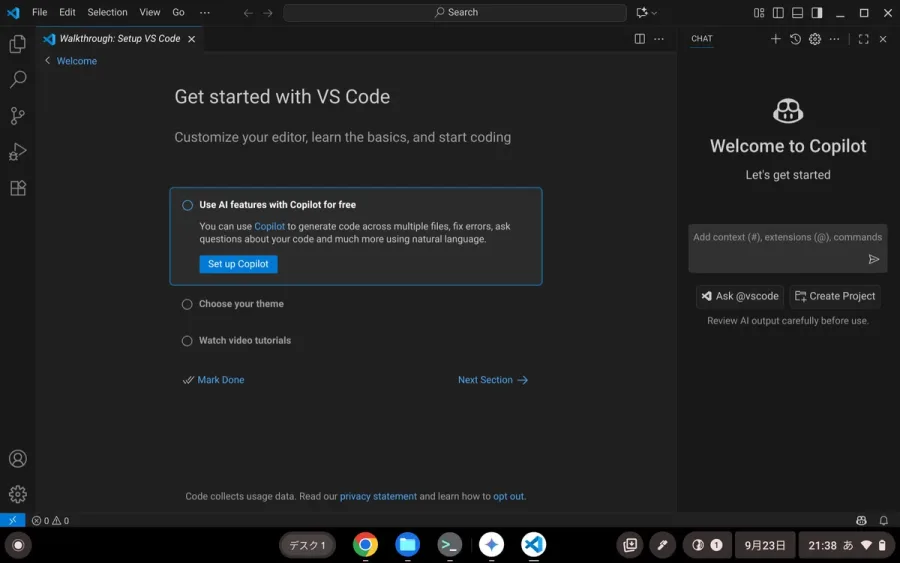
While it is fun to use an editor in the terminal, it is certainly convenient to be able to use Visual Studio Code. Microsoft provides '.deb' files for various architectures, so you can install it.
You can determine which file to choose by running the following command in the terminal.
uname -m
Most inexpensive Chromebooks are 'aarch64', so you should choose and download the 'arm64' '.deb' file. You need to have the Linux environment set up, but you can install it by tapping 'code_xxx.deb' from the files.
I am using an ASUS CM3001DM2A/CL3001DM2A (8GB memory, MediaTek Kompanio 520 2.050GHz), and Visual Studio Code ran quite smoothly.
SummaryChromebooks are inexpensive, so you don't have to worry about handling them somewhat casually, and you can carry them around instead of a tablet. Also, since they basically come with a keyboard, they are the perfect gadget for programmers.
Of course, since they are cheap, the specs are not that high, but you can just perform processing that requires high specs on a cloud server. It is perfect for use as a browser + terminal environment, so I will likely be carrying it around and using it extensively for a while.