In my previous article, Running a Development Project with Claude Code, I wrote about the mindset behind turning PM tasks into a pipeline. This time, I will answer the question: 'So, how do you actually do it?' I will show you everything: the folder structure, the flow of information, and the content of the skills.
As a premise, this project is small-scale. It involves 2-3 members working on field data × AI. It is a development project that combines data science and software engineering, and it lacks heavy mechanisms like ticket management. The information flow is also on the simpler side. That is precisely why it works with just Claude Code.
I will give you the conclusion first.
The project folder structure is the hub for everything.
And this folder structure and these skills were not designed from the start. I got my hands dirty, organized things when they got messy, refactored when I failed, and arrived at the current form. The most important thing is not to try to do it perfectly from the beginning.
Project Folder Structure
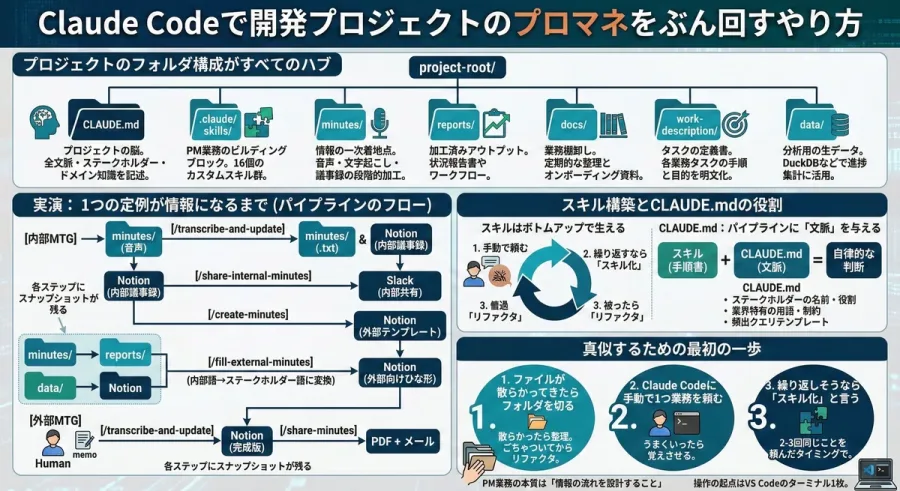
This is the actual folder structure.
Seven items. This is all it takes to run PM operations.
CLAUDE.md — The brain of the projectIt contains all the context on what Claude Code should do in this project. Stakeholder relationships, domain-specific knowledge, and templates for frequently used search queries.
When a new session is launched, Claude Code reads this file first. That is why, just by saying 'Prepare the minutes for today's meeting,' it can determine for itself who the participants are, where past minutes are located, and which Notion database to write to.
.claude/skills/ — Building blocks for PM tasks16 custom skills. Meeting transcription, automatic composition of external-facing minutes, Notion operations, email searches, and CSV analysis. Each one is small.
minutes/ — Primary landing point for informationMeeting audio data, transcripts, and organized minutes. Everything is here.
The first landing point for information coming from the outside. Place an audio file → it gets transcribed → it becomes structured minutes. Information is processed in stages within the same folder.
reports/ — Processed outputProject status reports and weekly workflow definitions. The primary information from minutes/ is analyzed and integrated, and the forms intended for stakeholders are placed here.
docs/ — Inventory of tasksBy regularly asking Claude Code to 'organize the current work' and having it summarize the results, you build up a repository of information. This serves as a way to take stock of what you are doing and also acts as onboarding material for new team members.
work-description/ — Task definition documentsDocuments that explicitly state the procedures and objectives for each task. One file per task, such as 'Preparation for external meeting minutes' or 'Data organization and classification.' This allows Claude Code to grasp the overall picture of tasks and look back on what has been done.
data/ — Raw data for analysisData files such as CSVs. Used when running SQL via DuckDB to aggregate project progress.
Why this folder structure works
Information handled in PM tasks is scattered everywhere: meeting audio data, Notion minutes, Slack exchanges, Gmail threads, and GitHub code. If you do things normally, you lose track of where information is located.
The reason this folder structure is effective is that all information eventually passes through here.
Audio data lands in minutes/ and is transcribed. Notion verification memos are read via /fill-external-minutes and integrated with the context in reports/. Sharing to Slack and sending to Gmail are also initiated from this folder. No matter where the data is scattered, everything remains as Markdown if you look at the project folder.
The state of 'you can find it if you look here' is always maintained.
This is the biggest advantage.
Because snapshots remain in the folder every time you process something, you can resume immediately from where you left off the previous day, even if the session expires or you start a new one the next day. The AI doesn't get lost on where to look either. Since the roles of the folders are clear, Claude Code knows to look in minutes/ if it needs information from meeting minutes, or in reports/ if it wants to know the current status of the project. It finds the appropriate source of information on its own without being instructed.
Even when creating new skills, you don't have to wonder, 'Where do I take the input from?' or 'Where do I put the output?' By looking at the type of information, it becomes self-evident which folder to read from and where to write to.
Demonstration: From a single regular meeting to information
Since the folder structure alone is abstract, I will follow the actual flow.
'Organize the content of an internal meeting, attend an external meeting, and send the minutes to stakeholders.' This is the daily work of a PM. Here is how it is processed.
1. Place the recording file in minutes/. The entry point for information.
2. /transcribe-and-update — Transcription → Internal minutes
Input: minutes/2026-02-25_internal.m4a
Output: minutes/2026-02-25_internal.txt (transcription) + Notion (create/update internal meeting minutes page)
Transcribe audio and reorganize it by topic. Register it in Notion as internal meeting minutes structured into agenda items, decisions, and action items. The transcription text is also saved in minutes/. One snapshot is created.
③ /share-internal-minutes — Share with the internal team
Input: Notion (internal meeting minutes)
Output: Slack (post to internal channel)
Share the contents of the internal meeting minutes to the internal Slack channel. Extract and post the agenda and action items. This uses the official Slack MCP skill. Team members can check meeting content asynchronously.
④ /create-minutes — Create a template for external meeting minutes
Input: Date
Output: Notion (create a template page in the external meeting minutes DB)
Create a meeting minutes page for external regular meetings in Notion. Information will be filled in here in the next step.
⑤ /fill-external-minutes — Fill information into the template
Input: minutes/ (internal minutes) + reports/ + data/ + Notion (verification notes, etc.)
Output: Notion (update external meeting minutes page)
Automatically read from four sources: internal meeting minutes, project status reports, data progress, and past verification notes. In addition, reflect my own analysis and strategy.
Integrate these and convert from internal terminology to stakeholder-facing language
and fill them into the template created in ④. Translate frank technical discussions into a form that stakeholders can understand. Filter out internal circumstances and hypotheses under consideration, leaving only confirmed items and progress.
⑥ Attend the external meeting
Conduct the regular meeting while screen-sharing the external meeting minutes created in ⑤ as both an agenda and reference material. Take notes during the meeting and record the audio. This part is the human's job.
⑦ /transcribe-and-update — Finalize the meeting minutes
Input: minutes/2026-02-25_external.m4a + notes taken during the meeting
Output: Notion (Update external meeting minutes)
Transcribe audio from external meetings and polish the draft minutes into a final version. This reflects decisions made, feedback from stakeholders, and action items for the next meeting.
⑧ /share-minutes — Deliver "Input: Notion (Final external minutes) Output: PDF + Email draft"
Export the Notion minutes to PDF and create an email draft summarizing the key points in 3-5 lines. Review and send.
Between each step, a snapshot is always saved in the folder or Notion.
One at the internal minutes stage, one at the external draft stage, and one at the final version stage. No matter where the session cuts off, you can resume from there.
Inside the skill
The structure of SKILL.md for /fill-external-minutes.
Skills grow bottom-up
I didn't design the 16 skills from the start.
There are only 3 steps to the method.
1. First, ask Claude Code manually.Ask in natural language, "Transcribe this meeting recording and summarize it into minutes." Claude Code will figure it out through trial and error.
2. If it seems repeatable, say "Make it a skill."After asking for the same thing 2-3 times, say, "I do this every time, so make it a skill." Claude Code will write out the procedure as SKILL.md.
3. Refactor if skills overlap.As you grow them bottom-up, you will end up with skills that have overlapping roles. You might have atomic skills A, B, C, D, and E, and create a pipeline combining A+C+D and another combining B+C+E. You'll get confused yourself about "which one should I use?" and even Claude Code will give vague answers.
When that happens, brainstorm with Claude Code to organize the data flow. Ask, "These skills have overlapping roles, but how should I organize them in terms of data flow?" Some skills will be merged, while others will have their purposes clearly defined.
This "create → overlap → organize" cycle is the very process of "arriving at the UNIX philosophy bottom-up" that I wrote about in my previous article.
Folder structures, skills, and pipelines—I've grown everything with this approach. If you try to design the perfect solution from the start, you'll get stuck. Just start without overthinking it, and when things get messy, refactor them with Claude Code. You can change local folders and skill definitions as much as you want later. This flexibility is what supports a bottom-up approach.
CLAUDE.md: Giving 'Context' to Pipelines
Skills and pipelines are general-purpose information processing. Transcribing audio, structuring meeting minutes, converting to PDF and emailing them—the same mechanism can be used in any project.
But in actual projects, that alone isn't enough.
Who are the stakeholders, and who is the decision-maker? What are the industry-specific constraints? Where is the boundary between 'internal' and 'external'? What do domain-specific technical terms mean?
This domain context is what CLAUDE.md handles.
In my project's CLAUDE.md, I write down information like this:
-
Stakeholder names and roles
— Who is responsible for what, and who reports to whom
-
Industry-specific terms and meanings
— Definitions of project-specific technical jargon
-
Industry structure constraints
— External constraints that influence decisions, such as laws, safety standards, and quality requirements
-
Frequently used search query templates
— Patterns used repeatedly for email and Notion searches
If a pipeline is 'how to process information,' then CLAUDE.md is 'how to interpret this information for this project.'
When /fill-external-minutes converts internal meeting minutes for external use, the decision of what to filter and what to keep is made by looking at the stakeholder information and industry constraints in CLAUDE.md. Even with the same skill, the output changes if the content of CLAUDE.md is different.
Skills are the procedure manual; CLAUDE.md is the context.
Only when you have both can Claude Code make project-specific judgments autonomously.
The starting point for operations is a single VS Code window
I launch all operations from the VS Code terminal.
The reason is simple: I want to control information processing and external integration from one place.
I start from the project folder and send everything out from there. I don't want to move to other screens.
I communicate information to team members and stakeholders using Notion, Slack, and Gmail. However, those are just interfaces. They are destinations for information, not workspaces. I operate through Notion MCP, Gmail CLI, and Slack integration from Claude Code, and the actual information is delivered through each service. Operations are in one place, but the destinations are many.
I choose VS Code because the preview for md files is easy to see. Claude Code works in iTerm and Ghostty as well, so this is just a matter of preference.
The First Step Toward Realization
1. Create folders when files start to get cluttered.There is no need to overthink it. My own folder structure just ended up this way after grouping files with similar characteristics. Unlike a database, local folders can be changed as much as you want later on. It is enough to just organize them when they start to get messy.
2. Ask Claude Code to handle one task manually.Do not turn it into a skill right away. Ask it to "do this" in natural language. If it doesn't go well, point it out. If it goes well, have it memorize the process.
3. If it seems like a repetitive task, tell it to "make it a skill."Do this when you have asked for the same thing 2-3 times. Claude Code will write out what it did as a skill.
4. Experience the accumulation of information in your folders.Every time you run a skill, files increase in the folder. Seeing that, a moment will come when you think, "Let's automate this next." That is where pipelines start to grow.
Conclusion
In my previous article, I wrote about the concept that "PM tasks can become pipelines." This time, I showed you everything about "how I actually do it."
Looking back, what I am doing is simple. Consolidate information into the project folder. Leave a snapshot after processing. Turn repetitive work into skills. Write the domain context in CLAUDE.md. That is all.
Neither the folder structure nor the skills were designed from the start. While running daily operations, I organized when things got cluttered, turned them into skills when they were repeated, and refactored when they overlapped, which led to the current form. I do not think this is the final version either. There might be even better ways to do it.
However, there is one thing I am convinced of.
The essence of PM work is "designing the flow of information," and Claude Code is the best tool for implementing that design.
A simple mechanism like folder structure can become the foundation of project management in the AI era.
I wrote about the philosophy in the previous article and the method in this one. You have all the materials needed to get started.
In the same project, I am also proceeding with development design and infrastructure construction using Claude Code, but I will write about that separately. If you have any opinions such as "it would run better if you did this" or "this is how I do it," please let me know.