Self-introduction and background
Hello, my name is Rokujo Kazuma.
I occasionally stream games like Street Fighter 6, LoL, and Diablo 4 on Twitch.
I want to display my custom leverless controller inputs on stream
My leverless controller has 14 buttons: 5 for the left hand and 9 for the right.
Also, I have it set up differently from standard leverless controllers, with the left middle finger for jump and the thumb for crouch.
I arrived at this layout in search of the ultimate input method, but since it's different from standard leverless controllers, there aren't really any input display apps that fit it well.
I could tweak the settings in the OBS plugin 'Input Overlay', but it was in English and I couldn't quite grasp how to use it effectively.
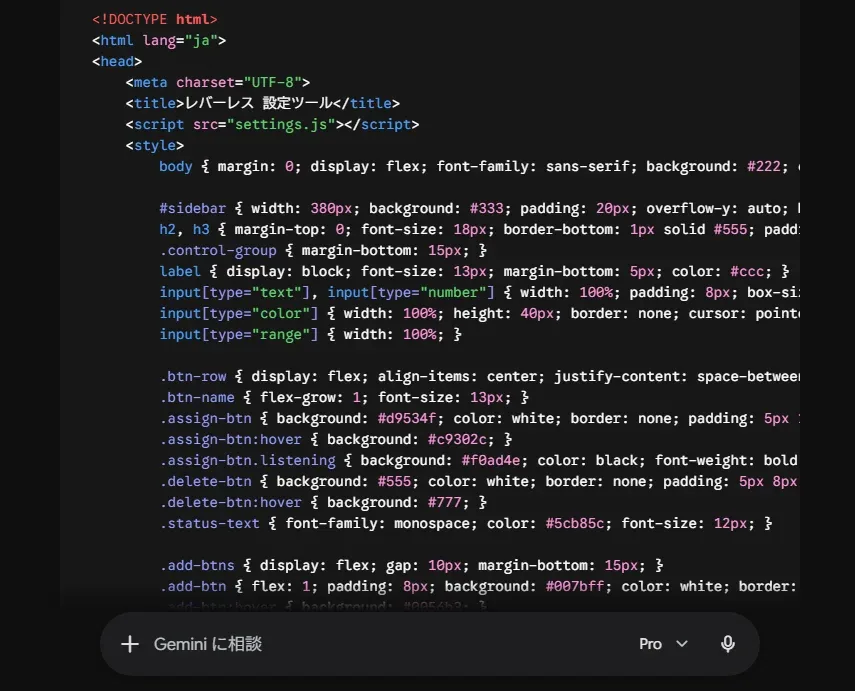
Gemini: 'Let's just make it!'After giving up on Input Overlay and asking Gemini, 'Is there any other way?', it suggested, 'Maybe you should just make it,' so I asked it to help me.
・I want the leverless controller image to be my own controller
・I want the pressed buttons to light up with a red circle
When I asked for that, it just started writing code!!!
It's mostly doneSo, it's pretty much finished.
Isn't AI amazing?
Furthermore, I wanted to be able toswap imagesin case I buy a new controller, andfine-tune the position of the red circlesthat appear when buttons are pressed, so I had it make those adjustments, andit became an app that I can actually use on stream (probably)
Here is the actual product
So, here is what I ended up with.
You are free to use it, butas usual, I have no idea why it worksso if anything happens, please ask Gemini.
It should support Xinput/Directinput (supposedly)
I've included an image of a 12-button HITBOX layout as a bonus for now.
A rough overview of how it works
It is a relatively simple app where a circle appears over an image when you press a button., but the number of files has increased to make it easier to adjust the position of the circles and link them to the leverless controller.
File structure
-
index.html
This is the file to load into OBS.
-
setup.html
This is the browser screen for settings. Open this in Chrome or similar to configure buttons and create settings.js.
-
settings.js
This is the configuration file to apply the settings created in setup.html to index.html.
-
Image files (png/jpg)
These are the images of the leverless controller, etc., to be displayed in OBS.
How to use
Connect the leverless controller to your PC.You cannot configure settings unless it is connected.
Use setup.html to create a settings file (settings.js) that links the blinking positions and buttons.Load the image of the leverless controller you want to display in OBS.
Place the leverless controller image inside the Leverless-Akekon Display folder.
Enter the file name including the extension in the top left and press Enter.
The image will be loaded.
Add the "circles" that appear when you press a button.
Add a "Normal button (24π, etc.)" or "Large button (30π, etc.)" from the UI on the left.
Drag and drop it to roughly position it over the button.
Link the "circle" to the leverless button and adjust its position.
Double-click the "circle" you want to map to enter setup mode (the dotted border will glow white).
Press the physical button on your leverless controller that you want to map to the "circle" (it will light up green when it reacts).
Use the arrow keys on your keyboard to make fine adjustments to the position.
Double-click the "circle" you were configuring to exit setup mode.
Once you have finished adjusting the positions and mapping for each button, please tap the buttons to verify.
Download the settings file and place it in the folder.
-
Download the "settings.js" file using the "Download Settings" button at the bottom left.
The "image pixel dimensions" will be displayed in your browser when downloading (this should basically be the same as the size of your leverless controller image).
Place the downloaded "settings.js" file into the Leverless-Akekon Display folder and overwrite the existing one.
Add a "Browser" source in OBS.
Check the "Local file" checkbox.
Click "Browse" and select the "index.html" file from the Leverless-Akekon Display folder.
Set the "Width" and "Height" to match your image.
Adjust the size and position to your liking.
If you use multiple leverless controllers, please copy the entire folder to create additional instances.
Thoughts on making this
Is this what they call vibe coding?
I thought to myself, "If I had a bit more knowledge, I could probably do so much more," but then I realized that even that will likely be handled by AI soon.
This is Singularity...
If anyone ends up using this, I would appreciate it if you could let me know your thoughts in the article comments or on stream.