Two ways to align multiple vertices as a note.
What is often introduced elsewhere is Method 1.
However, you cannot control the position of the coordinate axis to which the vertices are aligned. (The result of the alignment may become the midpoint of the selected vertices, but this is because it is affected by the Transform Pivot Point setting).
Coordinate axis and 3D cursor position if you want to align vertices with, use Method 2.
<Blender 2.91.2>
■ Method 1: Aligning vertices along a specified coordinate axis
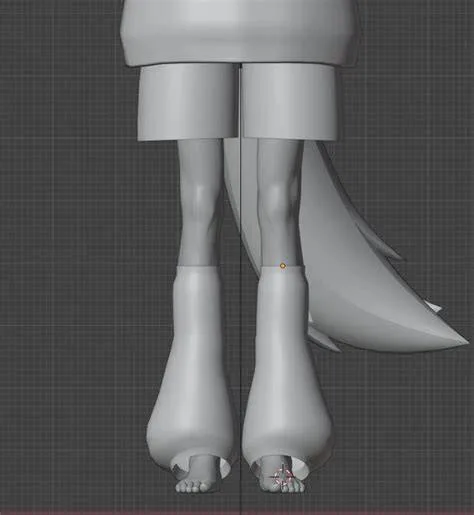
First, switch to Edit Mode.
Next, in the object, select the vertices you want to align.
Then, use keyboard input to align the vertices along an arbitrary axis.
→ Enter in the order of Scale, alignment axis (X, Y, Z), and scale value: 0.
<Execution example>
・Align along X axis... Enter S, X, 0 on the keyboard in order.
・Align along Y axis... Enter S, Y, 0 on the keyboard in order.
・Align along Z axis... Enter S, Z, 0 on the keyboard in order.
※ In this method, the vertices align to the coordinate axis, but they do not end up in the expected position.
※ If you adjust the scale value by dragging the mouse, hold down Ctrl while dragging the mouse while watching the change in the scale value. <Adjust in 0.1 increments.
■ Method 2: Aligning vertices using a specified coordinate axis and 3D cursor position
This is a method that uses the 3D cursor position. It aligns precisely at the specified position.
First, switch to Edit Mode.
Transform Pivot Point > 3D Cursor to switch modes. (Alternatively, press "." (period) and select 3D Cursor from the pie menu to switch modes.)
Next, in the object, to determine the axis position you want to align to, select one vertex.
Display the pie menu with Ctrl+S and select Cursor to Selected.
※ Mesh > Snap > Cursor to Selected also works.
Then, select all the multiple vertices you want to align.
(※ Including the vertex at the 3D cursor position)
Finally, by using keyboard input to align vertices along any axis, they will align instantly. Enter the following in order: Scale (S) -> Axis to align (X, Y, Z) -> Scale value: 0.
<Execution example>
・Align to X-axis... Type S, X, 0 on the keyboard in order.
・Align to Y-axis... Type S, Y, 0 on the keyboard in order.
・Align to Z-axis... Type S, Z, 0 on the keyboard in order.
※ If you prefer to adjust the scale value by dragging the mouse instead of entering numbers directly, hold down Ctrl while dragging the mouse while observing the scale value change.
(e.g., operations such as pressing S, Z, then adjusting the position by dragging the mouse)
※ Holding down Ctrl while adjusting makes it easier to control as it snaps in 0.1 increments.
Furthermore, if you want to fine-tune the values after confirming the adjustment, use the Resize window that appears in the bottom left of the screen after confirmation.
If you want to align to the 3D cursor position, enter 0 for the corresponding axis value of the scale. (※ In the case below, entering 0 for the Z-axis aligns the horizontal position.)
■ Application of Method 2
I found after testing it a little that Method 2 using the 3D cursor seems to have various applications.
In other words, it is not just vertices that can be aligned; it was also possible to align edges and faces. Note that this is also possible between objects that have not been joined.
(This is a convenient method if you want to align faces or edges.)
That is all.