Introduction
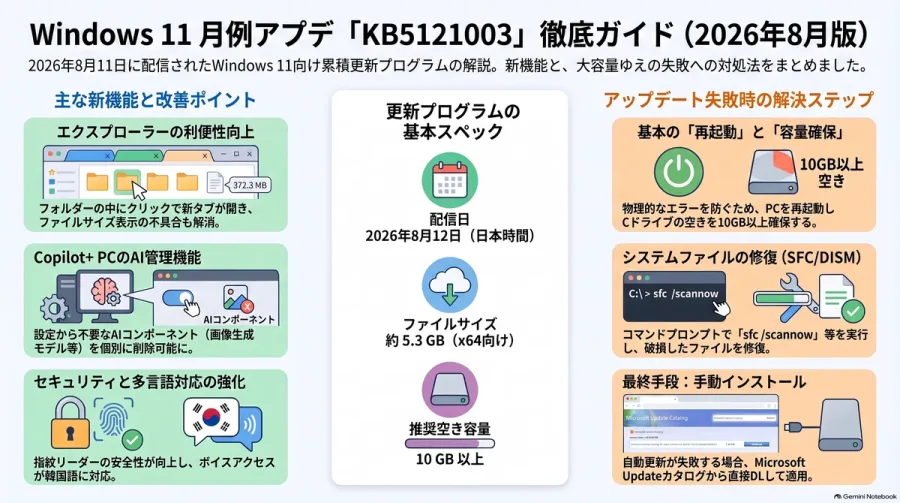
On August 11, 2026 (local time), Microsoft began distributing the monthly cumulative update "KB5121003" for Windows 11 (24H2 / 25H2).
"What changes with this update?" "The update stops midway and fails..." "Is it safe to apply it right now?"
For those who have these questions or are experiencing trouble, this article will explain everything clearly, from the new features and fixes in KB5121003, 7 steps to resolve update failures, and troubleshooting for advanced users!
1. Basic Overview of KB5121003
First, let's organize the basic data regarding this update.
ItemDetailsRelease DateAugust 11, 2026 (August 12, JST)Target OSWindows 11 Version 24H2 / 25H2Build Number26100.9168 (24H2) / 26200.9168 (25H2)Update TypeMonthly Security Cumulative Update (Patch Tuesday)File SizeApprox. 5.3 GB (Catalog version for x64)\beginarrayl \hline \textItem & \textDetails \\ \hline \text\textbfRelease Date & \textAugust 11, 2026 (August 12, JST) \\ \hline \text\textbfTarget OS & \textWindows 11 Version 24H2 / 25H2 \\ \hline \text\textbfBuild Number & \text26100.9168 (24H2) / 26200.9168 (25H2) \\ \hline \text\textbfUpdate Type & \textMonthly Security Cumulative Update (Patch Tuesday) \\ \hline \text\textbfFile Size & \textApprox. 5.3 GB (Catalog version for x64) \\ \hline \endarray
2. 【For Beginners】Notable New Features & Fixes in KB5121003
This update includes improvements to enhance daily usability and security enhancements. Here are the 5 main points of interest.
① Improved File Explorer ConvenienceOpen new tab with middle-click on folder: You can now open folders in a new tab by middle-clicking (wheel-clicking) them within File Explorer.
Fix for file size display bug: An issue where file size displays (KB / MB / GB) in File Explorer were corrupted in some environments has been resolved.
For users with Copilot+ PCs, a feature has been added to select and remove/manage unnecessary individual AI components (such as image generation models) via "Settings" > "System" > "AI components".
③ Enhanced security for external fingerprint readers (Windows Hello ESS)Support for "Windows Hello Enhanced Sign-in Security (ESS)" on external fingerprint sensors has been expanded, increasing the security of biometric authentication.
④ Korean language support for Voice AccessKorean has been newly added to the "Voice Access" feature, which allows you to operate your PC using your voice.
⑤ Improved Secure Boot certificate updatesThe judgment logic for sequential updates of Secure Boot certificates has been strengthened, facilitating a transition to a more secure environment.
3. Known Issues and Safety of KB5121003
Many of you are likely worried that 'an update might break my PC...'.
Current Status of IssuesAs of August 12, 2026, Microsoft has not reported anycritical known issues regarding KB5121003 itself.
While last month's (July 2026) update caused some buzz regarding shutdown issues and overheating in certain environments, this KB5121003 is being distributed as a stable version that minimizes those impacts.
If the update is 'not progressing' or 'showing an error' despite there being no known issues, it is almost always due to environmental factors on the PC side (such as insufficient storage space or file corruption).
4. [For Beginners to Intermediate Users] 7 Ways to Fix Update Stalls or Failures
Here are the solutions for when the update installation stops (stuck at 0% or 99%) or displays an error code, listed inrecommended order.
Solution 1: First, 'Restart' your PC and try againTemporary communication errors or process hangups are often resolved by a simplerestart. (Please select 'Restart' instead of 'Shut down')
Solution 2: Ensure sufficient free space on the C drive (10GB or more recommended)Large cumulative update programs use a significant amount of temporary space for deployment.
Steps: Check the free space on the C drive via 'Settings' > 'System' > 'Storage'. Delete unnecessary files and apps.
Open 'Settings' > 'System' > 'Troubleshoot'.
Select 'Other troubleshooters'.
Click 'Run' next to 'Windows Update' and follow the on-screen instructions.
If the downloaded files are corrupted, clear the cache to re-download them.
Search for 'cmd' in the Start menu and select 'Run as administrator'.
-
Enter the following commands in order and press Enter.
net stop wuauserv net stop bits
Open C:\Windows\SoftwareDistribution\Download in File Explorer and delete all files inside.
-
Run the following in the command prompt again to restart the services, then try Windows Update again.
net start wuauserv net start bits
Open the command prompt with administrator privileges.
Type sfc /scannow and press Enter.
After the scan is complete, restart your PC.
If SFC does not fix it, perform a deeper repair.
-
Enter the following in an administrator command prompt:
DISM /Online /Cleanup-Image /RestoreHealth
After completion, it is most effective to run sfc /scannow again.
If automatic updates do not work, you can download the file directly from the official catalog and apply it manually.
Microsoft Update Catalog Access.
Enter KB5121003 in the search box.
Download and run the .msu file that matches your system environment (24H2 / 25H2, x64, etc.).
5. [For Advanced Users] Countermeasures for error 0x800f0922 and insufficient EFI partition
As an advanced troubleshooting step, there are cases where error code 0x800f0922 occurs and the update fails. This is mainly caused by insufficient capacity of the EFI System Partition (ESP).
Checking and countermeasures for partitions using diskpartCheck the status of the hidden area (ESP) that is not displayed in normal File Explorer.
Launch the Administrator Command Prompt.
-
Start diskpart and check the configuration with the following commands:
list disk select disk 0 list partition
If the system partition (usually tens to hundreds of MB) is running out of space, you need to delete unnecessary font files or boot entries from other OSs, or expand the ESP area using third-party tools.
In organizational environments (where Autopatch is already deployed), KB5121003 may be applied as a 'Hotpatch' that does not require a restart. When deploying in an operational environment, please also check the distribution status in WSUS or Intune.
6. Summary: Should you install KB5121003 right now?
Basically, 'early application' is recommended! This is a security update that includes fixes for critical vulnerabilities.
-
Perform at the best time when you have spare time (Recommendation for planned updates) This KB5121003 update has a very large file size of approximately 5.3GB, and depending on your network environment and PC specifications, downloading and applying it (restarting and configuration processing after installation) may take 30 minutes to over an hour.
-
If you start the update right before important work or an online meeting, there is a risk that the PC will not return from the restart process, causing a temporary interruption to your work, or the danger of causing system damage due to forced termination in a hurry. Therefore, keep the following points in mind and perform the update safely when you have time to spare for the task.
Utilize Active Hours settings: Set 'Active hours' to your working hours via 'Settings' > 'Windows Update' > 'Advanced options' to avoid automatic restarts while you are working.
Pause updates: During periods when you absolutely cannot be interrupted, such as during an important project near a deadline, use the 'Pause updates for 1 week' feature to adjust the timing.
Ensure power and network connection: If you are using a laptop, be sure to run the update while connected to an AC adapter (power cord) to prevent trouble caused by the battery running out mid-process. Also, a stable Wi-Fi or wired LAN connection is recommended.
Back up just in case: Before a large-scale update, it is safer to back up important data and files to OneDrive or external storage in case of any unexpected issues.
-
If a problem occurs during the update, please try the '7 Troubleshooting Methods' in this article in order!
*The information in this article is based on official announcements as of August 2026. We will update it as needed if the latest bug reports are added.
[Reference Article] Please see my note article regarding 'Securing free space on the C drive'.
#Windows11
#WindowsUpdate
#Microsoft
#KB5121003
#OSUpdate
#PCBeginner
#Troubleshooting
#BugFix
#PCMaintenance
#WorkEfficiency
#LatestNews
#ITNews
#Copilot
#AI