You want to make a small adjustment to a website banner, cut out the background of a product photo, or open a PSD file. However, many companies may find it burdensome to install expensive image editing software just for those tasks.
In such cases, the online photo editing software "Photopea," which can be used in a browser, is very convenient.
Photopea requires no installation and can open a wide range of file formats, including PSD, JPEG, PNG, SVG, PDF, and AI.
The official website states that it also supports layers, masks, blending, smart objects, and more.
In other words, it is not just for simple photo cropping or resizing.
You can perform professional-grade image editing directly in your browser, such as "cutting out people," "layering multiple images," "using masks to display only a portion," or "compositing images with blend modes."
For corporate web managers, it can be utilized for daily image production, such as advertising banners, social media posts, e-commerce product images, and website main visuals.
In this article, we will explain what Photopea is, how much you can do with the free version, and cover advanced features like layering, masking, and blending, as well as points to keep in mind when using it for work, in a way that is easy for beginners to understand.
What is Photopea? A high-performance online photo editing software you can use for free
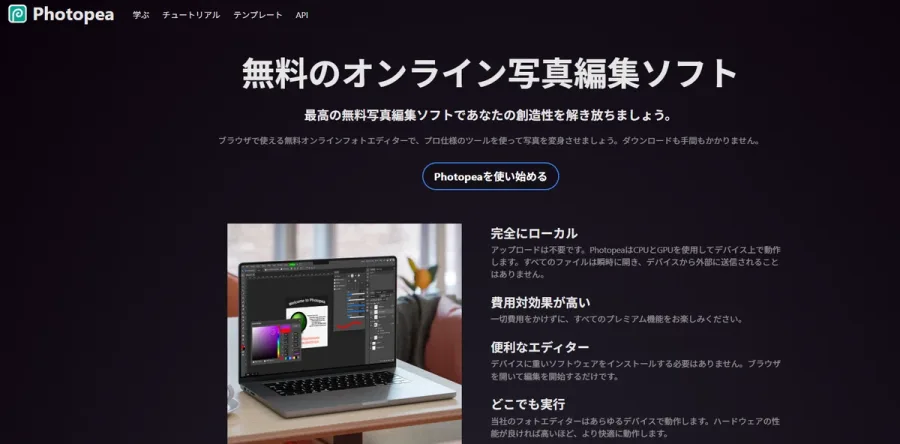
Photopea is an image editing software that can be used on a web browser.
Its biggest feature is that you can start editing images just by accessing the Photopea website, without needing to install dedicated software on your PC.
PhotopeaOfficial Website
When you think of typical free online image editing tools, you might imagine simple functions like "shrinking images," "adding text," or "changing brightness."
However, Photopea is quite professional.
According to official information, it can handle many formats, primarily PSD, as well as JPEG, PNG, WebP, GIF, SVG, PDF, AI, XD, and FIG.
Being able to handle PSD files is especially convenient for web managers.
For example, if you receive a file named "banner.psd" from a production company, you can open and check its contents using Photopea even on a PC that does not have Photoshop installed.
Furthermore, because you can edit while keeping the layers intact, it can also be used for revisions such as "changing just the catchphrase" or "swapping out product photos."
Since a free version is available, it is easy for companies that only edit images a few times a month to adopt it.
However, it is not exactly the same software as Photoshop.
The important thing is not to think of it as "using Photoshop for free," but to understand it as a different tool that allows for quite advanced image editing just in a browser.
Basic methods for freely editing images using layers in Photopea
If you are going to use Photopea, the first thing you should understand is "layers."
Layers are a mechanism where you create a single image by stacking multiple transparent sheets.
For example, for an advertising banner, you can manage the "background photo," "product photo," "company logo," "catchphrase," and "button" as separate layers.
If you combine everything into a single image, it becomes difficult to make corrections even if you just want to move the product.
However, if you keep the layers separate, you can move just the product photo or change just the text.
In Photopea, you can select each layer from the layer panel to show/hide, change the order, duplicate, or delete them. There is also a group function available to organize multiple layers into folders.
For example, if you are creating a product banner for an e-commerce site, you keep the background, product, price, campaign name, and CTA as separate layers.
Then, when changing the "August Campaign" to the "September Campaign," you can modify just the text layer.
This way of thinking is extremely important for companies that operate websites continuously.
Instead of recreating the finished image every time, you can streamline update tasks by creating source data that can be modified later.
Since Photopea can maintain layer structures using the PSD format, it is easy to utilize even when you want to perform simple banner corrections in-house.
How to cleanly cut out photos using Photopea's masking function
An advanced feature of Photopea that you should remember is the "mask."
To explain masks simply, it is a mechanism that specifies the "visible parts" and "hidden parts" without directly deleting the original image.
For example, suppose you want to remove only the background from a portrait photo.
There is a method of directly erasing the background with the eraser tool, but if you accidentally erase the person's hair, it is troublesome to revert it.
This is where you use layer masks.
In Photopea, you can use raster masks to hide parts of a layer. Basically, white areas are displayed, and black areas are hidden.
In other words, you can create a cutout without destroying the original image itself.
For example, when cutting out product photos to place them in advertising banners, if you hide the background with a mask instead of deleting it completely, you can adjust the edges later.
This is especially useful for human hair, thin parts of products, and products with curves.
Furthermore, masks are not just for simple cutouts.
They can also be used to gradually make parts of an image transparent, naturally blend multiple photos together, or adjust the boundary between a background and a person.
It might feel a bit difficult at first, but it becomes easier to understand if you think of it as "hiding" rather than "erasing."
This is a feature that anyone who frequently creates web advertisements or e-commerce product images should learn.
Image processing and design techniques using Photopea's blending features
In Photopea, you can also perform image compositing using "blending modes."
Blending modes are a feature that mixes the layer above with the layer below using specific calculation methods.
For example, if you place a color layer over a photo and blend it, you can change the color tone of the entire photo.
Photopea offers many blending modes, such as Multiply, Screen, and Overlay.
"Multiply" can be used for compositing that preserves dark areas, "Screen" for compositing that brightens, and "Overlay" for expressions that emphasize contrast.
For example, when using a photo for a website's main visual, the photo might be too bright, making white text difficult to read.
In that case, you place a black or brand-colored layer over the photo and adjust the blending mode or opacity.
This allows you to make the text easier to read while maintaining the atmosphere of the photo.
This can also be applied to advertising banners, social media posts, and e-commerce product images.
For example, for an e-commerce site targeting overseas users, there are cases where you need to design not only the image production but also the payment environment.
WeChatPayment Development/Implementation |Shopify/EC-CUBESupported APIIntegration
By combining it with a payment system like this, you can consider the entire flow from creative production to purchase as a single unit.
For web managers, what is important is not just "creating beautiful images."
It is important to design while also considering which actions you want to drive users to take using the images.
Benefits and points of caution when using the free version of Photopea for work
A major benefit of using Photopea for corporate work is that you can use an advanced image editing environment without installing dedicated software.
For example, even if a sales representative suddenly says, "I want to change just the product image in the proposal document," they can open Photopea from a browser and make the correction.
There is also no need for a web manager to launch heavy image editing software just to change a few words on an advertising banner.
Being able to open PSD files is also a major benefit for corporate use.
It can also be used for purposes such as receiving PSD files from external designers or production companies and performing checks or minor corrections in-house.
There are also plenty of templates!
Furthermore, Photopea is designed so that most processing is performed on the user's device, and the official website explains that files do not leave the device.
However, for corporate use, we do not recommend the decision to "switch everything to Photopea because it is free."
For professional designers who handle large volumes of images or production workflows that require strict compatibility with Adobe products, existing desktop software may be more suitable.
Also, since complex PSD features are not guaranteed to be reproduced with 100% accuracy, verification is necessary for important production materials.
Rather than thinking of Photopea as "software to replace your entire production environment," it is easier to understand its value if you think of it as a powerful option for web managers to quickly perform daily image corrections.
Frequently Asked Questions (Q&A): Explaining how to use Photopea and advanced image editing
Q. What is Photopea?
A. It is image editing software that can be used in a web browser. It supports a wide range of formats, including PSD, JPEG, PNG, SVG, PDF, and AI. Advanced image editing features such as layers, masks, and blending are also available.
Q. Can I use Photopea for free?
A. There is a free plan available. You can access the official website and start editing images right away. Paid plans are also available, so please check the latest pricing and features at the time of use.
Q. Do I need to install Photopea?
A. Basically, it can be used from a web browser. Therefore, it is easy to use even on PCs that do not have dedicated image editing software installed.
Q. Can I open PSD files?
A. Yes. Photopea supports PSD, and you can open and edit PSDs that include layers. PSD is one of the main supported formats for Photopea.
Q. Can I cut out backgrounds?
A. Yes, you can. You can cut out backgrounds for people or products using selection tools, masks, and more. Using layer masks is a convenient method if you want to make adjustments while keeping the original image intact.
Q. Is it the same as Photoshop?
A. It is not the same product. While there are similarities in the interface and features, it does not guarantee full compatibility. For complex PSDs or data using special features, you should verify the display and processing results.
Q. Can I use Photopea for work?
A. It can be used for a wide range of tasks, such as banner editing, product photo processing, social media images, and website images. However, it is recommended to introduce it only after confirming your company's security policies, production workflows, and terms of use.
Q. Can I use images created in Photopea on a website?
A. You can export them to JPEG, PNG, WebP, etc., and use them on websites. However, you must separately verify the rights for the photos, fonts, and materials you are using.
Free Photopea: Available for Online Photo Editing! Summary
Photopea has so many features that it cannot be fully explained by the phrase "free online photo editing software" alone.
It is not just for resizing or cropping images.
Manage images separately using layers.
Cut out people or products using masks.
Combine multiple images or colors using blend modes.
Open PSD files to edit text or photos.
Export to JPEG, PNG, WebP, etc., for websites.
You can perform this kind of professional image editing right in your browser.
It is especially convenient for corporate web managers to be able to "make minor image edits themselves."
Requesting a production company just to change the price on an advertising banner.
Requesting a designer just to change the date of a campaign.
Purchasing specialized software just to crop a product image slightly.
If you can handle these small tasks in-house with Photopea, you may be able to increase the speed of your web operations.
However, just because it is free does not mean it can replace all image production tasks.
For advanced design production, complex PSDs, or strict color management, a professional production environment may be necessary.
Photopea is not a tool to make professional designers unnecessary, but rather one that is recommended to be thought of as a tool that greatly expands the range of images that web managers can handle themselves.
For companies that frequently handle images for websites, e-commerce, social media, and advertisements, it can be said to be a free online photo editing software worth trying at least once.
#Photopea #ImageEditing #PhotoEditing #FreeTool #OnlineTool #ImageProcessing #Layers #Masking #Blending #PSD #WebDesign #BannerProduction #ECSite #WebProduction #WebManager #Design