Introduction
When using Windows, you may sometimes experience symptoms like these:
・The computer restarted suddenly
・The power turned off even though I wasn't doing anything
・The screen went completely black
・Windows restarted suddenly while I was working
・[Kernel-Power 41] appears in the Event Viewer
・I don't know if the cause is the power supply or Windows
In such cases, when you check the [System] log in the Event Viewer, you may find a record called [Kernel-Power].
The most well-known one is [Kernel-Power 41].
In this article, I will clearly explain what Kernel-Power 41 is, how to check it, and the points to keep in mind when considering the cause.
The conclusion first
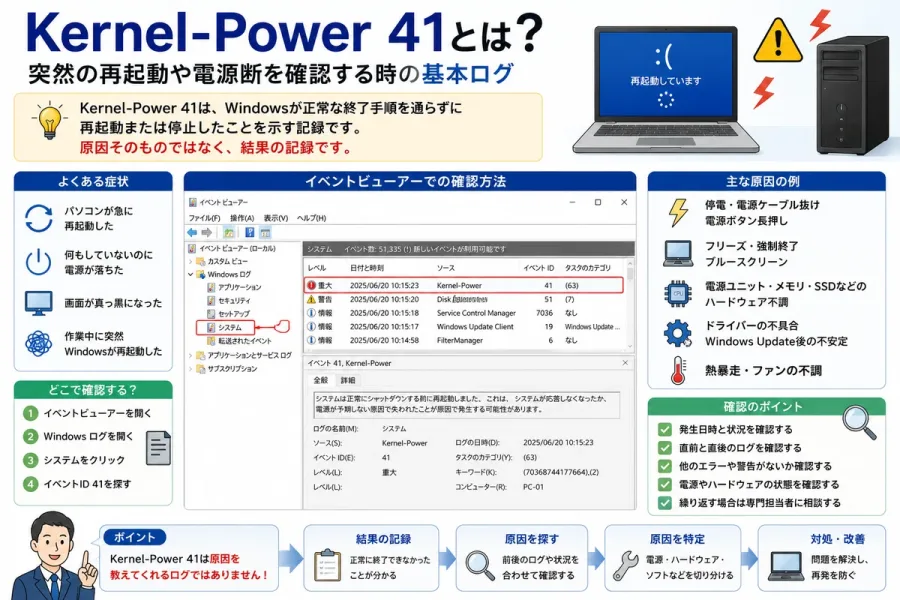
Simply put, Kernel-Power 41 is a record indicating that Windows [restarted or shut down without going through the normal shutdown procedure].
However, this is important.
Kernel-Power 41 is not a log that tells you the cause itself.
In many cases, this is a record of the [result].
In other words,
[It is information that says: The computer did not shut down normally]
is what it is.
But,
[Why it did not shut down normally]
is something that cannot always be determined by Kernel-Power 41 alone.
To find the cause, check other logs appearing around the time of the incident and the status of the computer together.
What is Kernel-Power 41?
Kernel-Power 41 is an event that may appear in the system logs of Event Viewer.
It is primarily recorded when Windows fails to confirm a normal shutdown.
For example,
・The power suddenly cut out
・It was forced to shut down
・The power button was held down
・It froze and restarted
・It restarted after a blue screen
・There was a power outage
・The power supply was unstable
It may be displayed at times like these.
Kernel-Power 41 is the result, not the cause
When you see Kernel-Power 41,
"This is the cause"
is what you tend to think.
However, that is not strictly correct.
Kernel-Power 41 is what Windows records to say,
"The previous shutdown was not successful"
as a record.
To use an analogy, it is like a tipped-over glass left on a desk.
You can see that the glass has tipped over.
But,
・Did a hand hit it?
・Was it an earthquake?
・Did a cat walk by?
・Was the desk tilted?
You cannot tell just by looking at the tipped-over glass.
Kernel-Power 41 is the same.
This is a log indicating a result, and you need to check the events before and after it to find the cause.
Where to check
Kernel-Power 41 can be checked in the Event Viewer.
The location to check is as follows:
Event Viewer
↓
Windows Logs
↓
System
Here, check if there are any [Kernel-Power] or [Event ID 41] entries near the time of occurrence.
How to open Event Viewer
These are the steps to open the Event Viewer.
Click the search bar at the bottom of the screen.
Type [Event Viewer].
Click on the [Event Viewer] that appears.
Once the Event Viewer is open, check the list on the left side.
How to open system logs
Once the Event Viewer is open, proceed in the following order:
Open [Windows Logs] on the left side.
Click on [System].
A list will be displayed in the center.
Records regarding the Windows OS, power supply, drivers, services, hardware, etc., are displayed here.
How to find Kernel-Power 41
If there are many logs, it can be difficult to find the one you need.
Check using the following method.
Open [System].
Click [Filter Current Log] on the right side.
Enter 41 in the Event ID field.
Click OK.
This will filter the logs to show only Event ID 41.
Points to look for in the display
Check the following items in the Kernel-Power 41 log.
・Date and Time
・Source
・Event ID
・Level
・Description
・Logs immediately before and after
The [Date and Time] is particularly important.
Verify if it matches the time the computer actually crashed or restarted.
Commonly displayed content
In Kernel-Power 41, content like the following may be displayed.
The system has rebooted without cleanly shutting down first.
A description with this meaning will be displayed.
This means that Windows could not confirm the previous shutdown was normal.
Main causes of Kernel-Power 41
There is not just one cause for Kernel-Power 41.
Here is a summary of common causes.
・Power outage
・Power cable unplugged
・Holding down the power button
・Forced shutdown after freezing
・Blue screen
・Power supply unit malfunction
・Battery failure
・Memory failure
・Storage malfunction
・Driver issues
・Instability after Windows Update
・Thermal runaway
・Influence of USB devices or peripherals
As shown, it can involve not only the power supply but also Windows, components, and peripherals.
Checking power outages and power cables
First, you should check the power supply area.
Things to check:
・Was there a power outage?
・Is the power cable loose?
・Is the power strip old?
・Is there an excessive number of devices plugged into one outlet?
・Is the wall outlet loose?
・If it is a laptop, is the AC adapter unplugged?
・Was the battery level low?
It is simple, but the power supply area is very important.
For symptoms of sudden shutdowns, first check the physical connections.
Holding down the power button can also be recorded
If the computer freezes and you force a shutdown by holding down the power button, Kernel-Power 41 may be recorded.
In this case, Kernel-Power 41 is not the cause.
The cause is the freeze or malfunction that occurred before you held down the power button.
Therefore, check if another error occurred just before Kernel-Power 41.
Restart after a blue screen
If the computer restarts automatically after a blue screen occurs, Kernel-Power 41 may remain.
In this case as well, the cause cannot be determined by Kernel-Power 41 alone.
Things to check.
・Did a blue screen appear?
・Was a stop code displayed?
・Is there a BugCheck in the Event Viewer?
・Has a minidump file been created?
・Were there any driver updates or Windows Updates just before it happened?
If a blue screen is involved, it may be necessary to check the stop code or dump file.
Shutdown due to heat
If the inside of the PC becomes too hot, the power may shut off for protection.
Things to check:
・Is the fan making a loud noise?
・Are the air vents blocked?
・Has dust accumulated?
・Is it happening in summer or in a hot location?
・Does it shut down during high-load tasks?
Shutdowns due to heat can be difficult to determine using only the Event Viewer.
Check this in conjunction with the circumstances of the occurrence.
Power supply unit malfunction
In the case of a desktop PC, it may shut down suddenly due to a malfunction in the power supply unit.
Things to check:
・Does it shut down when under load?
・Does it sometimes fail to turn on?
・Does it restart suddenly?
・Is it happening on an old PC?
・Are many peripheral devices connected?
Since it is difficult to diagnose the power supply unit, consult a maintenance technician if it happens frequently.
Laptop battery or AC adapter
For laptops, also check the battery and AC adapter.
Things to check:
・Is the AC adapter connected correctly?
・Is the charging light on?
・Has the battery deteriorated?
・Does it shut down only when running on battery power?
・Does it shut down even when connected to power?
If it only happens when running on battery power, battery deterioration may be involved.
Possibility of memory failure
Memory issues can also cause sudden restarts or blue screens.
Things to check.
・Blue screen appears
・Crashes during specific tasks
・Unstable when multiple apps are open
・Recently added memory
・Unstable after long-term use
If memory failure is suspected, you may check it using tools like Windows Memory Diagnostic.
However, for business PCs, it is safer to consult with an administrator or maintenance personnel.
Possibility of storage malfunction
Windows can also become unstable due to SSD or HDD malfunctions.
Things to check.
・Computer is abnormally slow
・Takes time to open files
・Saving fails
・Disk or Ntfs errors in Event Viewer
・Strange noises from the HDD
If storage malfunction is suspected, prioritize backing up important data first.
Data protection comes before repair work.
Driver issues
Drivers are like software that allows Windows to use hardware devices.
Driver issues can cause sudden restarts or blue screens.
Things to check.
・Updated drivers just before the issue
・Occurred after a Windows Update
・Connected a new device
・Occurs when using a specific USB device
・Issues with printers or graphics-related components
If drivers are suspected, check what was added or updated just before the issue occurred.
If it occurred after a Windows Update
If Kernel-Power 41 appears after a Windows Update, instability following the update may be involved.
Things to check.
・When the Windows Update was performed
・Whether symptoms appeared after the update
・Whether device drivers were also updated
・Whether other PCs are also malfunctioning at the same time
・Whether it persists after a restart
When experiencing issues after a Windows Update, checking the date and time in Event Viewer is particularly important.
Influence of peripheral devices
Peripheral devices such as USB devices or external HDDs can also have an impact.
Things to check:
・Does it crash while an external HDD is connected?
・Are you using a USB hub?
・Does it become unstable after connecting a printer?
・Does it only occur when a specific device is connected?
・Does removing unnecessary USB devices improve the situation?
As a troubleshooting step, you can try disconnecting unnecessary peripheral devices to see if the issue persists.
Basic verification steps
If Kernel-Power 41 has appeared, check in the following order:
Check the date and time of occurrence
Check what you were doing at that time
Check the power supply
Check for errors immediately preceding it in Event Viewer
Check for the presence of a blue screen
Check if it happened after a Windows Update
Check peripheral devices
Check for heat and fan status
Suspect disk or memory issues
Consult a maintenance technician if it repeats
If it only happens once, it may be fine to just monitor the situation.
However, if it repeats, you should check it as soon as possible.
Check the date and time of occurrence
The first thing to check is the date and time of occurrence.
Look at the time when Kernel-Power 41 appears in the Event Viewer.
Next, try to recall what was happening at that time.
Were you working?
Was it left idle?
Was Windows Update running?
Did you hold down the power button?
Was there a power outage or momentary power loss?
Did a blue screen appear?
By matching the date and time with the situation, you can see the direction of the cause.
Check the logs immediately preceding the event
Sometimes, another error appears just before Kernel-Power 41.
Things to check:
BugCheck
Disk
Ntfs
Service Control Manager
Display
WHEA-Logger
WindowsUpdateClient
Do not just look at Kernel-Power 41; check the logs immediately before and after it.
Clues to the cause can sometimes be found here.
If there is a BugCheck
BugCheck is a record related to blue screens.
If there is a BugCheck near Kernel-Power 41, it is possible that the system restarted after a blue screen.
Things to check:
Stop code
Dump file
Drivers updated just before
Recently added devices
Does the same symptom repeat?
In this case, checking the blue screen side becomes important.
If there is a WHEA-Logger
WHEA-Logger is sometimes seen with hardware-related errors.
For example, it may be related to the CPU, memory, PCI Express, storage, etc.
However, it is difficult to judge the content.
If WHEA-Logger appears repeatedly, it is safer to consult with a maintenance technician.
If Disk or Ntfs is present
If Disk or Ntfs errors appear before or after Kernel-Power 41, storage malfunction is suspected.
Things to check:
・Are there any save failures?
・Are there any files that cannot be opened?
・Is the PC abnormally slow?
・Is there insufficient free space on the HDD or SSD?
・Are there any strange noises?
In this case, prioritize backing up important data first.
If Display is present
If there are Display-related errors, it may be related to screen display or graphics drivers.
Things to check:
・Does the screen go black for a moment?
・Does it crash during video playback?
・Does it occur while an external monitor is connected?
・Does it occur after updating the graphics driver?
・Does it occur during high-load tasks?
In this case, also check the graphics driver, external monitor, and cables.
When you can wait and see if it happens only once
If Kernel-Power 41 appears only once, it does not necessarily mean there is a major failure immediately.
For example:
・You held down the power button
・There was a power outage
・You force-quit during work
・It restarted during a Windows Update
If you know the reason for these, it may be okay to wait and see first.
However, make sure to check your backups of important data.
Be careful if it repeats
If Kernel-Power 41 appears repeatedly, caution is required.
Things to check:
・It happens every day
・It happens at the same time
・It happens during specific tasks
・It happens when the load is high
・It happens when waking from sleep
・It has increased since a Windows Update
If it recurs, check the power supply, heat, components, drivers, and Windows health in order.
If it occurs when waking from sleep
It may become unstable when waking from sleep mode.
Things to check:
・Restarts after waking from sleep
・Does not return from hibernation
・Fast Startup is enabled
・Occurs while USB devices are connected
・Is the power management setting involved?
If sleep or Fast Startup is involved, it may be necessary to review power settings.
Impact of Fast Startup
Windows has a feature called [Fast Startup].
While it is a feature to speed up startup, depending on the environment, it may be related to issues with power or drivers.
However, proceed with caution when changing settings.
For company PCs, it is safer to check with an administrator or maintenance personnel before making changes.
Power settings to check
Items to check in power settings:
・Time until sleep
・Hibernation settings
・Fast Startup
・USB selective suspend
・Display power off
・Laptop battery settings
Power settings can sometimes cause sleep or shutdowns at unintended times.
Things to check specifically for laptops
For laptops, check the following.
・Does it occur even when the AC adapter is connected?
・Does it only occur when running on battery?
・Is the battery degraded?
・Is the power connector loose?
・Does it occur after carrying the device?
・Is heat trapped inside?
Laptops are susceptible to power, battery, and heat issues.
Things to check specifically for desktop PCs
For desktop PCs, check the following:
・Is the power cable coming loose?
・Is there a problem with the power strip?
・Is the power supply unit old?
・Is dust accumulated inside?
・Is the fan spinning normally?
・Does it shut down under high load?
Power supply unit and heat issues are common points to check for desktop PCs.
Pre-work checklist
Before checking Kernel-Power 41, organize the following:
□ Confirmed when it occurred
□ Confirmed what you were doing when it occurred
□ Confirmed if there was a power outage or power loss
□ Confirmed if the power button was held down
□ Confirmed if it was after a Windows Update
□ Confirmed if a blue screen appeared
□ Confirmed if it is occurring repeatedly
Event Viewer confirmation checklist
Check in Event Viewer.
□ Opened Event Viewer
□ Opened Windows Logs
□ Opened System
□ Confirmed Event ID 41
□ Confirmed the source is Kernel-Power
□ Confirmed the date and time of occurrence
□ Checked for errors immediately preceding it
□ Checked the logs immediately following it
□ Checked for BugCheck
□ Checked for Disk or Ntfs errors
□ Checked for WHEA-Logger
Physical inspection checklist
Check the power supply and the unit itself.
□ Checked the power cable
□ Checked the power strip
□ Checked the wall outlet
□ Checked the AC adapter
□ Checked the battery status
□ Checked the fan noise
□ Checked the air vents
□ Checked for dust accumulation
□ Checked by disconnecting unnecessary USB devices
Common misconceptions
Common misconceptions about Kernel-Power 41:
・Thinking Kernel-Power 41 is the cause
・Thinking it must be a power supply unit failure
・Thinking it will be fixed by deleting the logs
・Judging the PC as broken after it happens once
・Thinking the cause can be understood by looking only at Event ID 41
・Thinking it will be solved by looking only at power settings
Kernel-Power 41 is often a record of a result, not the cause.
Check the logs before and after, along with the situation of the occurrence.
Points to note
These are points to note when checking.
・Do not assume a hardware failure based solely on logs
・Compare the occurrence date and time with the situation
・Check the power supply first
・Do not ignore if it happens repeatedly
・Prioritize backups if storage issues are suspected
・Do not change settings on company PCs without authorization
・Consult a maintenance technician if you are unsure
In particular, if symptoms of sudden power loss occur repeatedly, there is a risk of data corruption.
Check it as soon as possible.
Recommended order of checks
In practice, it is recommended to check in the following order.
Check the date and time of occurrence
Check for Kernel-Power 41 in Event Viewer
Check the logs immediately preceding it
Check for power outages or forced shutdowns
Check the power cable and AC adapter
Check for blue screens
Check if it happened after a Windows Update
Disconnect peripherals and observe
Check the heat and fan status
Consult a maintenance technician if it repeats
Following this order allows you to isolate the cause step by step.
Summary
Kernel-Power 41 is a log that may be recorded when Windows cannot confirm a normal shutdown procedure.
This is often seen when checking for sudden restarts or power failures.
However, Kernel-Power 41 is often a record of the result, not the cause itself.
The points to check are as follows.
・Date and time of occurrence
・Situation at the time of occurrence
・Logs immediately before and after
・Presence or absence of BugCheck
・Presence or absence of Disk or Ntfs
・Presence or absence of WHEA-Logger
・Presence or absence of power outages or forced shutdowns
・Power-related issues
・Heat and peripherals
・Whether it occurred after a Windows Update
If it only happened once and you know the reason, you may be able to monitor the situation.
However, if it happens repeatedly, check the power supply, heat, components, drivers, and Windows health in order.
In particular, if the system suddenly crashes repeatedly while you are working, there is a risk of data corruption.
Back up your data as soon as possible and consult a maintenance technician if necessary.
Actions you can try next
・Open Event Viewer
・Check the System log under Windows Logs
・Look for Event ID 41
・Note the date and time of occurrence
・Check for errors immediately preceding it
・Recall if there were any power outages or forced shutdowns
・Check the power cable and AC adapter
・Consult a maintenance technician if it repeats
First, check if the time Kernel-Power 41 appeared matches the time the computer actually shut down.
That is the first step in investigating the cause.