Introduction
"I want to integrate AI into my app" or "I want to build a tool with AI features using vibe coding"—when you think that, the first hurdle is "getting an API key."
Actually, Google's Gemini API can be obtained from Google AI Studio for free in less than 5 minutes. A major appeal is that you don't need to register a credit card, and you can try it at zero cost within the free tier limits.
In this article, I will explain the steps to obtain a Gemini API key with screenshots. I will explain it following the screen flow so that even non-engineers can proceed without getting lost.
What you will learn in this articleSteps to obtain a Gemini API key from Google AI Studio (4 steps)
Points to note when handling the obtained API key
How the free tier and billing work
What is the Gemini API in the first place?
The Gemini API is a mechanism that allows you to call Google's generative AI model, "Gemini," from your own apps or tools. Instead of chatting on a screen like ChatGPT or Claude, you use it when you want to use AI from a program.
For example, it is useful in situations like these:
You want to integrate AI summarization and classification features into an internal app
You want to add chat functionality to a tool made with vibe coding
You want to call AI from a spreadsheet or GAS
And what you need to use the Gemini API is an "API key." It is, so to speak, the "key" to using the AI service.
4 steps to get a Gemini API key
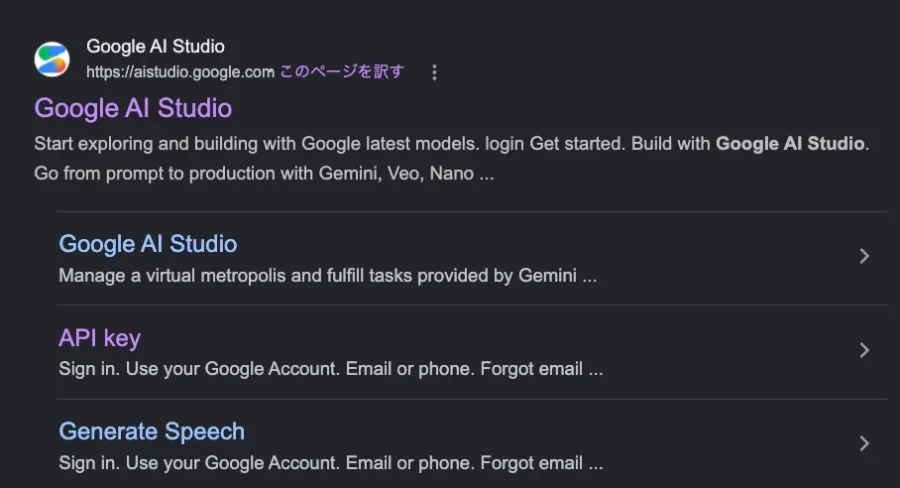
Step 1: Search for "Google AI Studio" in your browser and access itFirst, search for "Google AI Studio" in your browser. Please access the official site (https://aistudio.google.com) that appears at the top of the search results.
* If a link called "API key" appears directly in the search results, you can jump from there as well.
Step 2: Click "Get started" in the top right and log inOnce the Google AI Studio home page opens, click the "Get started" button in the top right.
You will be prompted to log in with your Google account, so please log in using the account you normally use. If you are using it for work, it is recommended to use your business Google account.
Step 3: Create an API key on the API key screenOnce logged in, the API key management screen will be displayed. Click the Create API key button in the top right of the screen. * If the API key management screen does not appear, please click "Dashboard" in the sidebar.
If you are asked to select a project, create a new project or select an existing one. Unless you have a specific preference, creating a new one is fine.
After waiting a few seconds, your API key will be issued.
Step 4: Copy the created API keyClick the copy icon(Copy API key) to the right of the API key displayed in the list to copy the API key to your clipboard.
That completes the process! Now, just paste this key into the settings screen of the app or tool you want to use, and you will be able to use the Gemini API.
Precautions when handling API keys
Since an API key is a "key," you need to be careful when handling it. At a minimum, keep the following three points in mind.
1. Never make it publicIf your API key falls into the hands of others, they will be able to use the API on your account without permission. Avoid writing it in places like the following.
SNS, blogs, or screenshots (be careful when screen sharing too!)
Public repositories like GitHub
Writing it directly into source code (hardcoding)
When using it in code, it is standard practice to manage it using environment variables or a .env file.
2. Check the "Billing tier"There is a column called "Billing tier" on the API key list screen.
Free: Use within the free tier limits. There is no cost, but there are limits on the number of requests, etc.
Tier 1 and up (postpaid): Billing is set up. Usage exceeding the free tier will be charged on a pay-as-you-go basis.
We recommend starting with the free tier and considering billing settings once you are ready to use it for serious projects.
3. Delete keys that are no longer neededLeaving unused API keys active poses a security risk. Once keys created for testing have served their purpose, be sure to delete them from the management console.
[Note] Consider centralized management if using in a team
While this procedure is sufficient for individual testing, if you are using the API in a team or organization, having each member hold their own key can make management complicated.
In that case, we recommend a configuration that uses an LLM management layer like Cloudflare AI Gateway to centralize usage visualization, rate limiting, and cost management. We explain this in more detail in another article.
Summary
Getting a Gemini API key can be completed in just 4 steps.
Search for "Google AI Studio" in your browser and access it
Log in via "Get started" in the top right
Click "Create API key"
Copy the created API key
Since you can start for free, if you think, "I want to try incorporating AI into an app," please start here.
Once you have an API key, a whole new world opens up for app development with vibe coding or integration with GAS. Please give it a try!