Sometimes, even after asking ChatGPT to "make the background transparent," the image returned comes with a checkerboard background.
To understand this issue, the most important thing is to distinguish between the following:
The checkerboard is displayed only on the screen to indicate transparent areas
The checkerboard pattern itself is drawn into the image
The image was transparent, but the transparency information was lost during saving or sharing
While they look similar, the causes and solutions are different.
First, let's identify the true nature of the "checkerboard pattern"
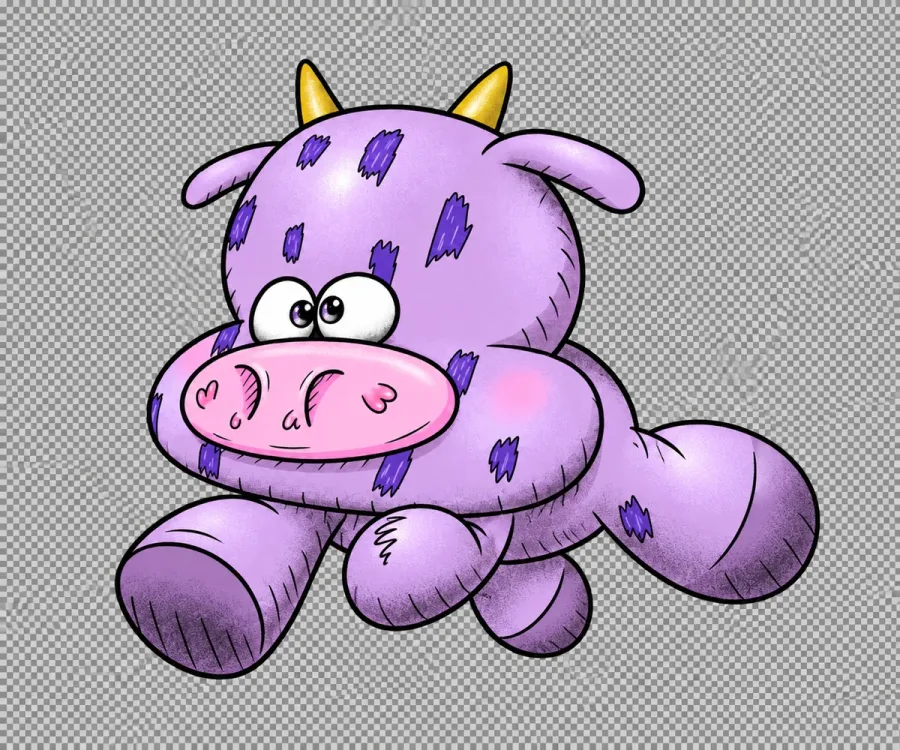
In image editing software, it is common to display transparent areas with a white and gray checkerboard pattern. In this case, the checkerboard is not part of the image content, but rather a display feature of the editing interface.
On the other hand, generative AI may sometimes draw the "look of a transparent background" as an image. In this case, it is not actually transparent; the checkerboard pixels are burned into the background.
To verify, download the original image instead of taking a screenshot, and place it over a layer with a prominent color like red or blue. If the checkerboard remains, it is part of the image, not a transparency indicator.
Note that just because it is a PNG does not mean it is transparent. While PNG is a format that can store transparency information, not all PNGs are transparent. You must confirm whether the image actually contains an alpha channel.
Why ChatGPT draws a checkerboard pattern
ChatGPT's image generation and editing processes are not always equivalent to mechanical background removal. The core process involves interpreting the prompt and generating or reconstructing the entire image.
Therefore, if you provide expressions like "transparent background" or "checkerboard pattern that shows it is transparent," the AI may interpret this as "draw a picture that looks like a transparent image" rather than "create a transparent image file."
In particular, requests like the following are prone to misunderstanding:
This can be interpreted as an instruction on the image to "draw a checkerboard pattern."
OpenAI's official guide also states that "drawn checkerboards are not transparent," and for transparent backgrounds, it suggests using the API's transparent background setting along with PNG or WebP formats in addition to subject isolation.
OpenAI Image Prompt Official Guide
OpenAI's image API has a setting to specify background="transparent" separate from the text. However, it cannot be confirmed in publicly available official documentation that the text "make it transparent" entered in the standard ChatGPT interface is reliably converted to this setting every time.
In other words, in a standard conversation interface, while you may be able to increase the success rate with precise request wording, you cannot guarantee alpha transparency with prompts alone.
How is this different from dedicated background removal services?
ChatGPT and dedicated background removal tools use fundamentally different core processing.
Most dedicated background removal services do not redraw the background; instead, they create a mask for the original image that indicates which parts to "keep" and which to "erase."
For each pixel, the basic approach is to provide information such as:
Keep completely: Alpha value 255
Completely transparent: Alpha value 0
Make edges semi-transparent: 1–254
Using intermediate values for the contours allows for natural preservation of hair, line art, and anti-aliasing. This process is generally called matting.
While ChatGPT has pathways to handle transparent images, its nature of redrawing images means that lines, expressions, colors, and dimensions other than the background may change slightly. OpenAI also notes that there are limits to consistency for ongoing characters or brand elements. OpenAI Image Generation Guide
Recommended prompts when asking ChatGPT
When generating a new imageThe key is to explicitly state the desired data structure—"background pixels," "alpha channel," and "RGBA PNG"—rather than just asking it to "make it look transparent."
When removing the background from an attached illustrationHowever, if you do not want to change the original character by even one pixel, relying solely on generative AI is not suitable. In that case, using a dedicated background removal tool or manual masking is more reliable.
How to redo it when a checkerboard pattern is drawn
If you try to edit and fix an image that has already had a checkerboard pattern drawn into it, ChatGPT may treat that pattern as part of the original image.
Therefore, do not use the failed image; start over from the original image you uploaded at the beginning.
If you still fail, it is more efficient to switch in the following order rather than repeating the same generation over and over.
Re-execute only once from the original image with clear instructions
Check the downloaded PNG by placing it over a colored layer
If the checkerboard pattern remains, switch to a dedicated background removal tool
Correct only hair tips or fine decorations with a manual mask
When editing the transparent PNG again in ChatGPT, specify "maintain transparent background" every time
Even in the official OpenAI guide, it is recommended to repeatedly state important constraints when performing multiple edits. However, for parts that require perfect pixel retention, it is safer to use compositing processes rather than relying solely on generation.
If an image that was transparent turns white after saving
Even if it is correctly transparent on the ChatGPT side, alpha information may be lost in subsequent processes.
Typical examples are as follows:
Saved via screenshot
Converted to JPEG
Imported the image via copy and paste
Automatically converted by SNS or messaging apps
Re-saved as an RGB image by an editing app
Converted to GIF, making it unable to handle semi-transparent outlines
As a rule, handle the original downloaded file as a PNG or WebP. JPEG cannot save alpha transparency. When using the API, you must specify the corresponding output format in addition to the transparent background setting.
Compared to CharaMō's background removal
CharaMō's standard background removal does not rely on asking the generative AI to "not draw the background," but rather estimates the background color from the outer edges of the image to create a transparency mask.
Current processing does not just separate into complete transparency and opacity, but combines 8-bit soft alpha, transition areas near outlines, and processing to suppress background color bleeding. Therefore, for character images with simple backgrounds, it is easier to avoid the risk of the main subject being redrawn during generation.
On the other hand, when the background is complex like in a photograph, or when the background and the character are the same color, a dedicated high-precision matting service may be more suitable.
If you look at CharaMō as a point of comparison, its strength is not just in the "accuracy of background removal." It lies in the ability to pass the transparent character directly to subsequent processes such as saved angles, material creation, and animation. The difference is that a dedicated service is for cutting out a single image as quickly as possible, while a production service is for a continuous character creation environment.
Production services, including CharaMō, do not rely solely on prompts for transparency, but rather use a two-pronged approach:
Specifying a transparent background during generation
Checking for the presence of an alpha channel after output
Automatically switching to background removal processing if it is opaque
Allowing the transparency result to be checked against a colored background
This is the most stable approach in practice.
Summary
When a checkerboard pattern appears in ChatGPT, first check whether it is a "display of transparent areas" or an "image with the pattern drawn into it."
While ChatGPT excels at flexible image generation and editing, its processing purpose differs from that of dedicated background removal services. In your request, it is important to specify "true alpha," "RGBA PNG," or "transparent background pixels" rather than "checkerboard pattern."
If you still cannot achieve transparency, there is no need to persist with prompt adjustments alone. Switching to a dedicated background removal tool or mask-generation processing like CharaMō will allow you to create stable transparent assets while preserving the original character.