What is FramePack AI? An Explanation of the Latest Video Generation Technology
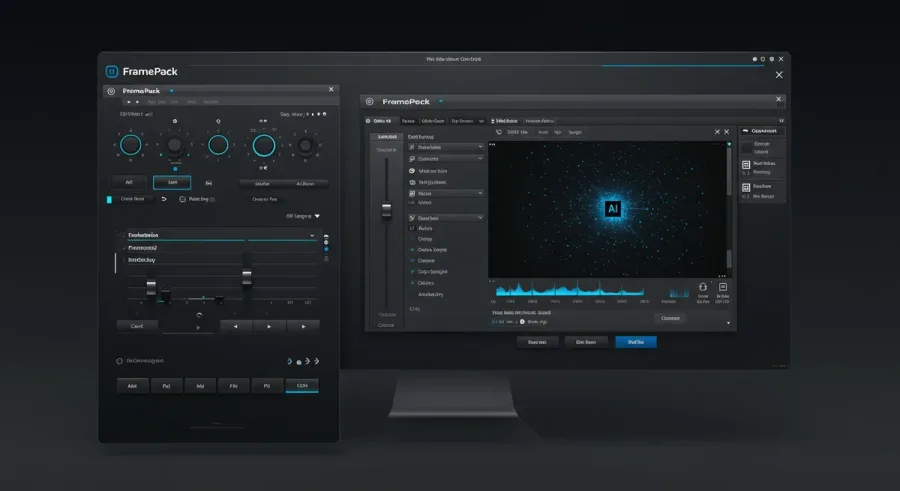
As AI-driven video generation technology evolves rapidly, FramePack AI is gaining attention as an innovative tool that allows for the creation of high-quality, long-form videos even on low-spec PCs. It can generate videos up to 60 seconds long at 30fps using a common graphics card with just 6GB of VRAM.
Conventional video generation AIs could only create short videos of a few seconds, and as the length increased, they faced issues such as increased memory consumption and degraded image quality.
FramePack AI successfully overcomes these limitations by combining proprietary frame compression technology with bidirectional sampling. Its greatest feature is the ability to generate smooth, high-quality, long-form videos while keeping processing costs constant.
The core technical features of FramePack AI are the following three:
Progressive Frame Compression: Applies higher compression to less important frames, optimizing memory while retaining critical details.
Anti-Drift Sampling: Uses bidirectional context to generate frames, avoiding error accumulation and maintaining visual fidelity.
Fixed Context Length: Compresses based on frame importance, maintaining a constant computational load regardless of video length.
Furthermore, it is provided as open-source under the Apache 2.0 license, and its potential for community contribution and easy integration is a major appeal.
Preparation for Trying FramePack AI for Free
There are several ways to try FramePack AI for free. Using it in a local environment is the most common, but there are also ways to use it in a cloud environment.
First, let's check the required specifications. The following environment is recommended for running FramePack AI comfortably.
GPU: NVIDIA RTX 30XX, 40XX, 50XX series (minimum 6GB VRAM)
OS: Windows 10/11, Linux (Ubuntu recommended)
Storage: At least 10GB of free space
RAM: 16GB or more recommended
What is worth noting is that it works with just 6GB of VRAM!
With FramePack, you can achieve long-form video generation that requires high-performance GPUs even with relatively low specs. Conventional video generation AIs often require at least 10GB of VRAM, which made setting up the environment quite difficult.
Now, let's look at how to actually try FramePack AI for free. In this guide, we will focus on the easiest one-click installation method for Windows.
FramePack AI Installation Steps for Windows
I will introduce how to easily install FramePack AI in a Windows environment. Previously, complex procedures like setting up a Python environment were required, but now, by using the one-click installer provided by the official team, you can get started easily even without programming knowledge.
First, access the official FramePack AI page on GitHub and download the one-click package for Windows. It is a compressed file of about 1.7GB, so a high-speed internet connection is recommended.
Extract the downloaded compressed file.
Run 'update.bat' located inside the extracted folder (this only updates Git, so it will finish quickly).
Next, run 'run.bat', and the download of the necessary models will begin.
Once the download is complete, your browser will open automatically and display the FramePack AI interface.
If the browser does not open automatically, please manually access the displayed URL (http://127.0.0.1:7860).
That is all it takes for the basic installation! It is very simple, isn't it?
However, the processing speed is not optimized with just this basic installation. To make it run faster, I recommend installing a few additional packages.
Additional Settings for Speed Optimization (Optional)FramePack AI supports acceleration technologies such as 'PyTorch attention', 'xformers', 'flash-attn', and 'sage-attention'. By default, only basic PyTorch attention is enabled, but you can significantly improve processing speed by installing additional packages.
In particular, 'xformers' is relatively easy to install and highly effective, so I recommend it. Open the command prompt, navigate to the folder where you extracted FramePack, and run the following command.
cd framepack_cu126_torch26environment.batpython -m pip install --upgrade pippip install xformers
Now you are ready for faster performance. When you run 'run.bat' again, FramePack AI will start with xformers enabled.
Basic Usage of FramePack AI
Once the installation of FramePack AI is complete, let's try using it right away. The basic usage is very simple, and you can generate videos in four steps.
The usage of FramePack AI is completed in the following four steps.
Upload an image or video: Upload a photo or initial video frame to start the animation.
Select Settings: Customize the output by selecting video length, frame rate, and style options.
Generate Video Frames: FramePack AI generates frames using progressive advanced compression and anti-drift technology.
Preview and Download: Watch the video build in real-time, then download your high-quality animation.
Now, let's take a detailed look at the actual steps.
Step 1: Uploading Images and Entering PromptsFirst, once the FramePack AI interface appears, click the "Upload Image" button on the left panel to upload the source image for your video. It supports common image formats such as JPG, PNG, and WebP.
Next, enter the content of the video you want to generate in the "Prompt" field in English. For example, something like "A person standing still while the wind gently moves their hair and clothes".
While it does recognize Japanese prompts, you will often get more accurate results using English.
Step 2: Adjusting Video SettingsNext, adjust the various video settings. The main settings are as follows:
Video Length: Set the length of the video (in seconds). While you can set it up to 120 seconds, we recommend starting with a shorter duration of 10 to 30 seconds.
FPS: Set the frame rate. Usually, 24 to 30 fps is appropriate.
Width/Height: Set the resolution of the output video. Please adjust this according to your GPU's VRAM capacity.
Seed: The seed value for random numbers. Using the same value will yield similar results. Setting it to -1 will make it random every time.
CFG Scale: Adjusts the fidelity to the prompt. Higher values result in output closer to the prompt, but creativity will decrease.
Once all settings are complete, click the "Generate" button to start generating the video. FramePack AI will generate frames one by one, and a preview will be displayed in real-time.
When using an RTX 4090, a frame is generated approximately every 1.5 to 2.5 seconds. This means that if you generate a 30-second video at 30 fps, it will take approximately 30 minutes (900 frames × 2 seconds).
One of the charms of FramePack AI is that you can check the progress even while it is generating. If you are not satisfied, you can stop it midway and change the settings.
Step 4: Downloading and Saving the VideoOnce video generation is complete, click the "Download" button to download the video. It will be saved in MP4 format and can be played on standard video players.
Additionally, you can save individual frame images from the generated video, allowing you to edit them later if needed.
Ideas and Use Cases for FramePack AI
Once you have mastered FramePack AI, you can use it for a variety of purposes. Here, I will introduce some practical ideas and use cases.
I personally used FramePack AI to create a short film, and I was surprised that it could achieve both the length and quality that were impossible with conventional AI video generation tools. The expression of natural movement, such as the movement of wind and water, is particularly excellent.
Use in Creative WorksShort films: You can create original short films. Works that combine live-action footage with AI-generated video are attracting particular attention.
Music videos: You can generate visuals that match your music to create original music videos.
Art pieces: You can generate artistic works that look like moving paintings. These are also gaining attention in digital art markets such as NFTs.
For example, one creator used FramePack AI to produce a 60-second video depicting the "changing of the four seasons" from a single landscape photo, which garnered over 100,000 likes on social media.
Business ApplicationsAdvertising and promotional videos: You can easily create promotional videos for products and services.
Content for social media posts: You can efficiently generate short video content for social media platforms like Instagram and TikTok.
Presentations: By adding moving elements to your presentation materials, you can make your presentations more impactful.
There is also a case where a small-to-medium enterprise created a teaser ad for a new product using FramePack AI, allowing them to produce high-quality video in a short time while significantly reducing costs compared to hiring a professional production company.
Use in Education and ResearchEducational content: You can create educational videos that visualize abstract concepts or historical scenes.
Research presentations: You can create videos that visually represent your research content and use them in presentation materials.
Simulations: You can generate videos that simulate specific phenomena or situations.
In educational institutions, there are examples where history classes successfully used FramePack AI to create videos recreating "Edo period townscapes," which helped increase student understanding and interest.
Limitations and Precautions of FramePack AI
While FramePack AI is an excellent tool, it also has some limitations and points to keep in mind. It is important to understand these before you actually use it.
What I felt particularly when using FramePack AI was the balance between generation speed and quality. It takes time to get high-quality results, but you can shorten it to some extent by adjusting the parameters.
Technical LimitationsGeneration Time: It takes time to generate high-quality videos. Even with an RTX 4090, it takes about 30 minutes to generate a 30-second video.
VRAM Limitations: It works with a minimum of 6GB of VRAM, but more VRAM is required when generating high-resolution or complex videos.
Motion Limitations: There are limits to expressing complex movements or detailed human actions. It tends to be particularly weak at things like changing facial expressions.
For example, if you try to generate a high-resolution video of 1080p or higher, you will often need 12GB or more of VRAM. Also, scenes where multiple people move in complex ways may not be well-represented at present.
Copyright and Ethical ConsiderationsCopyright: While FramePack AI itself is open source under the Apache 2.0 license, there are no clear guidelines regarding the copyright of the generated videos. Caution is required when using it for commercial purposes.
Ethical Considerations: You should avoid generating videos that imitate real people or generating inappropriate content.
Misinformation: Since AI-generated footage is difficult to distinguish from reality, you need to be aware that it could lead to the spread of misinformation.
I recommend consulting with a legal expert, especially if you are considering commercial use. Also, if the generated video resembles other copyrighted works, sufficient verification is required before publication.
Summary: The Possibilities of Video Production Expanded by FramePack AI
FramePack AI is an innovative tool that allows even low-spec PCs to generate high-quality, long-form videos. Its greatest appeal is that it can be used with a common graphics card with just 6GB of VRAM and can generate videos up to 120 seconds long.
In this article, we have explained a wide range of topics, from an overview of FramePack AI to how to try it for free, basic usage, and application ideas. With the one-click installer for Windows, you can easily get started without any programming knowledge.
The core technical features of FramePack AI are progressive frame compression, anti-drift sampling, and fixed context length. These technologies overcome the limitations of conventional video generation AI and realize video generation that does not degrade in quality even over long durations.
FramePack AI, which can be applied to various uses such as creating creative works, business promotions, and applications in education and research fields, can be said to be a tool that accelerates the democratization of video production.
Of course, there are some limitations such as generation time, VRAM limits, and the limits of motion expression, but these limitations will likely be resolved gradually as technology evolves.
Please try installing FramePack AI for free and turn your ideas into videos. You will surely realize that the possibilities for new forms of expression are expanding.
You can also check the details on the framepack official website.