I am No.Usagi.
Do you use a note-taking app?
I use both Google Keep and Notion, but
I would like to talk about [Google Keep].
Basic features and functions
A cloud-based note-taking app provided by Google
Can be accessed and edited from multiple devices such as smartphones, tablets, and PCs
Supports text, as well as images, audio, and handwriting
GIF, JPEG, JPG, and PNG files can be uploaded
Can create checkbox lists, with indentation support
Can extract text from images or handwriting
Can write by hand on images
Can transcribe audio
No folder management; only sorting by tags or colors
Can set reminders based on time and location
Unlimited storage, though images and other files must be under 10MB each
URLs are automatically linked and thumbnails are displayed when pasted
Unneeded notes can be deleted or hidden by archiving
Things I personally find appealing
Completely free
The peace of mind that comes with a Google app
Location-based reminder feature
Unlimited storage!?
GIF!?
Widget functionality
Personal specific use cases
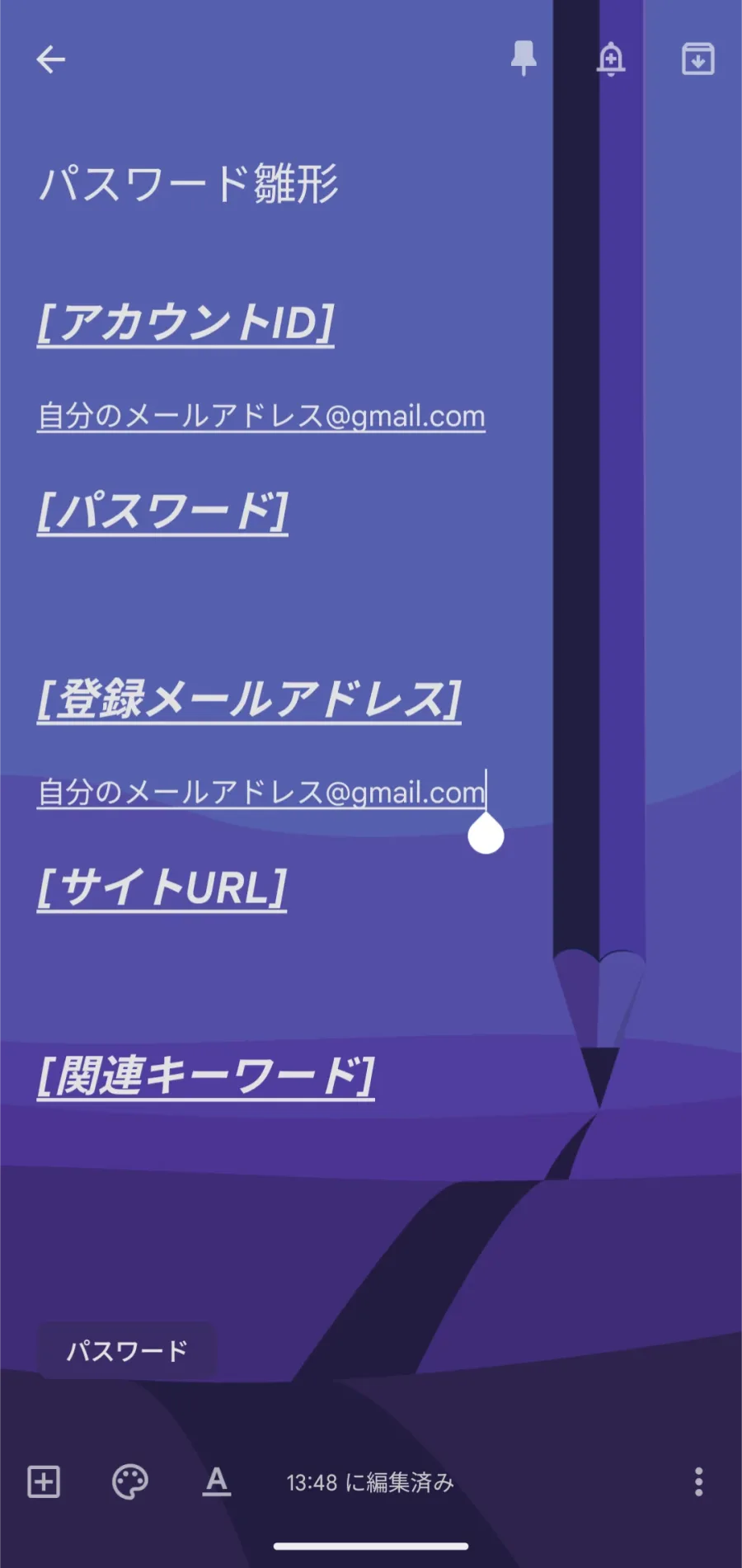
- Password management -[Caution!]Managing passwords in a notepad is not recommended.
● If you share the smartphone, tablet, or PC that is logged into the Google account you use with family or others, absolutely do not do this.
● Make your Google account password strong, definitely set up two-step verification, and monitor the devices logged into your account.
● Set a device password, and set a lock on the app itself.
● Do not use untrusted keyboard apps.
● Do not hand your smartphone to others without taking precautions.
● Ideally, it is safer to use a dedicated password management app or a note app with encryption features.
● Also, please note that I take no responsibility for anything.
I create a password template in advance, tap the thumbtack icon at the top to pin it, and copy and use it as needed.
I add a [Password] tag, and in the [Related Keywords] field, I write words to use when searching. Even just including the hiragana reading of the service name you are registering will make searching easier.
I paste URLs for websites and web services I use often.
When you paste a URL, it is converted into a link, and a thumbnail is displayed at the bottom.
In my case, I paste URLs for Google services.
The image is a list of URLs that I personally think you should check diligently, even for Google account security-related matters.
Among them, in particular, if there is a device you do not recognize under [Manage login devices], it is extremely dangerous.
In the worst case, from the distant past to the present, your Google, Chrome, and YouTube search and viewing history, downloaded apps, location information, movement history including names of places visited and time spent down to the minute, all passwords for web service accounts, contact lists, all photos in Google Photos, everything in Drive, and things in Keep notes, etc., could all be exposed.
It's nothing but terrifying, isn't it...? Managing your Google account is important.
While centralized management via a Google account carries the risk of losing everything at once, conversely, you just need to defend your Google account at all costs.
This has become a topic about security.
In my case, I manage my Google settings and such from Google Keep.
I have listed the Google-related URLs below, so you can just check them, copy and paste everything into Google Keep, or if you think it's dangerous to copy and paste only the necessary URLs into a notepad, you can even bookmark this note itself.
Also, for those who haven't set up 2-step verification, please take this opportunity to do so.
— List of URLs you should check —
● Google Password Manager
https://passwords.google.com
● Manage logged-in devices
https://myaccount.google.com/device-activity
● Passkeys and security keyshttps://myaccount.google.com/signinoptions/passkeys
● Check location sharing status
https://myaccount.google.com/locationsharing
● Security Checkup
https://myaccount.google.com/security-checkup
● Dark Web Monitoring
https://myactivity.google.com/dark-web-report/dashboard
— Information —
● Google Search
https://www.google.com/webhp
● Saved Collections
https://www.google.com/interests/saved
● News
https://news.google.com/home
● Alerts
https://www.google.co.jp/alerts
● Trends
https://trends.google.co.jp/trends
● Finance
https://www.google.com/finance
● Shopping
https://shopping.google.com
— App Related —
● Contacts
https://contacts.google.com
● SMS
https://messages.google.com/web/conversations
● Gmail
https://mail.google.com/mail
● Chat
https://mail.google.com/chat
● Meet
https://meet.google.com/landing
● Classroom
https://classroom.google.com
● Calendar
https://calendar.google.com/calendar
● To-Do
https://calendar.google.com/calendar/u/0/r/tasks
● Google One
https://one.google.com
● Drive
https://drive.google.com/drive/my-drive
● Photos
https://photos.google.com
● YouTube
https://www.youtube.com
● YouTube Music
https://music.youtube.com
● Books
https://books.google.com/books
● Google Translate
https://translate.google.com
● Recorder
https://recorder.google.com
● Handwriting Notes (for Chromebook)
https://cursive.apps.chrome
— Map Related —
● Maps
https://www.google.com/maps
● My Maps
https://www.google.com/maps/d/home
● Earth
https://earth.google.com/web
● Map Timeline
https://timeline.google.com/maps/timeline
● Arts & Culture
https://artsandculture.google.com
● Find My Device
https://www.google.com/android/find
● Remote Lock
https://www.google.com/android/find/lock
● Manage Reservations
https://myaccount.google.com/reservations
— Home Related —
● Home
https://home.google.com/automations
● Family Link
https://families.google/intl/ja_ALL/familylink
● YouTube Kids
https://www.youtubekids.com
● Manage Family Group
https://myaccount.google.com/family/details
— Office Related —
● Docs
https://docs.google.com/document
● Sheets
https://docs.google.com/spreadsheets
● Slides
https://docs.google.com/presentation
● Forms
https://docs.google.com/forms
● Drawings
https://docs.google.com/drawings
— Web Applications —
● Google Workspace Marketplace
https://workspace.google.com/marketplace
● Chrome Web Store
https://chromewebstore.google.com
— Net Business Related —
● Sites
https://sites.google.com
● Blogger
https://www.blogger.com/about
● My Ad Center
https://myadcenter.google.com/personalizationoff
● Ads
https://ads.google.com/home
● Analytics
https://analytics.google.com/analytics/web/provision
● Merchant Center
https://www.google.com/retail
● Business Profile
https://www.google.com/business
— History and Personal Information —
● My Activity
https://myactivity.google.com/myactivity
● YouTube History
https://myactivity.google.com/product/youtube
● Fit Settings
https://fit.google.com/privacy/settings
● Dashboard
https://myaccount.google.com/dashboard
● Third-party apps and services
https://myaccount.google.com/connections
— Security Related —
● Security Overview
https://myaccount.google.com/security
● Change Password
https://myaccount.google.com/signinoptions/password
● 2-Step Verification Settings
https://myaccount.google.com/signinoptions/twosv
● Skip password when possible with passkeyshttps://myaccount.google.com/signinoptions/passwordoptional
● List of devices that can receive Google promptshttps://myaccount.google.com/two-step-verification/prompt
● Phone numbers used for 2-Step Verification
https://myaccount.google.com/two-step-verification/phone-numbers
● Recovery phone number settingshttps://myaccount.google.com/signinoptions/rescuephone
● Register recovery email address
https://myaccount.google.com/recovery/email
● Enhanced Safe Browsing settings
https://myaccount.google.com/account-enhanced-safe-browsing
● User information registration
https://myaccount.google.com/profile
● Blocked users
https://myaccount.google.com/blocklist
— Payment Related —
● Payments and subscriptions overview
https://myaccount.google.com/payments-and-subscriptions
● Payment methods and registered cardshttps://payments.google.com/gp/w/home/paymentmethods
● Payment settings
https://payments.google.com/gp/w/home/settings
● Subscriptions and serviceshttps://payments.google.com/gp/w/home/subscriptionsandservices
● Manage subscriptions
https://myaccount.google.com/subscriptions
— Business and Corporate —
● Business features
https://myaccount.google.com/businesspersonalization
● Add business or service to Google
https://business.google.com/create/new
— Programming —
● Colaboratory
https://colab.research.google.com
● Google Apps Script
https://script.google.com
● API Library
https://console.cloud.google.com/apis/library
● About Android Studio
https://developer.android.com/codelabs/basic-android-kotlin-compose-install-android-studio
— AI Services —
● Gemini
https://gemini.google.com/app
● Search Labs
https://labs.google.com/search
● NotebookLM
https://notebooklm.google
● image-fx
https://aitestkitchen.withgoogle.com/ja/tools/image-fx
● video-fx
https://labs.google/fx/ja/tools/video-fx
● music-fx-dj
https://labs.google/fx/ja/tools/music-fx-dj
● music-fx
https://labs.google/fx/ja/tools/music-fx
● whisk
https://labs.google/fx/ja/tools/whisk
● gigamanga
https://artsandculture.google.com/experiment/giga-manga
Since most Google services are cloud-based, there are a lot of URLs, aren't there?
Huh, you want to save NSFW sites too...?
Try tagging and archiving your URL notes with something like [No.18].
They are usually hidden but will appear when you search by tag. It's a pro tip. Bookmarks are fine, but URLs display thumbnails, and it looks nice if you attach your own site images.
If you set a location-based reminder for each note, you will be notified of the note when you arrive at the registered location. In my case:
● Images of employee ID cards with barcodes/QR codes for work, etc.
● URLs for web services like [Tokubai] for store names, and images of barcode-style loyalty cards.
For notes with the above content, I tap the bell icon and set a location-based reminder.
Then, for example, if your workplace is at Tokyo Station, the note will be notified when you arrive at work, and you can immediately time-stamp it on your smartphone.
A word of caution: if you only attach a QR code image, it's likely too large for the scanner to recognize, so it's better to resize it or attach another image as well.
As an example of use at a supermarket, if you go to a supermarket in Karuizawa, the note will be notified, allowing you to check Tokubai information and other details smoothly.
It seems there are no barcode-style loyalty cards at Tsuruya, so I haven't attached one.
Did you know?
They say you can upload GIF files to Google Keep.
What's amazing is that there is no storage limit for uploads, including image files. There is a file size limit per file, but it's said that you can upload as long as it's under 10MB.
There are people who get excited about this. People like me.
So, I secretly make a photo collection of my wife and look at it in Google Keep.
Videos aren't possible, but you can upload them by capturing a moment and converting it to a GIF. Even when I hit a wall and feel mentally crushed, just looking at my wife's photos makes me feel strong enough to punch my boss in the face.
I can't help but point out that note also supports GIFs...
With all due respect, the woman in the image is not my wife.
I am using an image of Saya Akane from the website [Pakutaso].
She is certainly very beautiful, but it's rude to say this while using her image, but my wife is the best.
In my case, it's my wife, but for those who are into anime, idols, or NSFW content, I think it's good to save images of your respective hobbies in notes.
Tagging and categorizing them is also fun.
There are also NSFW sites that handle GIFs. I think it's interesting to download them and make a collection in your notes.
I'll say it again, I recommend tagging your image and GIF notes. And archive notes that you wouldn't want others to see. Then they are usually hidden but will appear when you search by tag. I said it twice because it's important.
Some might think, why not just view them in a gallery app? But I want to keep my gallery app safe for public viewing. I don't want to struggle with deciding if it's okay to open my gallery app in front of others.
So the note app acts as camouflage. Also, I don't think many people check the archived notes in someone else's Google Keep.
Even if they did, I think they would be quite the pervert and a dangerous person. Please be careful.
Don't hand your smartphone to people like me!
By placing widgets on the home screen, you can check your notes more quickly.
You can display a list of all notes or images and text by tag. However, archived notes are not displayed, and there seems to be a limit to the number of notes displayed.
Is it also a good way to use it for work, jotting down tasks messily with a focus on speed, and then tapping to delete them once confirmed and completed?
You can also display a single note. You can jot down things like shopping lists when they come to mind, and check them immediately when you look at your smartphone at the store.
Some of you might think it's not that impressive, but just knowing that it has a widget function allows you to consider applications later. Understanding the shortcut function is also important. I hope those who don't use it will at least keep it in the back of their minds.
Business card management
URLs for train and bus timetables and transfer search guides
URLs for individual notes in Notion, Evernote, etc.
How to fill out documents, URLs for PDFs
Resume
Certifications held
List of songs I can sing at karaoke, lyrics
Cooking recipes, images, URLs for Cookpad, etc.
Barcode-type point cards, membership cards
URLs for favorite apps
For any of these usage ideas, I generally recommend utilizing tags and color-coding as well.
I also recommend entering your own search keywords.
Otherwise, your precious notes will get buried and the opportunity to use them will be lost....
To actively dig up your notes, be conscious of searchability when you create them.
If you do that, I think Google Keep will become a reliable companion that you could even call a partner for life.
In conclusion
I would be happy if there is anyone who feels that their interest in Google Keep has increased because of this humble note.
At the same time, I hope you will also take an interest in Google's security.
Actually, my Google Keep tips are not even that important.
Thank you very much (´∀`)ノシ