“I want to check what apps are installed on my Mac.”
“I want to find and delete unnecessary apps.”
“I want to know the list of standard Mac apps.”
Have you ever felt this way? As you use your Mac for a long time, the number of apps you've installed grows before you know it, and you may lose track of which apps you should keep or which ones are taking up storage space.
Furthermore, in macOS 26 Tahoe and later, Launchpad has been discontinued, and the mechanism for displaying the app list has been integrated into Spotlight.
As a result, more users are confused, wondering, “I can't find Launchpad” or “Where can I check the app list?” However, there are multiple ways to display a list of installed apps on a Mac.
In this article, we will explain the following in detail:
How to display the app list on MacBook Pro/Air
How to check using Finder, Spotlight, and Terminal
List of standard macOS apps
How to manage apps after the discontinuation of Launchpad
How to identify unnecessary apps
How to safely delete apps
If you want to organize your Mac apps, please use this as a reference.
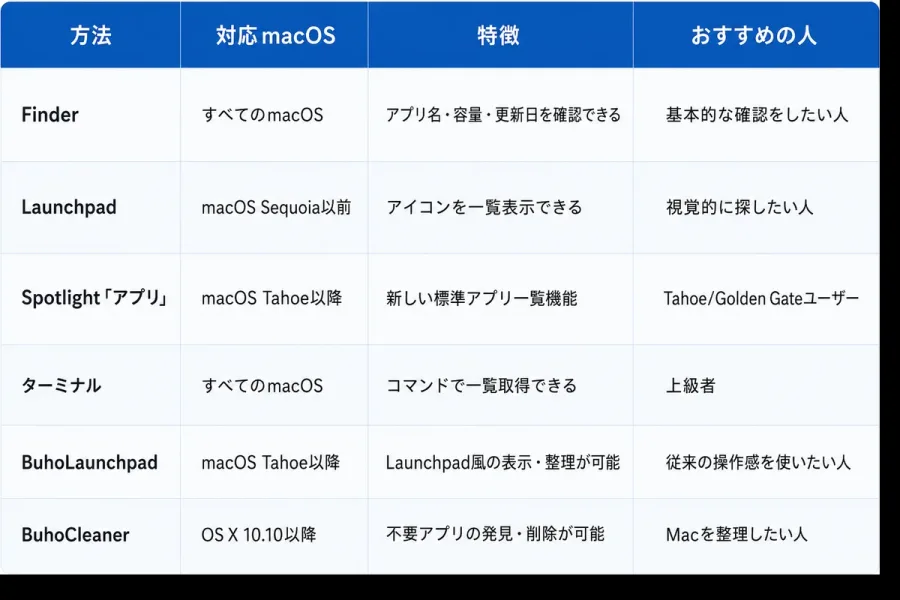
How to display a list of all apps on MacBook Pro/AirThe method for checking the Mac app list varies depending on the version of macOS you are using and your purpose.
A comparison of the representative methods is as follows:
Method 1: Check the Mac app list in Finder (compatible with all macOS)The easiest way is to check the “Applications” folder in Finder.
In Finder, you can not only display a list of apps installed on your Mac, but you can also sort them by size or date modified.
Open Finder from the Dock
Click "Applications" from the left-hand menu
A list of installed apps will be displayed
If "Applications" does not appear in the Finder sidebar, you can add it using the following steps:
"Finder" -> "Settings" -> "Sidebar" -> Check "Applications"
Tips for organizing apps in Finder
In Finder, you can manage apps more efficiently by changing the display method. For example,
Switch to "List View"
Sort by "Size"
Check "Date Last Opened"
This makes it easier to find apps that are using a lot of storage space or apps that haven't been used for a long time.
If you are struggling with low Mac storage, it is particularly efficient to check large-capacity apps first.
Method 2: Displaying the app list with Launchpad (macOS Sequoia and earlier)Launchpad is a feature that allows you to view Mac apps in an icon format, similar to the home screen on an iPhone or iPad.
It has been used by many Mac users because it makes it easy to find apps and allows for folder organization via drag-and-drop.
Open Launchpad
Check the list of apps displayed on the screen
Swipe left or right to view all apps
However, Launchpad has been discontinued in macOS 26 Tahoe and later. If Launchpad is gone in macOS Tahoe or later, you can check the app list using the following method:
Use the "Apps" view in Spotlight
Use the "Applications" folder in Finder
Use a Launchpad-style app management tool
In macOS 26 Tahoe and later, Spotlight plays a central role in displaying the app list.
In Spotlight, you can not only search for installed apps but also view them as a list from the "Apps" view.
Press "Command (⌘) + Space" on your keyboard
Launch Spotlight
Open the app list screen
Convenient ways to use Spotlight
You can also launch Spotlight using the following methods:
Click the Spotlight icon in the Dock
Open the app view with "Command + 1"
Use a pinch gesture on the trackpad
Additionally, you can change the display method from the three-dot menu in the top right.
Grid view
List view
Switching according to your preference makes it easier to find the app you are looking for.
Method 4: Display the Mac app list using Terminal (For advanced users)One way to display a list of Mac apps is to use the Terminal.
In Terminal, you can retrieve app names in text format rather than a visual display like Finder.
This is useful when you want to save a list of installed apps, search for specific apps, or find apps with large file sizes.
Command to display a basic app list
Open Terminal and enter the following command.
ls /Applications
When executed, a list of app names saved in the "Applications" folder will be displayed.
How to search for specific apps
You can also search by specifying an app name. For example, if you want to find an app named "Photos":
ls /Applications | grep "写真"
You can display only the apps that contain the specified string.
How to find large-capacity apps
If you want to find apps that are taking up storage space, you can search by specifying the capacity. For example, to find apps larger than 3GB:
find /Applications -name "*.app" -size +3G
This is helpful when you want to check for large apps such as video editing software, games, or development environments.
Points to note
Normally, apps installed on a Mac are saved in the following location.
/Applications
If you want to check standard system apps, you can use the following command.
ls /System/Applications
Since Launchpad was discontinued in macOS Tahoe and later, many users feel they want to manage apps in an icon list as they did before. While Spotlight is built-in and convenient for searching apps, it lacks the flexible organization features of Launchpad.
For example,
Organize apps by folder
Group frequently used apps together
If you want to search intuitively from a list of icons
in that case, there is a way to use an app management tool similar to Launchpad. One of them is "BuhoLaunchpad".
With BuhoLaunchpad, you can display the apps installed on your Mac in a grid format. It also supports the following management features:
Drag-and-drop app organization
Folder creation
App grouping
App hiding settings
Multiple layout settings
Displaying apps on external drives
How to display the app list with BuhoLaunchpad
Install BuhoLaunchpad
Launch the app
Apps on your Mac will be automatically loaded and displayed in a list
Useful ways to use BuhoLaunchpad
Organize apps into folders: Just like the traditional Launchpad, you can drag apps to create folders.
For example,
Work apps
Photo/video editing apps
Development tools
SNS-related apps
and so on, you can organize them by purpose.
Set multiple layouts: You can also switch app displays according to your needs, such as for work or personal use.
By displaying only the apps you use regularly or hiding unnecessary ones, app management becomes easier.
How to check the list of standard apps on MacBook Pro/AirMany Apple-native apps are pre-installed on your Mac from the time of purchase. However, you might sometimes wonder, "Is this a standard Mac app?" or "Is it okay to delete this app?"
Here, we will introduce how to check macOS standard apps.
Method 1: Check standard apps using Terminal
You can check macOS standard apps with the following command.
ls /System/Applications
Method 2: Check using Launchpad or BuhoLaunchpad
For macOS Sequoia and earlier, you can check standard apps by opening Launchpad, but for macOS Tahoe and later, you can use BuhoLaunchpad to view apps in a screen similar to the traditional Launchpad.
Many of the apps displayed immediately after purchasing a Mac are standard pre-installed apps.
List of Mac standard apps
How to list unnecessary apps on MacBook Pro/AirAs you use your Mac over a long period, unnecessary apps tend to accumulate without you realizing it.
For example:
Apps installed once and never used again
Apps left as free trial versions
Unnecessary apps migrated from an old Mac
A state where multiple apps with similar functions are installed
and so on.
Organizing unnecessary apps not only frees up storage space but also helps tidy up your Mac, making it easier to find the apps you actually need.
However, the problem is that you may not know which apps are safe to delete.
Therefore, when looking for unnecessary apps, check the following points.
3 points for identifying unnecessary apps
1. Apps that have not been launched for a long time
The most obvious criterion is when you last used it.
For example,
Apps you haven't used in over half a year
Apps you haven't launched in over a year
Apps you have forgotten you even installed
are candidates for deletion. However, be careful not to judge based solely on usage frequency for work software or specialized apps that you only use a few times a year.
2. Apps that consume a large amount of storage
If you are struggling with low storage space on your Mac, it is efficient to start by checking the apps that take up the most space.
Apps that tend to be particularly large include:
Video editing software
Photo editing software
Games
Development environments
Virtual machine-related apps
and so on. You can check them by opening the "Applications" folder in Finder and sorting by size.
3. Items with alternative apps
You can also organize your Mac if you have multiple apps installed that have similar functions.
For example,
multiple browsers
multiple PDF viewer apps
multiple note-taking apps
multiple cleaner apps
and so on. By deciding on one app to use regularly, you can keep your Mac neatly organized.
How to check and delete unnecessary apps with BuhoCleanerWhile it is possible to delete apps using Finder, when you delete them from Finder, related files other than the app itself may remain on your Mac.
Depending on the app,
configuration files
caches
log files
support files
and others may remain, meaning they are not completely deleted.
Therefore, if you want to manage unnecessary apps all at once, you can use a Mac-specific cleaner app.
BuhoCleaner has an "Uninstaller" feature that allows you to list installed apps and delete unnecessary ones.
Steps to list unnecessary apps with BuhoCleaner
1. Launch BuhoCleaner
2. Select "Uninstaller"
3. Check for unused apps
4. Delete unnecessary apps
Select the apps you want to delete and remove them along with their associated files. Since you can delete not only the app itself but also its related data all at once, it is easier to keep your Mac organized than by deleting them manually.
FAQ
1. Which standard apps are safe to delete?
Some Apple-native apps can be deleted if you do not use them. For example, GarageBand, iMovie, Pages, Numbers, and Keynote. These can be reinstalled from the App Store.
On the other hand, it is recommended not to delete apps involved in the operation or management of macOS, such as Safari, System Settings, Disk Utility, Terminal, and Activity Monitor.
2. Can I display only Mac apps in Spotlight?
In Spotlight on macOS Tahoe and later, Mac apps and iPhone apps may be displayed together. If you want to display only Mac apps, follow these steps to configure the settings.
Open the "Apps" view in Spotlight
Click the three-dot icon on the right side of the screen
Uncheck "Show iPhone Apps"
This will make it easier to focus on checking your Mac apps. The names of settings and their locations may vary depending on the version of macOS.
Summary: Check your Mac app list according to your purpose
There is more than one way to check the apps installed on your Mac.
If you want to check them easily, the "Applications" folder in Finder is convenient. On macOS Tahoe and later, you can also view a list from the "Apps" view in Spotlight.
Organized by purpose, it looks like this:
To easily check all apps: Finder
Want to find apps in macOS Tahoe: Spotlight
Want to organize like the old Launchpad: BuhoLaunchpad
Want to save an app list: Terminal
Want to find apps you haven't used in a long time: BuhoCleaner
Want to delete including related files: Official uninstaller or dedicated tool
Deleting unnecessary apps frees up Mac storage and makes your app list easier to view and organize.
However, it is important to check saved data, licenses, and system dependencies rather than deleting them just because they are used infrequently.
Start by checking your current app list in Finder or Spotlight, and try organizing them little by little, starting with apps you clearly do not use.