This is MSI_util_v3↓
GitHub - Sathango/Msi-Utility-v3: Msi Utility v3
This article breaks down topics from the Discord server in more detail.
For more in-depth information, please check the Discord server.
MSI mode is not magic. What gamers need to know about 'latency' and 'interrupts'
Have you ever heard the rumor that 'using MSI_util_v3 increases FPS' and checked the box for your GPU just because of it?
If you are hoping to 'increase your average FPS from 200 to 240,' this article might be disappointing. However, if you are struggling with 'Why do I lose gunfights even though I have high FPS?' or 'I want to eliminate mysterious stuttering,' then the information here could dramatically change your PC life.
In this article, rather than just explaining how to use the tool, we will unravel the mechanism of how the Windows kernel and hardware communicate (interrupts), and explain 'why MSI mode is effective' and 'why there are devices you should not touch.'
What is 'MSI mode' in the first place?
Many people misunderstand this, but MSI (Message Signaled Interrupts) is not a feature for increasing throughput (maximum speed).
It is a communication protocol for minimizing latency and jitter.
Inside a PC, devices like graphics cards and mice are constantly making 'processing requests' to the CPU. This is called an 'interrupt.' There are two ways to convey these 'requests,' one old and one new.
Line-Based (Traditional method: Landline phone)This is a method based on the old PCI standard.
Mechanism: Uses physical wiring (IRQ lines) on the motherboard.
Problem: The number of wires is limited, so multiple devices (such as USB and LAN) share a single line.
Result: When an interrupt occurs, the CPU asks 'Who rang the bell?' and polls all devices sharing the line. This 'finding the culprit' time creates small lags during games (increased DPC latency).
This is a method introduced with PCI Express.
Mechanism: Instead of using physical wiring, it writes messages directly to a specific address in memory.
Benefit: The message contains information from the start about 'who it is from' and 'what it is for.'
Result: The CPU does not need to 'find the culprit' and can start processing immediately.This is the secret to eliminating stuttering.
PCs that benefit dramatically vs. PCs that break (Technical risks)
"So, if I just set everything to MSI, it'll be the best, right?"
If you thought that, please wait a moment.That is the most dangerous thing you can do.
Even if the hardware supports MSI, there are cases where the driver running it does not.
Drivers with older designs are sometimes built on the assumption of the "moderate latency" of the Line-Based method. If ultra-fast, parallel MSI interrupts are sent to them, the processing order can become corrupted, leading to data inconsistency (race conditions).
The results of this are audio crackling, USB disconnections, and the Blue Screen of Death (BSOD).
Selection Criteria: White List and Black List
Devices that should be set to MSI and devices that absolutely should not. Drawing this line is the most important point.
Recommended (White List): Devices you should enableThese are modern devices where "high-speed processing" is essential and the drivers are fully compatible with MSI.
-
GPU (Graphics Card)
Essential level. Contributes most to reducing micro-stuttering. While the average FPS does not change, the 1% Low FPS (minimum frame rate) is raised, increasing the perceived smoothness.
-
NIC (LAN Card / Wi-Fi)
Reduces packet processing latency and prevents Ping spikes (sudden degradation).
-
NVMe SSD / SATA Controller
High-speed storage is originally designed with MSI in mind.
"Do not touch USB, etc. (Black List)" is mainly a warning against "compatibility issues with older hardware" and "instability caused by manual forced changes."
The fact that SATA AHCI and NVM Express priorities are originally set to High is also a common behavior in recent high-performance environments.
The Black List is provided as a warning that "users should not manually check these boxes without understanding (as it may cause damage)," but please interpret "MSI settings automatically configured by the OS or official drivers" as the correct state.
If you have the knowledge, it does not matter.
These are devices where "timing" is critical, and there is a high probability that their operation will fail if set to MSI.
-
USB Controller
Reason: USB devices (especially mice and keyboards) require strict timing synchronization. If the timing is disrupted by MSI, input lag or connection drops will occur.
-
Onboard Audio (Realtek HD Audio, etc.)
Reason: Audio data processing is highly sensitive to buffering. Modifying this can cause crackling noises or audio dropouts.
-
System Devices
These are the core of the OS. Modifying them will prevent Windows from booting.
Practice: Correct Configuration Procedure for MSI_util_v3
Create a restore point; all settings are made at your own risk.
From here on, we will operate the actual tool. Please ensure you launch Msi Utility v3.exe with administrator privileges.
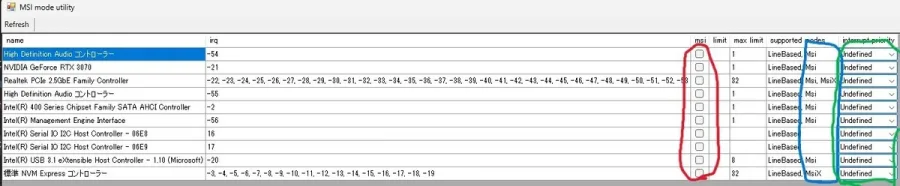
Checking Current StatusOpen the tool and view your list of devices.
supported modes: Only items labeled "MSI" or "MSI-X" here can be modified. Blank fields indicate hardware incompatibility [Blue circle in image].
GPU Settings
Locate your graphics card (e.g., GeForce RTX 4070).
[MSI] Check the box. [Red circle in image].
-
[Interrupt Priority] Check this [Green circle in image]
Basic: Undefined (default) or High.
Caution: Setting it to High gives the GPU top priority, but on PCs with weaker CPUs, mouse input (USB) may be deprioritized, which can actually cause input lag. In that case, please revert it to Undefined.
Network Settings
Find the Ethernet Controller, etc.
[MSI] Check the checkbox.
Priority can remain as Undefined.
️ Ignore USB and Audio (Beginners)
Even if these are not checked, please do not touch them at all (Beginners)
Apply and ConfirmClick [Apply] in the top right.
Restart the PC.
Troubleshooting
How to handle situations if things go wrong after changing settings.
-
OS fails to boot (boot loop)
Don't panic, boot into Safe Mode. Since MSI settings are applied when drivers are loaded, you can often boot in Safe Mode. After booting, use the tool to revert the settings.
-
Audio crackling / Mouse cursor skipping
Did you tinker with USB controllers or audio devices just before this? Please uncheck them.
-
Game FPS has become more unstable
Please revert the GPU's Interrupt Priority from High back to Undefined. The balance of priorities may be disrupted.
Summary: Seeking "Stability" rather than average values
Changing to MSI mode is an upgrade from a "shared party line" to a "direct message".
If configured correctly, you can reduce unnecessary CPU verification tasks and physically suppress frame time spikes (sudden stuttering). However, this is only true when applied to the "correct devices."
"Places you should touch (GPU/NIC/NVMe)" and "Places you should not touch (USB/Audio)"
Follow this rule to obtain a comfortable and "stable" environment.
*This article explains configuration changes involving registry operations. Please proceed at your own risk.