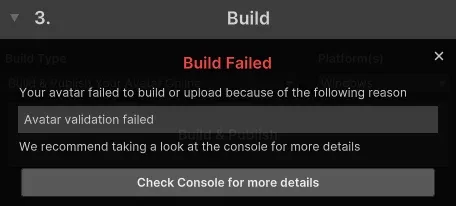
Have you ever seen an error like this?
Have you ever packed your avatar with gimmicks, only to encounter a failure screen like the one above when you tried to upload it?
The error content doesn't necessarily mean you've added too many gimmicks, but in this article, I will explain how to check if you have too many gimmicks and how to resolve the issue.
As you add various gimmicks (outfits, utility tools, effects, etc.) to your avatar, you will eventually face the "Expression Parameters limit exceeded" problem. In VRChat, the limit for parameters that an avatar can hold is set to 256 bits, and if you exceed this, you will not be able to upload.
In this article, I will explain how to check your current parameter usage using Modular Avatar (MA) and provide easy-to-understand techniques for saving space if you have exceeded the limit!
1. Let's check your current parameter usage
First, let's check how many parameters your avatar is currently consuming.
Click the following in order from the menu bar at the top of Unity:
Tools > Modular Avatar > Show Modular Avatar Information
A dedicated window will open, displaying a gauge labeled "Expressions Parameter Usage". If you have space, the gauge will be blue or purple, and you can see the "unused area". If it is in this state, you can add more gimmicks without any issues.
2. What if you exceed the capacity?
If you add too many gimmicks, the gauge will turn bright red and a warning saying "Excess (-XX bits)" will be displayed.
Once you reach this state, you need to put your avatar's parameters on a diet. The main approach is "to disable synchronization for unnecessary parameters".
Note that if you disable synchronization, that action will no longer be reflected to other players.However, since the gimmick itself will not break, it is recommended to turn off synchronization only for gimmicks you do not use or do not need to show others. By disabling synchronization for gimmicks that are unnecessary to you, you can efficiently secure capacity without deleting the gimmicks.
Select the object of the gimmick you introduced and check the MA Parameters component from the Inspector.
The point to pay attention to here is the "Synced" checkbox.
What is "Sync"?
It is a setting to reflect (communicate) the gimmick operations you perform (ON/OFF, numerical changes, etc.) to other players' screens as well in VRChat.What happens if you disable sync?
It becomes a state that only you can see or that only affects you. For example, if it is a "local UI that only you can see" or "system control variables that do not need to be shown to others," you can save a significant amount of capacity by unchecking this.
The goal here is to disable synchronization for gimmicks that are unnecessary or unused by you, thereby reducing parameter consumption without breaking the gimmicks.
In this case, taking a halo as an example, synchronization is used to adjust the position of the halo.
If you finish adjusting the halo position in Unity and don't need to adjust it in real-time in VRChat, you can free up 16 bits by turning off synchronization.
Parameters have types, and each consumes a different amount of capacity (number of bits). The total limit is 256 bits.
Bool: 1 bit (choice between ON / OFF)
Int: 8 bits (integer from 0 to 255)
Float: 8 bits (decimals; used for smooth animations, etc.)
Since Int and Float consume 8 times more capacity than Bool, reviewing whether it is "really necessary to sync with others" for gimmicks that use these heavily is the most effective way to save space.
If you find that "all the syncs on the gimmick side are necessary and cannot be removed!", another option is to organize the parameters already set on the avatar itself. Let's open the VRC Expression Parameters asset (file) set on the avatar's root object.
Avatar example: "Kaguya" -kaguya- (https://booth.pm/ja/items/8562330)
The avatar's default functions (expression switching, toggling default outfits, etc.) are listed here. If there are functions you don't use, such as "I won't adjust the breast size" or "I won't display these default accessories," you can free up space for new gimmicks by
unchecking "Synced" on the right side.
As a note of caution, please be careful not to delete the parameters themselves, as doing so will cause an error during upload stating that the parameters do not exist, preventing you from uploading.
Summary
First, check your current bit usage with MA Information!
If you are over the limit, uncheck items that don't need to be synced with others in MA Parameters.
If that is still not enough, remove unused functions from the avatar's VRC Expression Parameters.
Understand a little bit about how parameters work and enjoy a comfortable and rich avatar customization life!