I ended up using ngrok for receiving webhooks, but I was troubled by error code ERR_NGROK_8012.
In this article, I will explain in an easy-to-understand manner the practical steps and points to note for resolving the issue when the ngrok error "ERR_NGROK_8012" occurs.
What is ERR_NGROK_8012?
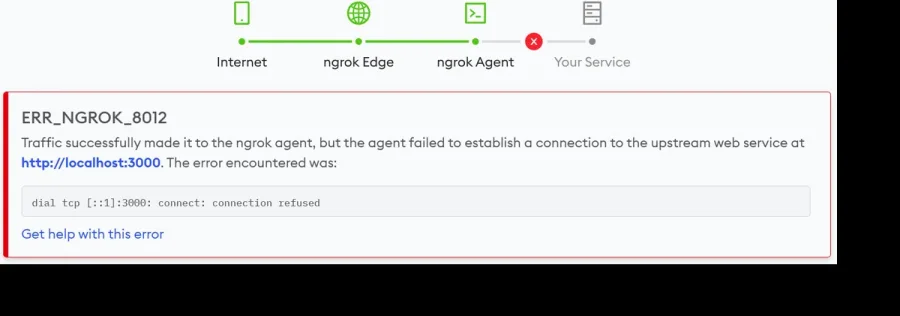
The "ERR_NGROK_8012" error that appears when using ngrok to expose a local server is one of the errors indicating that a tunnel cannot be established or that it cannot connect to the backend.
ERR_NGROK_8012 manifests as symptoms such as "connection refused" or "connection reset," and in many cases, ngrok has successfully established the tunnel, but it cannot connect to the local service.
Generally, it is caused by the ngrok status, whether the locally running server (such as apache2) is working correctly, whether the port is open, or restrictions by a firewall or proxy.
Main causes of ERR_NGROK_8012The following causes can be considered.
Connection refusal due to firewall or security settings
The specified port is not open
The specified port is occupied by another process
The local HTTP server is not started
Mismatch in http/https settings (port 80/443 vs 8080, etc.)
These causes are often not singular but combined, so it is important to isolate them step by step.
Identifying the cause: The relationship between the cause of ERR_NGROK_8012, the ngrok tunnel, and port opening
To correctly identify the cause of ERR_NGROK_8012, you need to check the ngrok logs, local server logs, and OS network settings.
First, check the logs displayed on the ngrok dashboard or command line to see at which stage the connection is failing.
Next, check the port to see if apache2 or other server processes are listening correctly locally. In many cases, ERR_NGROK_8012 occurs because, although ngrok has established the tunnel itself to pass through external connections, the local side does not respond.
Typical cases include when you want to point to port 80 but another process is occupying it, or when apache2 fails to return a response due to a virtual host configuration error.
Points to check (checklist)ngrok status and logs (ngrok http 80 execution logs)
Port listening status via netstat / ss
apache2 status (systemctl status apache2, error logs)
OS firewall (ufw, iptables) or cloud-side security groups
Response to the hostname or port expected by the service
Checking these one by one according to this list will make troubleshooting smoother.
Solution: "Open the specified port"
Check the port status with ufw status.
If it is not open, open it and reload using the following commands.
sudo ufw allow ポート番号
sudo ufw reload
Solution 2: Installing apache2
On Ubuntu, simply opening the port did not resolve the error.
Here, I will show practical steps from installing apache2 to exposing it externally via ngrok, assuming an Ubuntu/Debian environment. Before executing, please back up important files and ensure you have the necessary permissions on the server. Below are specific command examples and supplementary explanations.
Execution steps (ordered steps)-
Install apache2
sudo apt update
sudo apt install -y apache2
-
Start and enable apache2
sudo systemctl enable --now apache2
-
Operation check (access locally)
curl -I http://localhost:80
Open http://localhost in a browser
-
Check port listening
sudo ss -ltnp | grep :80
-
Adjust firewall settings (if ufw is enabled)
sudo ufw allow 'Apache Full'
sudo ufw status
-
Establish a tunnel with ngrok
ngrok http 80
Access the URL displayed by ngrok from your browser to verify
If apache2 is running correctly through these steps, ngrok will be able to forward external requests to apache2, so it is highly likely that ERR_NGROK_8012 will be resolved.
Summary
The ngrok error ERR_NGROK_8012 is often caused by issues with the response from the local service side rather than the tunnel itself, and it can be resolved with a high probability by installing and correctly configuring apache2.