The other day at work, the topic of 'taking full-page screenshots of arbitrary sites' came up, and personally, I have been using the Google Chrome extension 'GoFullPage' for this purpose (as I use Chrome daily).
I use this tool heavily in my daily life and find it extremely useful, so when I looked it up to say, 'You should definitely install it! Let me introduce it,' I found that it had been removed as of August 11th. This is very sad...
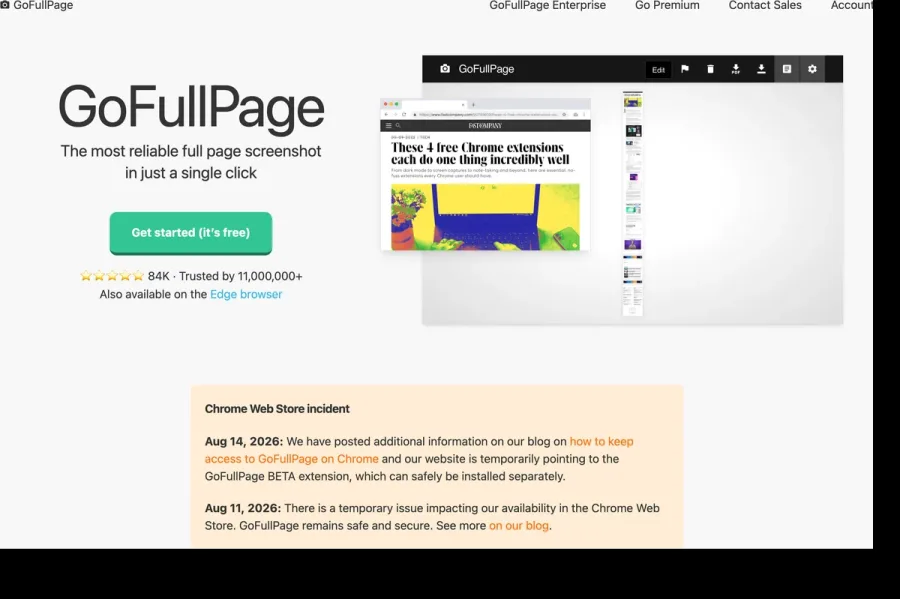
Let's try accessing GoFullPage as it stands now.
The announcement on the top page also describes the situation.
That said, since the request for 'I want a full-page screenshot!' will likely continue to come up in various places, I did a little research on what alternatives might be considered. I think there are several ways to do it, so I hope you can choose the method you prefer.
Using the GoFullPage BETA version
In my environment, the existing GoFullPage Chrome extension is still active, so I will use that, but if you want to install it for the first time now, it might be quickest to install the 'BETA version' as guided above.
You can access the BETA version Chrome extension page from 'Get started (It's free!)' at the top of the home page.
Using standard Chrome DevTools features
Actually, Chrome had 'that kind of' feature all along. I didn't know... (This was a good learning experience). The steps are as follows.
Right-click on the page you want to screenshot and select 'Inspect', or press F12 (Windows/Linux) or Cmd+Option+I (Mac) on your keyboard to display the developer menu.
With DevTools open, press Ctrl+Shift+P (Windows/Linux) or Cmd+Shift+P (Mac) to display the 'Run command' menu. You can also reach it from the three-dot menu within DevTools.
When you type "screenshot" in the search box, four options will be narrowed down and displayed: Capture screenshot, Capture full size screenshot, Capture node screenshot, and Capture area screenshot. Clicking (or pressing Enter) on 'Capture full size screenshot' from the list will cause Chrome to automatically calculate the full height of the page and render it. No scrolling operation is required.
After the capture is complete, it will be automatically saved to your 'Downloads folder' with the filename 'screenshot-timestamp.png'. The fact that you cannot choose the save destination is a difference from the extension.
Using agent-browser
If you have installed agent-browser via Claude Code or similar, you can ask it to do the work.
I was able to obtain the desired image by requesting it via Claude with the following prompt.
Introduce a separate tool
If you can no longer use the GoFullPage Chrome extension, let's look for similar ones among other Chrome extensions! I have picked out a few. All of the following can be used as Chrome extensions.
FireShotFireShot is a Chrome extension that allows you to take screenshots in three patterns: the entire web page, the visible area, and a selected area. After capturing, you can save them in PDF, PNG, JPEG, and GIF formats, and it also supports sending to OneNote, printing, and emailing. Since all capture processing is completed within the device, the fact that no data is sent externally is also a point of reassurance. Basic editing functions are available even in the free version, and it has been rated by PCMag as the "best free full-page screenshot extension." Upgrades to the paid Pro version are available if you need more advanced annotation editing or watermark features.
Take Webpage Screenshots Entirely - FireShot - Chrome Web Store
[2025 Edition] How to use the free version of the Chrome extension 'FireShot' | UNTIC | Work media for Web managers
Awesome Screenshot is characterized by its ability to handle both screenshots and screen recording with a single extension. In addition to capturing the entire page, visible area, and selected area, it also supports video recording using the desktop, browser tabs, and web camera, and can even record with microphone audio and face-cam. After shooting, you can add annotations such as arrows and text, blur sensitive information, and export in PNG, JPG, or multi-page PDF formats. It also features direct sharing to tools like Trello, Slack, Jira, and Asana, making it suitable if you want to complete bug reporting and screen sharing for your team with a single tool. Basic functions are free, but some features are part of a paid plan.
Awesome Screenshot -- Screen recorder and Screen capture
Awesome Screenshot & Screen Recorder - Chrome Web Store
What is Awesome Screenshot? A thorough explanation of its safety, usage, and recording functions | WordPress Theme TCD
Nimbus is a screenshot extension equipped with multiple capture modes, including the entire page, selected area, and the entire browser window. Captured images can be edited and annotated on the spot, and in addition to local saving, it also supports direct saving to Google Drive. It has a built-in screen recording function in addition to screenshots, and also includes features to convert videos to GIF or MP4. It has a track record of being used by over 1 million users, and the system is set up so that basic functions are free, while advanced editing and watermark removal are provided in the paid version.
Nimbus Screenshot & Screen Video Recorder - Chrome Web Store
Nimbus Screenshot & Screen Video Recorder | Chrome extension. Easily take screenshots of the entire browser | 4b-media
Summary
So, that was a summary of the current status and alternatives for the convenient tool (Chrome extension) that can take full-page screenshots, 'GoFullPage'. Please enjoy a comfortable screenshot-taking life using your preferred method!