I read npaka's article titled "Trying out deeper integration of Gemini CLI with VS Code." New tools and features are always exciting.
However, when it comes to using them with VSCode, there is also the option of using Gemini Code Assist, which is incorporated as an extension, isn't there?
I wasn't quite sure how they differ or which one I should use, so I asked the web version of Gemini 2.5 Pro about it.
Yes, regarding the new integration between Gemini CLI and VS Code. I completely understand your question about the difference from Gemini Code Assist's Agent mode and which one your team should use.
In conclusion, these two are not in competition, but rather tools that complement different purposes. Since one does not completely encompass the other, it is most effective to understand the characteristics of both and use them selectively depending on the task.
Differences between the two tools: Interactive Assistant vs. Command Line Tool
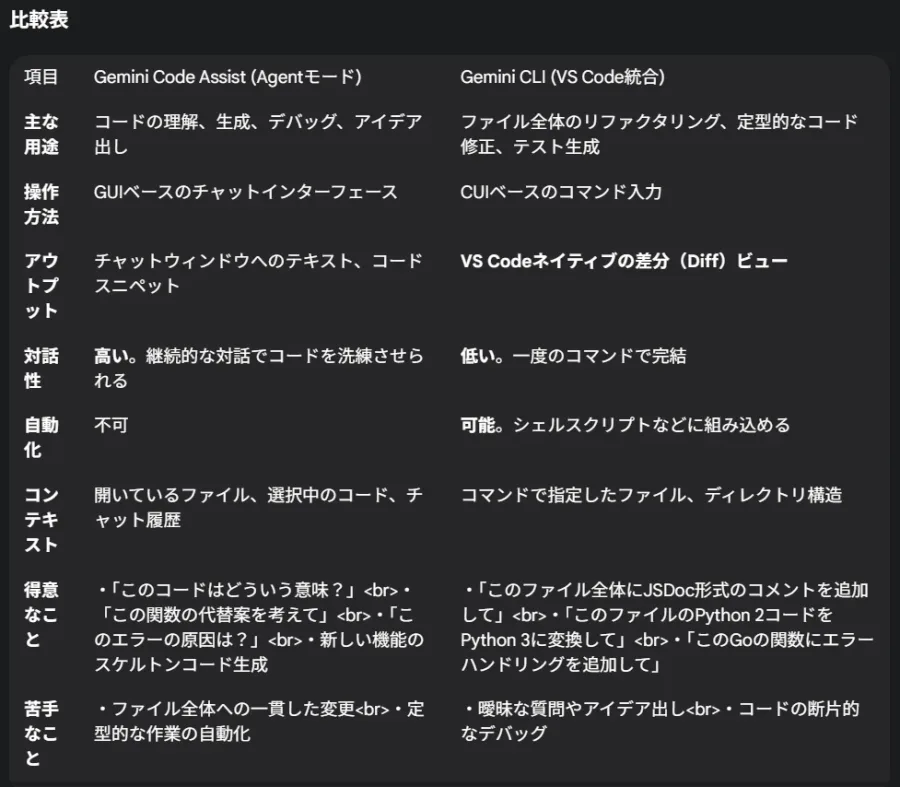
In short, the differences between them are as follows:
Gemini Code Assist (Agent mode): A "dialogue" with a skilled pair programmer sitting next to you.
Gemini CLI (VS Code integration): A "code transformation tool" that gives clear instructions for specific files and reviews the results.
Below, I will explain the pros, cons, and specific use cases for each by comparing them.
The World of Gemini Code Assist (Agent mode)
This is a tool that excels in the "Inner Loop" of development. It is an assistant that is always by your side while you are writing or reading code.
ProsInteractive and flexible: It immediately responds to additional requests such as "make it a bit shorter" or "explain this part." It is ideal for proceeding with development while organizing your thoughts.
Good at partial processing: It is easy to ask questions or request modifications for a few selected lines of code rather than the entire file.
Low learning curve: Because it has an intuitive chat UI, anyone can start using it immediately.
Low reproducibility: Even with the same question, the answer may change depending on the flow of the conversation.
Cannot be automated: All operations are manual, and it cannot be incorporated into scripts to automate routine tasks.
Not suitable for large-scale changes: For tasks like applying a consistent style change across an entire file, it is inefficient as it requires repeated copying and pasting.
The World of Gemini CLI (VS Code Integration) ️
This is where the "Outer Loop" of development and specific code transformation tasks truly shine.
ProsPowerful native diff display: This is its greatest feature. Changes proposed by Gemini are displayed in the familiar VS Code diff view. You can review changes line by line and intuitively decide whether to accept them. This prevents unintended changes by the AI and allows you to refactor with peace of mind.
Reproducibility and automation: Operations are completed via the command line, such as gcloud alpha gemini code diff <filename> --prompt "<instruction>". This means it can be integrated into shell scripts. For example, you can automate tasks like "adding documentation comments to multiple files using the same rules."
Good at applying changes to entire files: It is very well-suited for giving prompts that target an entire file (e.g., "Refactor this entire file").
Not interactive: It is basically a one-way operation of "instruction -> review results." If you don't like the result, you have to modify the prompt and run it again.
Requires some command-line knowledge: It might feel a bit daunting for developers who are not familiar with the CLI.
Conclusion: How to Use and Consolidate Tools in a Team
This line of thinking is very important. However, as you have seen, these do not have an inclusion relationship. To use a cooking analogy, "Code Assist" is like consulting on a recipe or having someone taste your food, while the "CLI" is like using a food processor to mince vegetables all at once.
To avoid confusion in the team, it is better to establish rules for "division of roles" rather than "consolidation."
Recommended Workflow for Teams-
Daily development and debugging (individual work)
Gemini Code Assist is used primarily.
This is suitable for questions and consultations during daily coding tasks, such as understanding code, creating new functions, and resolving errors.
-
Refactoring and routine tasks (tasks with a clear objective)
Gemini CLI is used.
-
For example, it is used when tasks like the following arise:
"I want to replace all instances of an old API with a new one."
"I want to add unit tests to a specific file."
"I want to apply the style pointed out in a code review to the entire file."
These two tools are useful in different phases of development. By mastering both, you will be able to further improve the productivity of the entire team. I recommend trying both first to experience the comfort and power of each.
Impressions
There are some points in the Gemini explanation that I find a bit confusing. I haven't reached a level of understanding where it all clicks yet, but I will continue to experiment so that I can get a better 'feel' for it.