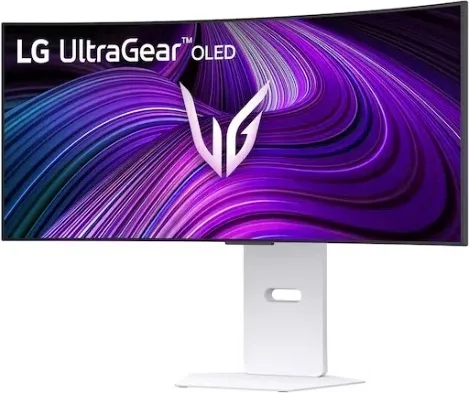
I purchased a 34-inch OLED (hereinafter referred to as OLED) panel 21:9 ultrawide monitor, the 34GX90SA-W. Because it is an expensive monitor, there is little information available, and I bought it somewhat as a gamble, so I would like to write a review for those who are interested.
In 2019, I had a period where I used an LG ultrawide monitor called the 34GK950F-B. I was playing FFXIV, so I was attracted to the appeal of a greatly expanded field of view and bought it. However, I used that single monitor for everything, not just gaming, but also browsing and Excel. When I displayed an Excel window on the curved part at the edge of the screen, the cell borders looked distorted and it felt unpleasant, so I ended up limiting the window display to the non-curved area near the center.
Also, when watching movie content, I was looking forward to being able to display it in full screen without black bars at the top and bottom, but at that time, there was only 16:9 content (even for movies), and the fact that there were very few works that could be enjoyed in 21:9 was also a disappointment. Therefore, I judged it to be inconvenient and cut my losses after only about a month. I sold it on Mercari. (It sold for a pretty good price...!)
With that background, I was cautious about buying an ultrawide monitor again, but based on that past failure, I implemented the following measures.
1-① I decided to use the ultrawide monitor mainly for gaming and prepared a separate flat monitor for tasks where distortion would be unpleasant.
By using different monitors for different purposes, I made sure to take advantage of the good points of both curved and flat screens. I have a Windows desktop and a Macbook, so I use the Mac for everything other than gaming, but I think the method of preparing a separate flat sub-monitor for a single PC is also easy. In this day and age, you can buy a monitor for about 10,000 yen if you aren't picky.
1-② Installed a mobile monitor under the ultrawide monitor for watching YouTube while doing other things.
This is not directly related to this monitor, but I am mentioning it because it relates to the points of concern mentioned later. Perhaps due to aging, it has become difficult for me to maintain concentration, and I get bored if I'm just playing a game or just watching a video, so I maintain my concentration by watching videos while playing games. (When I need serious concentration, I don't watch anything while playing.) The monitor for that purpose should be 16:9, but the monitor from 1-① is large, and it's impossible to watch while playing due to the eye movement required, so I installed a mobile display under the ultrawide monitor. Just like 1-①, it means preparing a monitor that is optimal for the purpose individually.
1-③ Install PowerToys' FancyZones to enable smooth screen center snapping.
A small Macbook screen is fine for browsing, but a large monitor is convenient for serious Excel work. In that case, I use software called FancyZones to place windows in the central area with as little distortion as possible. It's a hassle to move it to the center with the mouse every time, and it's a measure to ensure I don't think it's inconvenient. (Windows 11's snap layout is not very easy to use...) Since you can specify the resolution and coordinates, I set it to WQHD size (the "vertical" resolution of the 34GX90SA-W is 1440, the same as WQHD), and since the setting area is displayed as an overlay while holding down the Shift button, I snap it to the center of the screen by dragging.
With the three measures above, I can immerse myself in games and movies comfortably without any discomfort or inconvenience, even with the extreme curvature!
2. It is said that OLED screens are dark, but I don't think so.I am the same way, but geeks have a habit of evaluating things by comparing only performance numbers. Compared to the high brightness of Mini LED panels, OLED panels inevitably lose in terms of brightness values, so the conclusion is drawn that "OLED is dark," and that opinion spreads through social media. I think the 34GX90SA-W has increased brightness compared to conventional OLEDs due to MLA (Micro Lens Array) technology, and it is bright enough for ordinary people to see normally. It is just right to lower the brightness to 70 (maximum 100) in the settings, and at 80, it felt too glaring, like it was burning into my eyes. Next-generation technology called Primary Tandem RGB panels is also being commercialized, and it seems that the brightness is increasing even further, but I think MLA-OLED is enough.
Actually, I had been waiting for the commercialization of that next-generation panel ever since I heard the news at the end of December 2024, but due to the multi-layer panel structure, it can only be curved up to 1500R as of June 2026. Thinking that a Mini LED panel might be better in that case, I prioritized the 800R curvature and bought the model released a year ago at this timing. (I should have bought it sooner...)
I have a Windows desktop connected to the DP input terminal, a Nintendo Switch 2 dock to the HDMI, and a Macbook to the USB-C. I mostly only display Windows, but there are times when I want to use it with a Mac, and the automatic input switching of the monitor is annoying because it switches unintentionally. However, manual switching is troublesome because I have to press the physical buttons on the monitor. And the vibration when pressing it might cause the monitor to shift slightly from horizontal, which bothers me. The 34GX90SA-W is marketed as a multimedia monitor, so it comes with a remote control, and since the input switching button is independent, I can switch inputs easily and safely. I definitely think it's better to have a remote control than not to have one.
Also, since it is a normal infrared remote control, you can have it memorized by Nature Remo or SwitchBot, and through that, you can turn off the monitor power with your voice via Alexa. Even if you don't turn it off manually, you can use it, for example, to automatically turn off the monitor power once a week using an automation function. (I don't particularly use it, though.)
Recently, 5K2K resolution has been gradually appearing in the 21:9 ratio monitor world, but the burden on the PC side is large, and it is difficult to see without UI scaling (or it is difficult unless the monitor size is large to see without scaling), so UWQHD resolution at this size is very well balanced.
Also, I think a 21:9 ultrawide monitor is the most balanced and beautiful when looking at the entire desk from a bird's-eye view.
My desk is quite large at 2,000mm wide, and with a single 27-inch 16:9 monitor, there was a lot of empty space on the left and right, which felt underwhelming.
You could say that balance is only achieved by placing two monitors of the same size side-by-side, but back when I used two monitors, I couldn't quickly grasp the information on the secondary monitor, so I didn't really utilize it well.
If I placed both monitors at a slight angle, the burden on eye movement would be less, but then I would be viewing both monitors from an angle.
A clear advantage of an ultrawide monitor is being able to face the main monitor head-on while still having plenty of horizontal space.
■ Points of ConcernNext are the points that concerned me. Some are acceptable, while others are not.
Pixel cleaning kicks in after a cumulative 4 hours of use, but it doesn't force cleaning while in use, nor does it display warnings prompting for cleaning.
It starts automatically when the monitor is not in use after 4 hours, so I don't feel it's inconvenient.
However, from the perspective of panel protection, if left alone for about 10 minutes, the monitor will automatically go into sleep mode even without cleaning.
When that happens, the signal to the 34GX90SA-W is cut off, causing all windows to shift to the mobile display.
When the 34GX90SA-W becomes active again, everything returns to normal, but the shifting itself feels bothersome.
As a workaround, I set the Windows screen saver to "Blank." From an OLED perspective, if the RGB values are 0, the elements do not emit light, so it functions as panel protection.
The mobile display just runs the screen saver as well, so the signal to neither monitor is cut off, and windows don't shift to either monitor.
It would be nice if I could change the settings to allow continuous power supply without syncing, but as far as I could find, there was no such option.
Furthermore, only devices connected via USB-C can use the USB downstream.
You can choose whether to use the USB on the monitor or on the PC connected via USB-C, but it cannot be used on a PC connected via DP or HDMI.
(You can use it if you plug the USB-C in as an upstream to that PC, but I don't use it that way because it wastes one video output port.)
To prevent the 34GX90SA-W from sleeping and shifting the screen to the mobile display, I thought I could take advantage of the specifications and plug the mobile display's power supply USB into the USB downstream so that the mobile display would turn off in sync with the 34GX90SA-W. It did work, but the power supply was insufficient, causing the mobile display to turn on and off, making the behavior unstable.
I had no choice but to try using it for the power supply of the HDMI audio extractor mentioned later, or for the BenQ Screen Bar, but both were inconvenient, and I ended up not knowing what to do with it.
The LG-specific monitor settings screen exists as an interface, but as you go deeper into the hierarchy, it transitions to the WebOS settings screen, and you lose track of which item and which level you are in.
I don't change settings very often, so if I ignore the confusion at the beginning, it doesn't bother me, but others might go crazy.
Combined with the existence of WebOS mentioned later, this is an added value that only has disadvantages.
As others have reviewed extensively, people who buy such expensive monitors connect them to PCs with enough performance that they don't have trouble watching videos, so there is no need to use the monitor's applications (without turning on the PC) to watch Netflix or Amazon Prime Video.
This is because a mouse is much easier to operate than a remote control. Only people who don't need to worry about issues like HDCP compatibility should be buying this monitor.
It is not a "feature that doesn't matter whether it's there or not because I don't use it"but rather, it leads directly to "clear disadvantages," such as having many unnecessary setting items to make these multimedia functions work, and the already huge AC adapter specific to LG monitors becoming two sizes larger.
It is a size that makes you doubt your eyes. Even for me, who is used to LG monitor AC adapters,Give me a break!is what I want to say.
5. Huge loop noiseI use an AT-UMX3 to digitally/analog mix the audio from my Windows and Mac devices, and I listen to both devices simultaneously using ear cuff earphones connected via a Bluetooth transmitter to the 3.5mm headphone output.
Explaining why I do this would take too long, so I will omit it, but since this mixer involves analog input, if there is a large potential difference between the devices being mixed, you can hear a buzzing noise.
The noise disappears if I turn down the gain on the analog input side, but since switching to this monitor, the noise has clearly become louder.
I initially intended to list this as a positive point, but I have since changed my judgment.
It has an eARC-compatible HDMI port.I think this is a feature unique to a multimedia monitor, which is not found in regular monitors.
I have set it up so that sound can also be output from speakers through a DAC, but
(video) monitor input switching,
(audio) DAC input switching
is a tedious process.
If I input to the DAC from the ARC-compatible HDMI port, the DAC will automatically respond according to the monitor's input switching, which is convenient.
It cost a little over 140,000 yen on sale, but considering the good points and the points of concern, I am satisfied overall.
However, due to the characteristics of the OLED panel and the quirkiness of WebOS, I cannot recommend it unconditionally. If you don't need this level of curvature, I think a mini-LED ultrawide monitor would be better.
Those interested in this type of monitor should carefully verify whether they can tolerate the points of concern, regardless of the good points.
That concludes my review after using it for about 4 months.
I hope this is helpful to someone.