"Aren't all keyboards the same as long as you can type on them?"
If I could meet my past self, I would travel back in a time machine and shake my head with all my might.
After working at a PC for over 8 hours a day for years, I found myself on the verge of tendonitis due to wrist discomfort. In a desperate attempt to find relief, I dove into the world of keyboard structures and key switches. Before I knew it, over 15 keyboards had piled up on my desk, and my wallet had become significantly lighter.
Currently, there are 12 types of keyboards on the market, broadly categorized by "structure (drive mechanism)," "shape," and "usage."
In this article, based on my real-world experience of spending my own money to test the typing feel, I will thoroughly explain the features, pros and cons, and "who each type is suitable for."
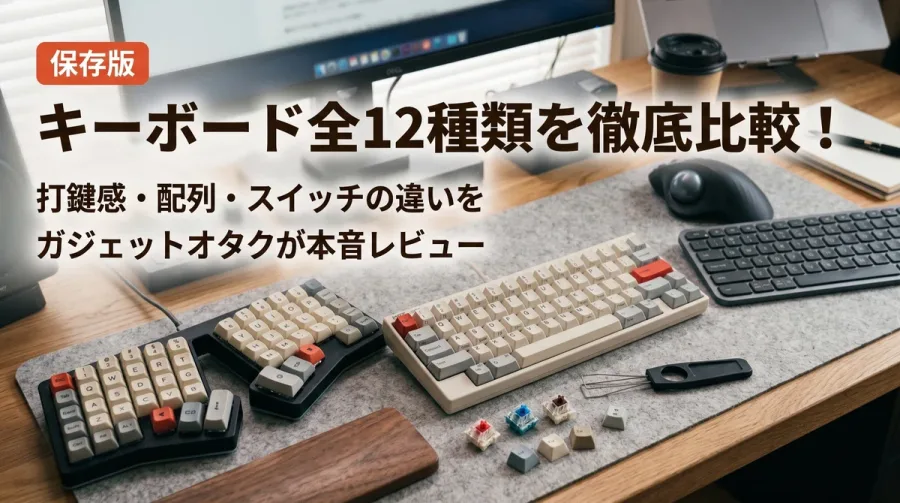
Alt attribute: Comparison of various keyboard collections and typing feel
1. Membrane Keyboard
This is the type most commonly seen in school computer labs and corporate offices, featuring rubber (rubber domes) placed over a single sheet-like circuit.
Real typing feel:
There is some resistance at the start of the press, and when you hit the bottom, there is a rubber-specific "mushy" sinking sensation. Because the rebound lacks sharpness, your fingers will gradually get tired around the second joint if you continue high-speed typing for hours.
Pros: Extremely cheap (can be bought from the 1,000 yen range), resistant to dust and some water droplets.
Cons: Low N-key rollover, and the typing feel tends to become stiff due to keycap wear and rubber degradation.
Recommended for: Those who think "anything is fine as long as I can input text" or "want to keep the budget to an absolute minimum."
2. Scissor-switch Keyboard
The light, snappy stroke familiar from laptopsRepresented by Apple's Magic Keyboard and ThinkPad, this structure incorporates an X-shaped plastic arm under the keytop.
Real typing feel:
The key stroke (depth of depression) is very shallow, around 1.5mm to 2mm, allowing you to type with a "clicky" or "tappy" feel as if sliding your fingertips. It is pleasant that the keys sink evenly even if you press the edge of the key.
Pros: No need to lift your wrists, reducing fatigue; overwhelmingly thin and easy to carry; quiet typing sound.
Cons: Because the keystrokes are shallow, the impact of bottoming out is transmitted directly to your fingertips (if you have a habit of hitting keys hard, your fingertips will hurt).
Recommended for: People accustomed to the typing feel of a laptop, or nomad workers who frequently travel or work in cafes.
3. Mechanical Keyboard
The "gateway to the rabbit hole" of crafting your own unique deviceThis type features an independent physical switch (key switch) built into every key. The typing feel changes dramatically depending on the type of switch, known as the "axis" or "stem".
-
Differences in typical axes:
Red Axis (Linear): Sinks down without any resistance. Smooth and gentle on the fingers, making it easy to use in offices or at night.
Blue Axis (Clicky): A clear, clicking sound and tactile feel. It feels amazing to type on, but be careful when working late at night or during online meetings, as you might get complaints asking if you're "firing a machine gun" (speaking from experience).
Brown Axis (Tactile): The middle ground between Red and Blue axes. It has a pleasant click feel and is perfect for those who want to reduce typing errors.
Real impressions:
The biggest appeal is that you can tune the typing sound to be "thocky" or "clicky" not just by changing switches, but by stuffing the interior with foam or changing the material of the keycaps.
(*Recently, more people are customizing with ceramic keycaps, which offer a unique typing sound and tactile feel similar to pottery, in addition to standard ABS or PBT materials)
Recommended for: People who want to enjoy the typing experience itself, or writers and engineers who write long texts.
4. Electrostatic Capacitive
The pinnacle of high-end keyboards that are "as light as a feather"This mechanism detects changes in electrostatic capacitance when a key is pressed, without physical contacts touching. Representative examples include Japan's Topre "REALFORCE" and PFU's "HHKB (Happy Hacking Keyboard)."
-
Realistic typing feel:
Fans often describe it as "thocky" or "crisp." Because it registers reliably just before bottoming out, it allows for a light, gliding keystroke. When I was on the verge of developing tendonitis, switching to this keyboard dramatically reduced the strain on my fingers.
Pros: Overwhelming durability that withstands 30 to 50 million keystrokes or more because there is no physical wear. Chattering (unintended double input) is theoretically impossible.
Cons: Very high price (over 30,000 yen is standard).
Recommended for: Programmers and writers who type thousands or tens of thousands of characters every day, and business professionals who do desk work all day long.
5. Magnetic Switch / Hall Effect Keyboard
The champion of Rapid Trigger that dominates modern FPSThe hottest thing in the gaming world right now is the "magnetic button switch" that reads the distance of a magnet using a Hall sensor (such as the Wooting 60HE or SteelSeries Apex Pro).
The biggest feature: "Rapid Trigger":
While conventional switches require you to "release the key to a certain depth before the next input can be made," magnetic switches allow for a superb technique where "the key turns off the moment you lift your finger by 0.1mm, and turns back on when you press it in by 0.1mm."
The impact of real-world testing:
When I tried it in "VALORANT," the stopping speed at which the character comes to a standstill improved to a level I could actually feel. It is a device that made me keenly aware that "your gear can change your win rate in gunfights."
Recommended for: FPS gamers who seriously want to climb the ranks, and perfectionists who want to fine-tune their key actuation points in 0.1mm increments.
6. Optical Keyboard (Optical Switches)
A speed-specialized type that achieves ultra-low latency by blocking lightThis is a mechanism that detects signals by blocking (or passing) light, such as infrared, when the switch is pressed (such as Razer's Analog Optical).
-
Realistic typing feel:
Basically, it has a smooth feel similar to mechanical red switches, but because there are no physical contacts, the latency until input detection is reduced to the absolute limit.
Pros: No oxidation or wear on metal contacts, and resistant to malfunctions caused by dust or moisture. Highly durable.
Cons: Even if it supports switch replacement (hot-swappable), the selection of compatible switches is narrower than for mechanical keyboards.
Recommended for: Competitive e-sports players who want to shave even a millisecond off their input latency.
7. Ergonomic Keyboard
A 3D design born from ergonomics to save your wristsThese are 3D keyboards where the center is raised (tenting) or the keys are arranged in a diagonal V-shape.
Realistic feel:
When typing on a standard flat keyboard, human forearms are forced to twist inward. When you place your hands on an ergonomic keyboard, your elbows naturally tuck in, and your wrists are kept in a natural (relaxed) position.
Pros: Noticeably relieves wrist tendonitis, forearm tension, and shoulder blade stiffness.
Cons: The large size occupies desk space. You will experience more typos for a few days to a week until you get used to the unique key layout.
Recommended for: Desk workers who are seriously struggling with wrist or shoulder pain.
8. Split Keyboard
The ultimate form that opens up your shoulder blades and even deepens your breathingThe keyboard is completely divided into two units, left and right, connected by a cable or wirelessly (e.g., Mistel BAROCCO or DIY models like the Corne Cherry).
-
Realistic experience:
At first, I avoided them thinking they looked "bizarre," but once I tried one, my world changed. Because you can place the left and right keys at the same width as your shoulders, your chest opens naturally, and slouching is completely prevented.
Surprising pro: Because the "space in the middle" between the left and right keyboards is completely open, there is a major desk layout advantage in that you can place a trackball, mug, or notepad there.
Cons: There is more wiring to connect the left and right sides. People who don't have the habit of typing the B key with their left hand (those who use their right hand) will struggle a bit until they are corrected.
Recommended for: People suffering from severe stiff shoulders and custom keyboard enthusiasts who want to perfect the aesthetics of their desk setup.
9. Compact / Size-Specific Keyboards (60%, 65%, 75%, TKL)
Layouts that maximize mouse range of motionWhile this is a classification based on "number and size of keys" rather than the drive mechanism, it is an essential category for modern desk builds.
Tenkeyless (TKL / 80%): A model with the number pad removed. It brings the mouse closer, creating the golden ratio that prevents the right shoulder from opening too wide.
75%: A layout where the arrow keys and function keys (F1-F12) are tightly condensed without gaps. With an operating feel close to a MacBook, this is personally my favorite.
60%: An ultra-compact model that even removes the arrow keys, compensating for them with simultaneous Fn key presses.
Pros: The desk feels spacious, and this size is essential for FPS gamers who use low sensitivity and swing their mouse widely.
Cons: When inputting large amounts of numbers in Excel or similar tasks, work efficiency drops without a number pad (can be solved with an external number pad).
Recommended for: People who want to create a clean desk environment and those who want to balance gaming and work on a single device.
10. Wireless / Multi-Pairing Keyboards
The beauty of no wiring and seamless switching between multiple devicesThese types use Bluetooth or a proprietary 2.4GHz dongle to switch between and operate multiple PCs and tablets (the Logicool MX Keys Mini is a prime example).
-
Real-world convenience:
The comfort of being able to switch between a "work Windows PC," a "personal Mac," and an "iPad" with the touch of a button is something you can't go back from once you've experienced it.
Points to note: 2.4GHz wireless connections have almost zero latency, but with Bluetooth connections, you may feel a momentary delay in the start of typing (sleep wake-up lag) due to radio interference.
Recommended for: Minimalists and remote workers who use multiple devices side-by-side on one desk.
11. Projection / Laser Projection Keyboards
They have gadget appeal, but what about practicality...?These are futuristic devices that project a keyboard shape onto a flat desk using infrared or laser light and detect finger movements with sensors to input data.
-
Honest, candid review:
It feels like a scene from a movie and is full of excitement, but in terms of practicality, my honest opinion is that it is quite tough.
Because there are no physical buttons, you end up "tapping your fingers continuously on the desk surface," which lacks tactile feedback and makes your fingertips hurt. Also, simply hovering your fingers in the home position for touch typing can cause accidental inputs.
Recommended for: Desk aesthetics, party or event gimmicks, and collections for sci-fi gadget lovers.
12. Flexible / Silicone Foldable Keyboard
Washable, for special use cases that survive harsh environmentsMade of silicone material, this is a keyboard that can be rolled up and carried in a pencil case size.
-
Realistic typing feel:
The entire key is squishy, and it won't register unless you press the center of the key vertically, so it is completely unsuitable for long-form typing.
Overwhelming strength: The ability to wash it completely or disinfect it with alcohol, and its airtightness that ensures it will never break even if liquid is spilled on it.
Recommended for: Factory sites where dust and water droplets are present, medical and kitchen environments with strict hygiene management, and emergency equipment for disaster prevention backpacks.
No Regrets! The "3 Decision Axes" for Choosing the Best Keyboard for You
With 12 types, it's easy to get lost, but you can narrow down your choices to 2 or 3 just by answering the following 3 questions.
-
"How many hours a day do you type on a keyboard?"
Less than 1-2 hours: You will be perfectly satisfied with a slim, stylish "scissor switch" or an affordable "membrane" keyboard.
4 hours or more: I recommend investing in an "electro-capacitive non-contact" keyboard or a "mechanical (red or brown switch)" keyboard with a good typing feel without hesitation. It will dramatically reduce wrist and finger fatigue.
-
"What about quietness and where you use it?"
If you are in a private room at home, a mechanical blue switch with a satisfying typing sound is great, but for the office or a living room late at night, a "silent model (such as silent red switches or HHKB Type-S)" is the only choice.
-
"Do you have any physical pain (stiff shoulders, wrist pain)?"
If you are already feeling discomfort, it is a sign that you should reconsider the shape of your keyboard. I strongly recommend a style that combines an "ergonomic" or "split keyboard" with a palm rest.
Related Articles / Recommended Reading
If you want to delve deeper into keyboard typing feel and desk environments, please take a look at the following practical reviews.
[Real Machine Review: If you care about typing sound, this is the one! My honest review after trying the popular ceramic keycaps] Custom review articles for ceramic keycaps, etc.)
[Did the wrist pain disappear? How to choose the right keyboard-specific palm rest (wrist rest) and adjust its height] Wrist Rest & Ergonomic Accessory Guide
[Make your desk look neat! The secrets to wireless keyboards and cable management] Desk Tour & Cable Management Article
Conclusion: What is your keyboard companion?
The keyboard is the most important "interface" for us to deliver our thoughts to the digital world.
Just as you would be particular about the writing feel of a pen, I feel that being particular about the keyboard you touch with your fingertips every day is the best self-investment that directly leads to work motivation and physical health.
I hope this article helps you find your "destined one"!
If you found this interesting or helpful, please press the "Like ()" button on the bottom left; it would be a great encouragement!
(Even if you don't have a note account, you can still click it)
If you have any questions about the keyboard you are currently using or want to know how a certain type feels to use, please feel free to let me know in the comments section.