VSeeFace is a tool that tracks your face using a webcam. Its facial tracking accuracy is excellent, making it very convenient for chatting streams, but it is generally only usable by those who have VRM assets. However, if you apply a special conversion, you can bring your avatar over while keeping liltoon.
This tutorial focuses on minimal settings without getting bogged down in details. Physics-based items will break, so you will need to adjust them yourself later. It is quite good for getting things up and running in a pinch.
You will be able to do game streaming and chatting streams using only a webcam without entering VR, while keeping your avatar looking almost exactly as it does in VRC. Therefore, I recommend this to VTubers who come from a VRC background.
Although it is long, most of the work can be done with mouse operations, so it is easy. Also, since it only involves file importing, conversion, and resetting materials, most of the time is just waiting.
What you need
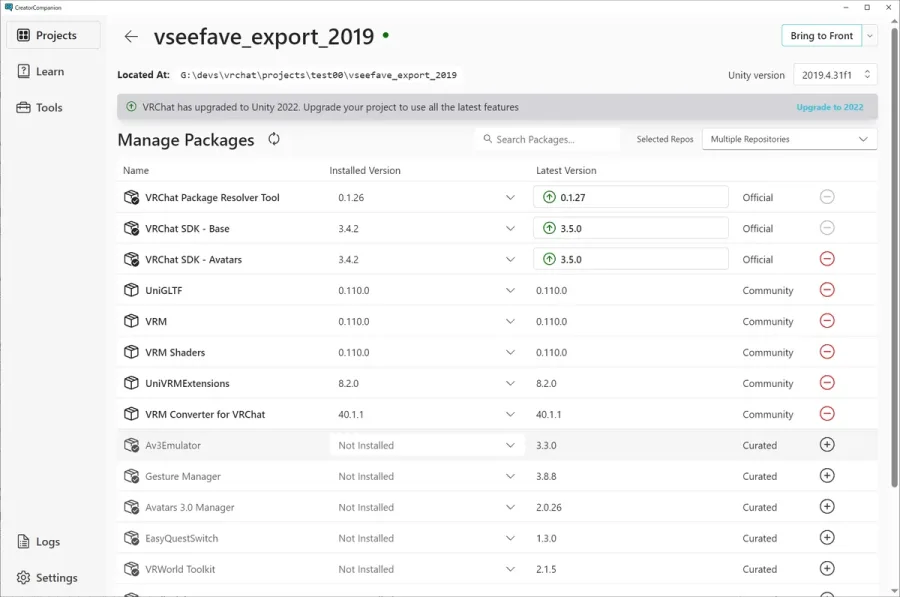
Create a project for Unity 2019 using VCC. Unfortunately, the necessary VSeeFaceSDK has not been updated since the transition to 2022. It won't bug out, but since it cannot be loaded on the VSeeFace side, please give up and recreate it in Unity 2019.
Please add "VRM Converter for VRChat" to VCC. https://booth.pm/ja/items/1025226 You can use the asset file, but as mentioned above, it is easier to manage if you add it to VCC as a community repository.
In that case, please add "VRM Converter for VRChat" from "Manage Project" in VCC. At this time, all other VRMs will be enabled automatically, so you only need "VRM Converter for VRChat".
VSeeFaceSDKThis is a Unity asset for exporting to VSeeFace. emilianavt/VSeeFaceSDK: The VSeeFace SDK for Unity is used to export models in the VSFAvatar format. (github.com)
Click the release page from the page above,
and download this unitypackage.
It has not been updated for a while, but if it has been updated to the latest version, please use that.
I am using Kikyo-chan this time. Let's use the Physbone version of the avatar.
[Kikyo-chan compatible] Cat Eye [18 colors included] - kyomShop - BOOTH
Also, I am using liltoon as the shader.
[Free] lilToon - lilLab - BOOTH
Nowadays, I assume your project has already migrated to 2022. In that case, please refer to the following to export.
The method is to drag and drop the avatar currently in the scene hierarchy into the project.
Press "Original Prefab" in the window below.
Right-click the saved avatar and click "Export Package".
This allows you to export related objects and shaders all at once. It's quite convenient. It should probably be fine as-is, right? But make sure to import the shaders and such beforehand.
This is the tracking software itself. You can download it from here VSeeFace. The latest version is fine.
Of course, you need a webcam to launch it. Also, depending on your security software, the use of the webcam might be blocked, so please grant permission as needed.
General workflow
Convert to VRM format once and re-import the vrm file into the project
Reset the materials that were converted to MToon back to the original materials
Export in vsfavatar format
Load the vsfavatar format avatar in VSeeFace
Exporting in VRM format
You need to convert it to VRM format once.
I said no conversion, but please forgive me since I'm resetting the original materials...
First, with the avatar you want to convert selected, please click "Export VRM file from VRChat avatar".
Then, the export screen will appear.
For Title, Version, and Author marked with "!", anything is fine for the conversion, so just enter some text.
Also, please set any expressions you like. Where are the expressions being pulled from? I suspect it might be converting the animations found within the FX layer?
You can set it up like this. If you prepare a suitable image for the thumbnail, an icon will be displayed on the VSeeFace side, making it easier to identify which avatar it is.
Reload the file converted to VRM. Since it is being re-converted into Unity, it will take some time. Also, since various folders will be expanded like this, please create a new folder and then drag and drop it to load it.
When you bring it into the Scene, it looks like this, with the hair (in particular) looking strange.
Reset the materials that were converted to MToon back to the original materials.
The solution is simple: just set the materials back to the original lilToon ones, and you'll be fine.
The SkinnedMeshRenderer is integrated into vrm-mesh and vrm-mesh_withoutBrendShape.
Just drag and drop the original material as shown below.
If it has returned to its original appearance like this, you're good to go!
Export in vsfavatar format.
After that, just select the vrm avatar and click "VSF SDK" -> "Export avatar bundle".
A save window will appear, so save it wherever you like.
Loading the vsfavatar format avatar in VSeeFace.
All that's left is to load the vsfavatar format avatar in VSeeFace.
Launch it, click "Register Avatar",
Click on the loaded avatar and press Start, and you're done!
(I forgot to set the thumbnail when creating this article, so the icon isn't displayed, but you can set it to any image you like beforehand.)
It loaded with its original appearance just like this! Success!
The hair is a bit of a mess, but since we were able to bring it over with the minimum requirements while keeping lilToon, it's no exaggeration to say we've cleared it.
It can properly turn its head, recognize expressions, and perform lip-syncing.
Where can I fix the swaying objects (VRMSpringBone)?
All swaying objects have been moved to "secondary".
The "VRM Converter for VRChat" will perform the minimum necessary conversion.
The parameters might be strange, but the sway settings themselves should remain intact.
Please note that since there are only about the following five items you can touch in VRMSpringBone, you can only perform relatively simple adjustments.
Stiffness Force
Gravity Power
Gravity Dir
Drag Force
Hit Radius
Since fixing it involves fine-tuning parameters, it requires quite a bit of patience.
Good luck.
VRM Sway Object Settings VirtualCast]
[Unity] Setting up VRM model hair - ForgeVision Engineer Blog
You have no choice but to look at various sites where people have done this trial and error and make adjustments.
Benefits of using VSeeFace
Lastly, I will list the benefits of using VSeeFace.
The facial tracking accuracy is remarkably goodStable streaming is possible even with an inexpensive webcam. I recommend using a wide-angle webcam as it almost never loses tracking. The recommended model is the Buffalo BSW505MBK. It is very cheap at around 3,000 yen with a 120-degree field of view. At a position about 50cm from the camera, you can move about 30cm left and right, and your face can turn almost completely to the side without losing tracking.
Can be used with a transparent background combined with background images in OBSThis is also a strong benefit. Since chroma keying is not required, even flashy avatars that cannot be chroma-keyed can be made transparent without any issues. Another benefit is that you can repurpose your favorite streaming background images or video backgrounds for OBS.
To do this, specify VSeeFace in OBS using Game Capture and check "Allow Transparency" to get,
a streaming screen like this. The background is just a combination of two png images.
By the way, unnecessary items can be hidden by clicking the "※" in the bottom right. The "※" button itself can also be toggled on and off using the space key.
With this, you've won.
It can be made lightweightSince it's a single-function tool, you can significantly reduce GPU load by tweaking the settings. Setting a frame rate limit is essential. It will eat up your GPU. You might end up with 500fps at 90% GPU usage.
If you're only displaying it in the bottom right, lowering the resolution to HD or below and turning off anti-aliasing will make it much lighter.
Well, it's not that heavy to begin with, so you can manage even with anti-aliasing on.
It can be used with other software, but here are the benefits for reference・You can use shaders other than MToon. You can bring your avatar over without compromising its appearance, aside from the physics-based items.
・You can use VMCProtocol-related assets. You can receive them in VSeeFace and move your body and limbs.
This is the main point of this article, but Warudo, which came out later, is actually better at this. Honestly, if this is all you need, Warudo is fine instead of VSeeFace.
Wait, then why use VSeeFace? You might ask, but it's extremely lightweight, so you can use it while streaming games. This is its greatest strength. Another subtle advantage is that since it's transparent, you can create a screen layout like a streamer using chroma key.
* Although unconfirmed, it's for your own good to set the frame rate limit to match the game's FPS. I feel like the game's FPS can sometimes be dragged down by VSeeFace.
Conclusion
Thank you for sticking with me until the end! I hope this helps with your activities.
VSeeFace is a recommended piece of software because it's lightweight and works entirely with a webcam. It makes streaming very easy, so if you want to increase the number of days you stream, please give it a try. Because of its low load, it's also convenient for work streams.
By the way, I was involved in the Japanese translation once a while ago. I'm not an expert in 3D, Unity, or tracking, so I remember not being able to contribute much. The developer has been working hard to study Japanese for the translation, so if you have any suggestions for improvement, please let them know.
That's all. This was Kurogane.