When switching from Windows to Mac, the mouse scrolling direction is the opposite of Windows, which can be hard to get used to, right?
In that case, you can solve it by using something called [Scroll Reverser]!
・What is Scroll Reverser?
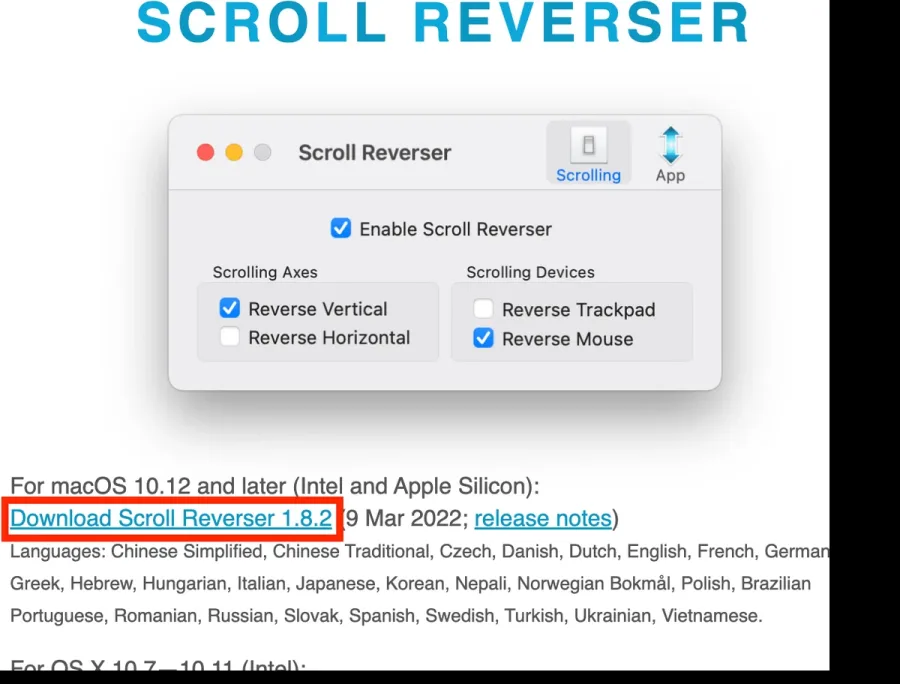
・Installing Scroll Reverser
HereDownload it from here.
Please select the version for your OS
Go to Finder → Downloads, then double-click the ScrollReverser-1.8.2.zip file to unzip it. After that, move [Scroll Reverser] to your Applications folder.
・Configuring Scroll Reverser
Double-click [Scroll Reverser] in your Applications folder to launch it.
If a dialog appears, click Open
Click the [Scroll Reverser] icon in the menu bar at the top right of the screen, thenclick "Enable Scroll Reverser".
Click "Request Accessibility permission"
Since it will request control, click"Open System Settings". Unlock the lock, then check the box for [Scroll Reverser].
From the previous screen, click "Open Input Monitoring preferences".
*It might be displayed as "Request Input Monitoring permission"
By configuring it as follows, you will be able to scroll in the reverse direction.
Furthermore, by checking"Start at login", you won't need to manually open the app every time after logging back in.
Let's check if the mouse is scrolling as you intended!