In this article, we will explain in detail the steps to install mods in Helldivers 2 using a mod manager.
1. Article Overview
This article explains how to install mods in Helldivers 2.
We will proceed mainly in the following order.
Confirm the installation location of Helldivers 2
Install the mod manager
Set the game folder in the mod manager
Add the mods you want to install
Enable the mods and verify them in-game
Delete or disable mods
Uninstall the mod manager itself
2. Things to check before installation
Before performing the following steps, please make sure to log in to the site called nexusmods, as all mods are downloaded through this site. Also, depending on the mod, it may stop working after a game update.
Since installation methods may differ for each mod, be sure to check the description on the mod page before downloading.
3. Confirm the installation location of Helldivers 2
Since you need to specify the game folder in the mod manager, we will first confirm the installation location of Helldivers 2.
The steps are as follows.
Open Steam
Right-click Helldivers 2 in your library
Select "Manage"
Click "Browse local files"
This will open the Helldivers 2 installation folder.
Make sure to note the location of this folder, as you will need it later for the mod manager and audio modification mods.
4. Mod Download Procedure
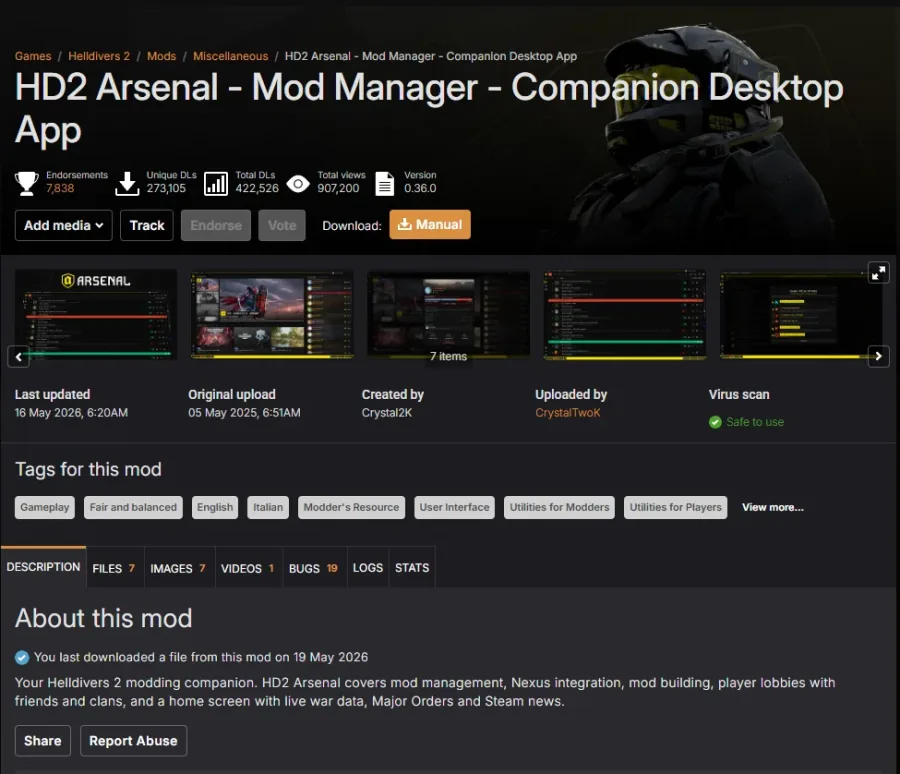
Next, download the mod manager for Helldivers 2.In this guide, we will use the HD2 Arsenal - Mod Manager - Companion Desktop App mod manager.
This is a prerequisite mod for installing other mods.
There is another well-known mod manager, but it can sometimes stop working when versions change, so I recommend HD2 Arsenal.
The steps are as follows:
Open the mod manager distribution page
Open the Files tab
Select Manual Download
Select Slow download
Save the file
Once the download is complete, it will be saved in a format such as a ZIP file.
5. Extract and launch the mod manager
Unzip (extract) the downloaded mod manager.
The steps are as follows.
Right-click the downloaded ZIP file and select extract (unzip).
Launch the exe file inside the extracted folder.
Follow the on-screen instructions after launching.
When you launch the mod manager, the initial screen will appear.
6. Setting the game folder in the mod manager
Once the mod manager is launched, set the Helldivers 2 game folder.
In the latest version, I believe a prompt to specify the file location will appear immediately after launch, so please complete the setup according to the instructions.
At that time, you will be asked whether to link with the mod site nexusmods; linking is convenient when downloading mods.
Unfortunately, in my environment, the above steps were skipped because I had downloaded it previously, so I could not show you the screen.
7. Downloading the mods you want to install
Next, download the mods you want to install, but since it differs slightly depending on whether you have linked or have not linked the manager with nexusmods, I will explain them separately.
This time, we will actually download the following mod as an example.
https://www.nexusmods.com/helldivers2/mods/13208?tab=files
[If not linked]The procedure is exactly the same as when you installed the mod manager.
Open the page of the mod you want to install
Check the Description
Open the Files tab
Download the file you want to install
Install into the mod manager
For now, you have completed the process of adding the mod to the mod manager.
The procedure is almost the same.
Open the page of the mod you want to install
Check the Description
Open the Files tab
Download the file you want to install←[This is where it differs]
The mod is not enabled just by doing this!
8. Enabling and applying mods
Once you have added a mod, enable it to apply it to the game. The steps from here on are the same for everyone.
Please follow the images to proceed.
Please look at the images and proceed in the same way.
Every time you add a new mod or turn ① OFF, you must execute ② Deploy active mods.
Be careful of conflicts when installing mods of the same type.
This completes the mod installation.
9. Check if the mod is reflected in the game
Launch the game and check if the mod is reflected.
Mods will not be applied unless you launch the game from the mod manager, so be sure to launch it from within the manager.
It has been applied correctly!
If mods conflict or have different versions, they may not be applied or the game may not launch, so always check the mod description.
The mod manager used this time is very convenient as it includes an automatic update feature, so it is recommended for those who find updates troublesome.
10. Finally: Points to note when using mods
Finally, I will list some points to note when using mods.
Many of you may already understand this, but please check it just in case.
Helldivers 2 is a game with online elements.
Therefore, when installing mods, try to avoid those that affect game balance or could potentially cause trouble for other players.
In particular, the use of the following types of mods is not recommended.
Mods that change game performance, such as damage or ammo count
Mods that affect rewards or progress
Mods that disrupt fairness with other players
Mods that may be detected by anti-cheat
Mods where risks are clearly stated in the mod page description
Basically, it is safest to choose mods that are self-contained within your own environment, such as visual changes, audio changes, or UI changes.
Currently, there are no mods that are definitively considered cheats, but please use your own judgment.
Also, after the game itself is updated, mods may stop working correctly.
If issues occur immediately after an update, it is recommended to temporarily disable the mods and wait for the mod updates.
Mods are a convenient and fun element, but installation and use are at your own risk.
If you are unsure, do not force the installation; please check the mod page description and comment section before using.
Mods are meant to make the game more enjoyable, but depending on how they are used, they can sometimes cause issues.
To ensure you enjoy them safely, please check the content before installation and use them only within the scope of your own judgment.
With that in mind, please enjoy your modding life within reasonable limits.
From here on, I will explain how to add audio mods and how to remove the mod manager.
Audio mods are installed slightly differently, so they will not be reflected using the method above.
If you are interested, I would be happy if you took a look!